
ExtraBrain Blog
Customize ExtraBrain Assistant Guidance FAQ
Configure ExtraBrain profiles, providers, shortcuts, screenshots, audio, privacy controls, and live AI guidance before interviews or meetings.
If you are setting up ExtraBrain before an interview, assessment, meeting, lecture, or research call, the safest path is to configure everything before the live session starts. ExtraBrain is a free, local-first Mac desktop AI interview assistant and meeting copilot with live transcription, screen-aware context, local AI options where installed and compatible, bring-your-own AI providers, and clear privacy controls. This FAQ walks through the settings that usually matter most: provider setup, license activation, profiles, prompts, screenshots, audio, shortcuts, privacy, and session history.

Quick setup checklist before a live session
Use this checklist before relying on ExtraBrain in a real interview or meeting.
- Install ExtraBrain on your Mac.
- Complete the first-run setup and grant the required macOS permissions.
- Choose your transcription provider in Settings -> Audio.
- Choose your AI provider in Settings -> LLM Providers.
- Add durable background context in Settings -> General.
- Choose Auto or Pinned behavior in Settings -> Profiles.
- Test recording, screenshots, and analysis in a short practice session.
- Review privacy controls before any sensitive session.
- Confirm that your planned use follows the rules of the interview, workplace, school, meeting, or platform.
Do not wait until the interviewer joins or the assessment timer starts to configure providers, audio devices, shortcuts, or privacy settings. Most live-session issues are easier to fix calmly in a private test than during a high-pressure call.
What is ExtraBrain?
ExtraBrain is a free, local-first desktop AI interview assistant and meeting copilot for Mac. It supports live transcription, screen-aware context, local Parakeet transcription, local Gemma 4 on-device AI where installed and compatible, bring-your-own AI providers, and privacy controls. People use it for coding interviews, system design rounds, behavioral interviews, product interviews, customer calls, lectures, and research meetings.
ExtraBrain is available for macOS today, including Apple Silicon and Intel Macs. Windows and Linux are planned future platforms.
How should ExtraBrain be used responsibly?
Use ExtraBrain only where AI assistance, transcription, screenshots, or notes are allowed. That means you should follow interview rules, employer policies, school policies, workplace rules, meeting expectations, and platform terms.
A responsible setup usually means being clear with yourself about what is allowed before the session starts. ExtraBrain can help structure thinking, summarize context, generate clarifying questions, explain tradeoffs, and support review, but you remain responsible for honest and permitted use.
How do I start using ExtraBrain?
Open ExtraBrain before the call or practice session begins. Use the main window to start recording, capture screen context, ask for analysis, and expand or collapse the interface as needed.
A basic workflow looks like this:
- Open ExtraBrain.
- Click Start Recording.
- Wait for transcript entries or detected topics.
- Click Capture when screen context matters.
- Click Ask when you want analysis.
- Use follow-up questions or type a specific prompt.
- Stop recording when the session ends.
For a first test, play a short video or read a mock interview question aloud, then confirm that transcription and analysis behave as expected.
How do I activate ExtraBrain Pro?
The core ExtraBrain Mac app is free. ExtraBrain Pro is available for users who want advanced workflow controls such as custom profiles, reusable prompt guidance, profile-specific behavior, richer session context, post-session summaries, and premium model controls where enabled.
To activate Pro:
- Open Settings -> License.
- Choose a Pro option if you still need to purchase.
- Paste your license key if you already have one.
- Click Activate.
- Wait for validation.
- Confirm the Pro status appears.
ExtraBrain Pro pricing is $9.99 per month $79 per year, or $149 Lifetime launch pricing. External AI and transcription provider usage is billed separately by the providers you choose.
Keep your license key private. Treat it like an account credential, and avoid pasting it into prompts, screenshots, or shared notes.
How do I update ExtraBrain safely?
Before updating, stop any active recording and close the running app. Then install the newest Mac release from the official ExtraBrain download or release channel you normally use.
After updating, run a short test session before your next important interview or meeting. Confirm these basics:
- Recording starts and stops correctly.
- Your selected microphone or audio source works.
- Transcription appears.
- Your selected AI provider validates.
- Screenshot capture works if you rely on screen context.
- Shortcuts still match your muscle memory.
- Your profile and custom profile settings still fit the session.
Do not delete license details, local settings, or session history unless you intentionally want to remove them.
What do the main ExtraBrain controls do?
The main ExtraBrain window is organized around recording, transcription, screenshots, and analysis.
| Control | What it does |
|---|---|
| Start Recording | Starts a live session and begins capturing enabled audio sources. |
| Stop | Ends the active session. |
| Ask | Sends the current context to your selected AI provider for analysis. |
| Capture | Adds screenshot context to the active session. |
| Expand or collapse | Switches between compact and expanded layouts. |
| Follow-ups | Lets you ask a suggested next question quickly. |
If a button is disabled, ExtraBrain may be starting, stopping, analyzing, validating provider access, or waiting for required permissions. Check permissions, provider setup, and session state before assuming something is broken.
How do I move or resize the ExtraBrain window?
You can move and adjust the ExtraBrain window with the normal app controls and keyboard shortcuts. The shortcut settings live in Settings -> Shortcuts.
Useful defaults include:
| Action | Default shortcut |
|---|---|
| Toggle recording | ⌘⌥R |
| Capture screenshot | ⌘⌥S |
| Capture region screenshot | ⌘⌥⇧S |
| Toggle analysis | ⌘⌥A |
| Analyze latest topic | ⌘⌥P |
| Analyze latest question | ⌘⌥Q |
| Toggle window | ⌘⌥H |
| Toggle transcript panel | ⌘⌥B |
| Move window | ⌘⌥↑ / ↓ / ← / → |
| Toggle click-through | ⌘⌥T |
Learn the recording, screenshot, Ask, window toggle, and click-through shortcuts first. Those shortcuts cover most live-session recovery situations.
How do I set up the core ExtraBrain settings?
Start with the settings that affect every session.
| Settings area | What to configure |
|---|---|
| General | Your context, preferred programming language, expand-on-analysis, and latest-analysis display behavior. |
| Profiles | Auto or Pinned profile behavior, built-in profiles, and Pro custom profiles. |
| LLM Providers | OpenAI, Anthropic, Claude Subscription, Codex Subscription, custom OpenAI-compatible endpoints, or local Gemma 4 where installed and compatible. |
| Audio | Local Parakeet or Deepgram transcription, microphone input, system audio permission, transcript cleanup, and voice trigger. |
| Screenshot | Active-window capture, full-screen capture, and capture-before-analysis behavior. |
| Shortcuts | Recording, screenshot, analysis, movement, resizing, follow-ups, and click-through shortcuts. |
| Privacy | Screenshot protection, Dock or menu-bar visibility, click-through behavior, and anonymous usage sharing. |
| UI | Font size, opacity, appearance presets, tips, and code block theme. |
Set these up once, then revisit them when your interview type changes. A coding interview, a system design round, a behavioral loop, and a product strategy call usually need different guidance.
How do I choose an AI provider?
ExtraBrain uses the AI provider you select for live analysis. You can connect OpenAI, Anthropic, Claude Subscription, Codex Subscription, a custom OpenAI-compatible endpoint, or local Gemma 4 where installed and compatible.
A practical provider setup flow is:
- Open Settings -> LLM Providers.
- Choose the provider family you already trust.
- Enter an API key or connect a supported subscription path when required.
- Validate the connection.
- Run a short test analysis.
- Keep a backup provider ready if your session is important.
When you use a cloud provider, relevant prompts, transcript text, screenshot-derived context, and custom questions may be sent to that provider. Provider billing, retention, quota, and account settings are controlled by that provider.
Can ExtraBrain run fully local?
A fully local ExtraBrain posture requires local Parakeet transcription plus local Gemma 4 on-device AI where installed and compatible. In that setup, transcription and AI prompts can stay local.
Local Gemma 4 requires installation and compatible hardware. It may not be available on every Mac or customer environment.
If you choose Deepgram, OpenAI, Anthropic, Claude Subscription, Codex Subscription, or a custom cloud endpoint, selected audio, transcript text, screenshots, prompts, or context may leave your device depending on configuration. Review your provider choices before sensitive sessions.
How do I customize the assistant’s guidance?
Use Settings -> General and Settings -> Profiles. General context gives ExtraBrain stable information about you, while profiles tell ExtraBrain what kind of help to prioritize.
Good general context is concise and durable. For example:
I am a senior backend engineer preparing for distributed systems interviews. Prefer concise answers with tradeoffs, assumptions, edge cases, and a short final recommendation. Use TypeScript when the language is ambiguous.
Avoid secrets, private customer data, unreleased company plans, passwords, API keys, or anything you would not want included in prompts sent to a selected cloud provider.
What profiles does ExtraBrain include?
ExtraBrain includes system profiles for common live workflows.
| Profile | Use it for |
|---|---|
| Assistant | General live help across mixed conversations. |
| Coding | Implementation questions, debugging, code review, and algorithm discussion. |
| System Design | Architecture, tradeoffs, scalability, reliability, and product constraints. |
| Behavioral | Experience stories, STAR-style structure, conflict, leadership, and teamwork. |
| Meeting | Summaries, decisions, risks, follow-ups, and live meeting contribution. |
Use Auto when a session may move between topics. Use Pinned when the format is predictable and you want stable response style. For example, pin Coding for a coding interview and pin Behavioral for a leadership or experience round.
How do custom profiles work in ExtraBrain Pro?
Custom profiles are an ExtraBrain Pro feature for saving reusable prompt guidance. They are useful when a built-in profile is close, but you want more specific behavior.
A custom profile can include:
- A short name.
- A description of when to use it.
- A reusable prompt.
- Enabled or disabled state.
- Pinning behavior.
- Profile-specific workflow settings.
Custom profile settings can also control whether the expanded window opens on analysis, whether analysis starts after a region screenshot, and whether the profile uses full session context.
What should I put in a custom profile prompt?
Write prompts that describe response style, priorities, constraints, and examples. Keep the prompt reusable rather than tied to one exact question.
For a coding interview profile, you might write:
Act as a calm coding interview coach. First identify the problem pattern and constraints. Then suggest a clear approach, edge cases, complexity, and a concise explanation I can say aloud. Prefer hints before complete code unless I ask for code.
For a system design profile, you might write:
Help me structure system design answers. Start with requirements and assumptions. Then cover API shape, data model, architecture, bottlenecks, reliability, scaling, observability, and tradeoffs. Keep responses concise enough to speak during an interview.
For a behavioral interview profile, you might write:
Help me answer with a natural STAR structure. Use my background context, but do not invent facts. Give me a concise outline, then suggest one follow-up detail I can add if asked.
For a meeting profile, you might write:
Summarize decisions, risks, open questions, and action items. Suggest concise contributions I can make in the meeting. Keep the tone collaborative and avoid overclaiming.
How do I control answer length and focus?
Use a mix of general context, profile prompts, follow-up questions, and latest-analysis display behavior. If you want shorter live answers, say so directly in your guidance. If you want deeper review after a session, ask for a longer summary after the call ends.
Useful instructions include:
- “Answer in three bullets unless I ask for details.”
- “Give me a short version first, then optional depth.”
- “Prefer clarifying questions over assumptions.”
- “For code, include edge cases and complexity.”
- “For behavioral answers, do not invent personal history.”
- “For meetings, separate decisions from action items.”
Enable Show only latest analysis when you want a quieter live workflow. Disable it when you want to preserve a longer visible chain of answers during the session.
Can ExtraBrain support multilingual interviews or meetings?
ExtraBrain can work with multilingual context through your transcription and AI provider setup. If you need responses in a specific language, write that preference in Settings -> General or in the active profile prompt.
For example:
Respond in English by default. If the interviewer asks in Spanish, answer in Spanish and include a short English note only if helpful.
Test multilingual behavior before the session if it matters. Provider behavior can vary, especially when transcript quality, accents, audio quality, and mixed-language speech are involved.
How do screenshots and screen context work?
ExtraBrain is screen-aware when you capture screenshots or enable settings that capture screen context before analysis. Use Settings -> Screenshot to choose active-window capture, full-screen capture, and capture-before-analysis behavior.
Use active-window capture when the relevant context is inside one app or browser window. Use full-screen capture when the relevant information spans multiple visible areas. Use capture-before-analysis when screen context is almost always part of the question.
Screenshots and screenshot-derived context may be included in prompts sent to your selected AI provider when you ask for analysis. If the screen contains sensitive data, pause and decide whether you should capture it.
Can ExtraBrain process audio and screen context together?
Yes. ExtraBrain is designed around live transcription plus screen-aware context. During a session, you can capture a screenshot and then ask ExtraBrain to analyze it alongside recent transcript context.
This is useful for:
- Coding prompts shown in a browser.
- Architecture diagrams.
- Slides or dashboards.
- Error messages.
- Whiteboard-style system design notes.
- Product or design screens.
For long coding prompts that do not fit on one screen, capture the most relevant sections and ask a clear follow-up. For example, ask ExtraBrain to combine the visible constraints, examples, and current code before suggesting an approach.
How do I configure audio and transcription?
Open Settings -> Audio. Choose your speech-to-text provider, microphone input, voice trigger behavior, transcript cleanup settings, and any required system audio permissions.
ExtraBrain supports local Parakeet transcription and optional Deepgram transcription. Local Parakeet keeps transcription local. Deepgram sends audio to Deepgram for transcription.
Before a live session, test the exact input you plan to use. If you switch from a Mac microphone to headphones, an external microphone, or another audio device, start a new short test session.
What is transcript cleanup?
Transcript cleanup removes common filler words before transcript cards and analysis input. It can make live context easier to read and easier for the model to analyze.
Use custom filler words carefully. Add only words or phrases that are consistently noise in your environment. Do not remove words that can carry technical meaning, product meaning, names, acronyms, or important context.
What are voice trigger phrases?
Voice Trigger lets ExtraBrain start analysis when it hears a configured phrase during an active session. It listens only while recording is active. Matched trigger phrases are removed from transcript history and excluded from analysis input after they trigger.
Use short phrases that are unlikely to appear naturally in conversation. Test the phrase before relying on it live. Keep privacy expectations the same as recording, because microphone capture must be active for trigger detection.
How do I customize shortcuts?
Open Settings -> Shortcuts to view, edit, or reset shortcut keys. Start with shortcuts for recording, screenshot capture, analysis, window visibility, movement, resizing, and click-through mode.
Choose shortcuts you can remember under pressure. Avoid shortcuts that conflict with the interview platform, browser, IDE, meeting app, or operating system. Before an assessment or live interview, test shortcuts in the same browser, IDE, and meeting app you plan to use.
Can shortcut keys be seen by an interviewer or platform?
Treat shortcut visibility as a policy and environment question, not a guarantee. ExtraBrain includes privacy controls such as screenshot protection and click-through mode, and it is designed to stay hidden from screen sharing and screen recording on major meeting tools. However, users remain responsible for following all rules and understanding what their meeting, workplace, school, assessment, or platform permits.
If a platform disallows external assistance, screen capture, transcription, overlays, or AI tools, do not use ExtraBrain there. If you are allowed to use notes or an assistant, test your setup beforehand and keep your behavior natural and respectful.
How do privacy controls work?
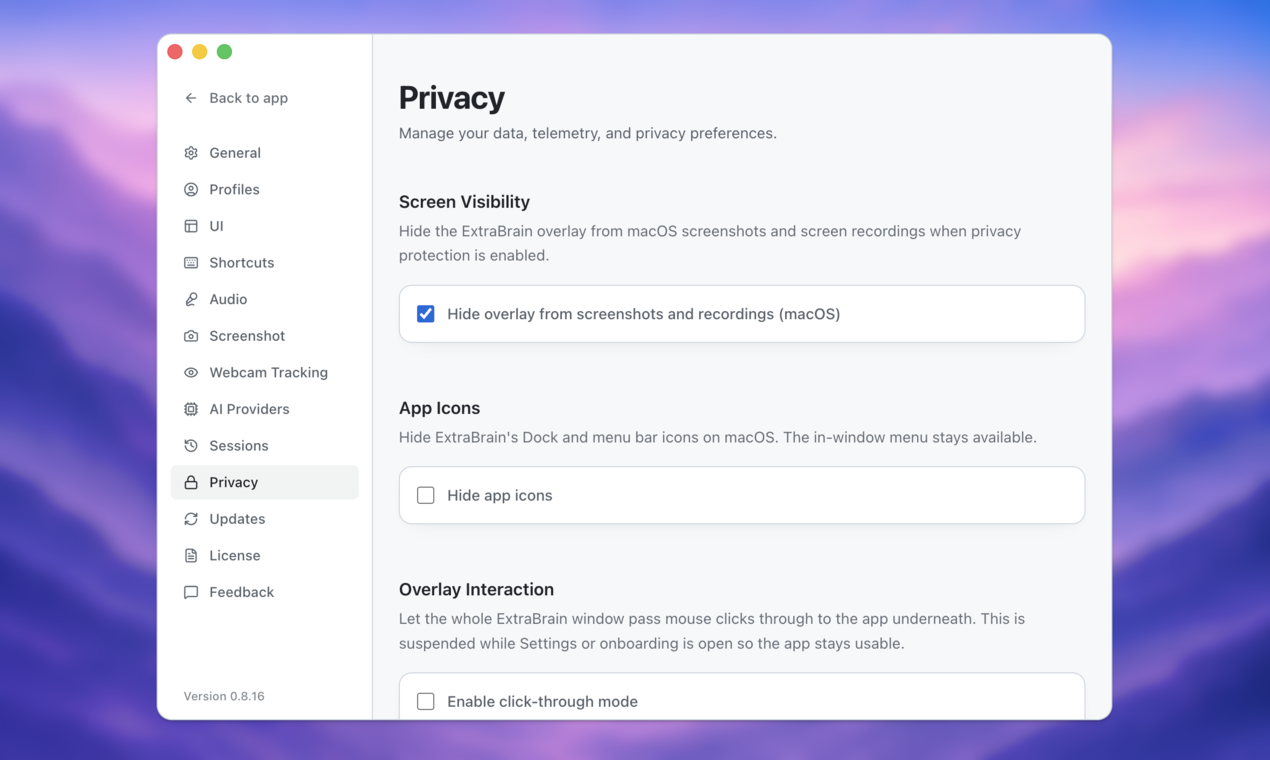
Open Settings -> Privacy to control visibility and telemetry settings.
Available controls include:
- Screenshot protection.
- Hide from Dock and menu bar.
- Hide from tray where supported.
- Click-through mode.
- Hover action delay.
- Anonymous usage sharing.
Privacy controls affect local visibility and usage sharing. They do not change what may be sent to a cloud AI or transcription provider when you choose that provider and ask for analysis. For sensitive sessions, combine privacy controls with local Parakeet transcription and local Gemma 4 where installed and compatible.
How does ExtraBrain appear during screen sharing?
ExtraBrain is designed to stay hidden from screen sharing and screen recording on major meeting tools. That design goal does not replace your responsibility to follow the rules of your interview, employer, school, workplace, meeting, or platform.
Before important sessions, run a screen-share test with a second device or a trusted test meeting. Confirm what the other side sees, then decide whether your planned use is allowed and appropriate.
How do I change appearance, theme, opacity, and readability?
Open Settings -> UI. You can tune font size, opacity, appearance presets, tips, and code block theme.
For interviews and meetings, readability usually matters more than making the window faint. Choose a font size you can read quickly and a code theme that makes syntax easy to scan. Lower opacity only if it genuinely helps you keep the underlying context visible.
Can I hide or recover the ExtraBrain window?
Use the toggle window shortcut when you need to hide or show the app quickly. Use click-through mode when you want clicks to pass through the overlay. If click-through makes the app hard to interact with, use the toggle shortcut or reopen settings when possible.
Before relying on a hidden or click-through workflow, practice recovering the window. A privacy feature is only useful if you can confidently undo it under pressure.
Can I use my own AI models, APIs, or endpoints?
Yes, ExtraBrain is built around bring-your-own provider setup. Supported provider paths include OpenAI, Anthropic, custom OpenAI-compatible endpoints, Claude Subscription, Codex Subscription, and local Gemma 4 where installed and compatible.
A custom OpenAI-compatible endpoint can be useful when you already have an approved provider path, proxy, local gateway, or organization-managed model endpoint. Enter the base URL, API key, and model name in the relevant provider settings, then validate the connection before a live session.
Why can live answers feel slower than a normal chat app?
Live AI assistance has more steps than typing into a chat box. ExtraBrain may need to capture audio, transcribe speech, collect recent context, include screenshot-derived information, apply profile guidance, send a prompt to the selected provider, and wait for the provider response.
If answers feel slow, try this checklist:
- Check your network if you use a cloud provider.
- Confirm the provider account is valid and not rate limited.
- Use shorter prompts for live sessions.
- Ask for concise answers by default.
- Capture only the screen context that matters.
- Use local options where installed, compatible, and appropriate.
- Keep a backup provider path ready for important calls.
Do not optimize only for speed. In interviews, a slightly slower but better-structured hint can be more useful than a fast answer that misses the point.
How do I view old chats and session history?
ExtraBrain keeps local session history unless you delete it. Session history can include transcripts, analyses, screenshots, facts, and entries depending on the session and settings.
Use history for post-interview review, follow-up notes, personal improvement, and remembering what questions came up. Delete sessions you do not want to keep, especially after sensitive interviews, customer calls, school work, or workplace meetings.
Can ExtraBrain be used for other interview types?
Yes. ExtraBrain can support coding interviews, system design interviews, behavioral interviews, product interviews, customer calls, lectures, and research meetings.
The key is choosing the right profile and guidance. For coding, prioritize constraints, edge cases, complexity, and explanation. For system design, prioritize requirements, architecture, bottlenecks, reliability, and tradeoffs. For behavioral rounds, prioritize honest STAR structure and your real experience. For meetings, prioritize decisions, risks, open questions, and action items.
What should I test before an online assessment?
Only use ExtraBrain in assessments where the rules allow it. If AI assistance, screen capture, transcription, notes, or external tools are prohibited, do not use it.
If use is allowed, test these items before the timer starts:
- Provider connection.
- Transcription quality.
- Screenshot capture.
- Shortcut conflicts.
- Profile selection.
- Prompt guidance.
- Privacy controls.
- Session history settings.
- Recovery from hidden or click-through mode.
Never configure core settings after the assessment begins unless the platform and rules clearly allow that behavior.
What should I do if ExtraBrain gives weak or generic answers?
Improve the context before switching everything else. Generic answers usually come from generic prompts, missing transcript context, missing screen context, or the wrong profile.
Try this sequence:
- Add your role and session goal in Settings -> General.
- Pin the correct profile.
- Capture relevant screen context.
- Ask a more specific question.
- Request the answer format you need.
- Use a custom profile if you need reusable guidance.
- Switch provider only after the context and prompt are clear.
For example, instead of asking “What should I say?”, ask “Give me a concise STAR outline using only facts from my context and the current transcript.” For coding, instead of asking “Solve this”, ask “Identify the pattern, propose the approach, list edge cases, and give complexity before code.”
Final setup advice
Configure ExtraBrain like a live workflow, not like a one-time chatbot. Your provider, profile, prompt, shortcuts, screenshot mode, audio device, privacy controls, and display preferences all affect how useful it feels under pressure.
The best setup is the one you have already tested. Run a short practice session, review what ExtraBrain captured, refine your guidance, and confirm that your planned use is allowed before the real interview or meeting begins.