
ExtraBrain Blog
How to Cheat on Quilgo in 2026: AI Help, Proctoring, and Risk

Quilgo proctoring tracks webcams, screens, tabs, and behavior. Learn the risks of AI help and how to use ExtraBrain only where allowed.
People search for how to cheat on Quilgo because remote assessments can feel artificial, high pressure, and heavily monitored. The more useful question is what Quilgo can observe, what kinds of AI help create obvious risk, and how to use an interview copilot only when the interviewer, employer, school, or platform rules allow it.
ExtraBrain is a free, local-first desktop AI interview assistant and meeting copilot for Mac. It can help with live transcription, screen-aware context, answer outlines, STAR structures, coding explanations, system design tradeoffs, meeting notes, and post-session review. It should be used only where AI assistance, transcription, screenshots, and notes are allowed.
This guide keeps the practical Quilgo context candidates care about: webcams, screen sharing, tab monitoring, AI pattern detection, setup, risk management, and what to do before a live interview. It does not treat proctoring rules as decoration. If the assessment says no outside assistance, the only durable advice is to practice, prepare, and avoid using outside assistance during the test.
How Quilgo Proctoring Works
Quilgo is commonly used for online tests, quizzes, hiring screens, and timed assessments. Its value for recruiters and educators is that it combines assessment delivery with proctoring signals that can be reviewed after the session.
Quilgo Main Features Overview
Quilgo is designed to make remote testing easier to create, distribute, monitor, and review. The exact configuration depends on the organization running the assessment, so candidates should read the instructions for the specific test rather than assuming every Quilgo session behaves the same way.
- Custom assessment builder: Recruiters and educators can create tests, quizzes, forms, and interview-style assessments.
- Question generation and reuse: Teams can build question sets from existing material, topic prompts, or internal content.
- Timers and deadlines: Assessments can have strict time limits, section timing, auto-submit behavior, and closing windows.
- Integrations: Quilgo can be used alongside tools such as Google Forms, Google Classroom, and Moodle, depending on the organizer setup.
- Reporting: Administrators may review scores, timestamps, activity signals, and session notes after the assessment.
- Branding: Organizations can customize assessment presentation with logos, colors, and text.
The practical takeaway is simple. Quilgo is not just a question page. It is usually part question delivery, part timing system, part monitoring layer, and part evidence trail.
Quilgo Anti-Cheating Signals Candidates Should Understand
Most candidate mistakes come from treating a proctored assessment like an ordinary browser tab. That is the wrong mental model.
Webcam and Screen Sharing
Quilgo sessions may require webcam access, screen sharing, or both. When webcam monitoring is enabled, the assessment organizer can look for missing video, multiple faces, suspicious movement, off-screen attention, or environmental changes. When screen sharing or screen recording is enabled, the organizer can review what appeared on the screen during the test.
Some assessments may also ask for a second camera angle. That can mean a phone or secondary device is used to show the desk, keyboard, monitor, room, or surrounding workspace. If a second camera is required, hidden notes, extra devices, or a separate answer screen become much more likely to create a visible policy problem.
| Feature | What It Means For Candidates |
|---|---|
| Webcam monitoring | The session may be reviewed for face visibility, gaze changes, room movement, and interruptions. |
| Screen sharing | The organizer may see the browser, desktop, windows, notifications, and visible apps. |
| Secure environment settings | Some sessions may restrict tabs, apps, copy-paste behavior, or browser activity. |
| Session reports | Activity signals can be reviewed after the assessment instead of being shown to the candidate live. |
| Secondary camera support | A second device may be used to verify the room, desk, and surrounding setup. |
For permitted note-taking or accessibility workflows, keep the setup explicit. Ask before the interview whether notes, transcription, AI assistance, extra monitors, external keyboards, or another device are allowed. That one question prevents a lot of ambiguity.
Browser and Active Tab Detection
Quilgo-style proctoring is often focused on browser behavior. Tab switches, new windows, unusual page focus changes, copy-paste patterns, and screen activity can all become reviewable signals when the organizer has enabled those settings.
That is why browser-based AI assistants, hidden tabs, search windows, and extension-heavy setups are risky in restricted assessments. Even if something is not blocked in real time, it may still appear in logs or screen review later.
Quilgo assessments may look for patterns such as:
- Tab switching during a timed section.
- Opening unrelated websites or documents.
- Using unauthorized browser extensions.
- Moving between windows while a question is active.
- Copying text from another app into the answer field.
- Multiple faces or unexplained attention shifts on camera.
- Screen recording evidence that contradicts the assessment rules.
If AI assistance is allowed, use the simplest permitted workflow. If AI assistance is not allowed, do not use an AI assistant during the assessment.
AI Pattern Analysis and Trust Scores
Many proctoring tools aggregate signals into a session score, trust score, or incident list. That score may combine camera events, screen switches, timing patterns, response changes, and unusual interaction behavior.
The candidate may not see these alerts during the session. That can create a false sense of safety because the test appears normal while evidence is being collected in the background.
Common review signals include:
- Very fast answers to complex questions.
- Long silence followed by a polished answer pasted at once.
- Repeated gaze shifts away from the assessment.
- Browser behavior that does not match the visible task.
- Extension behavior or overlays that conflict with the assessment policy.
- Coding answers that appear complete without visible reasoning steps.
This does not mean every flag proves cheating. False positives happen. It does mean candidates should treat proctored environments as evidence-producing environments.
Using ExtraBrain Responsibly With Quilgo Context
ExtraBrain is useful for interview preparation, live meetings, allowed interview assistance, mock interviews, and post-interview review. The right use depends on the rules of the specific Quilgo assessment.
Choosing the Right AI Workflow
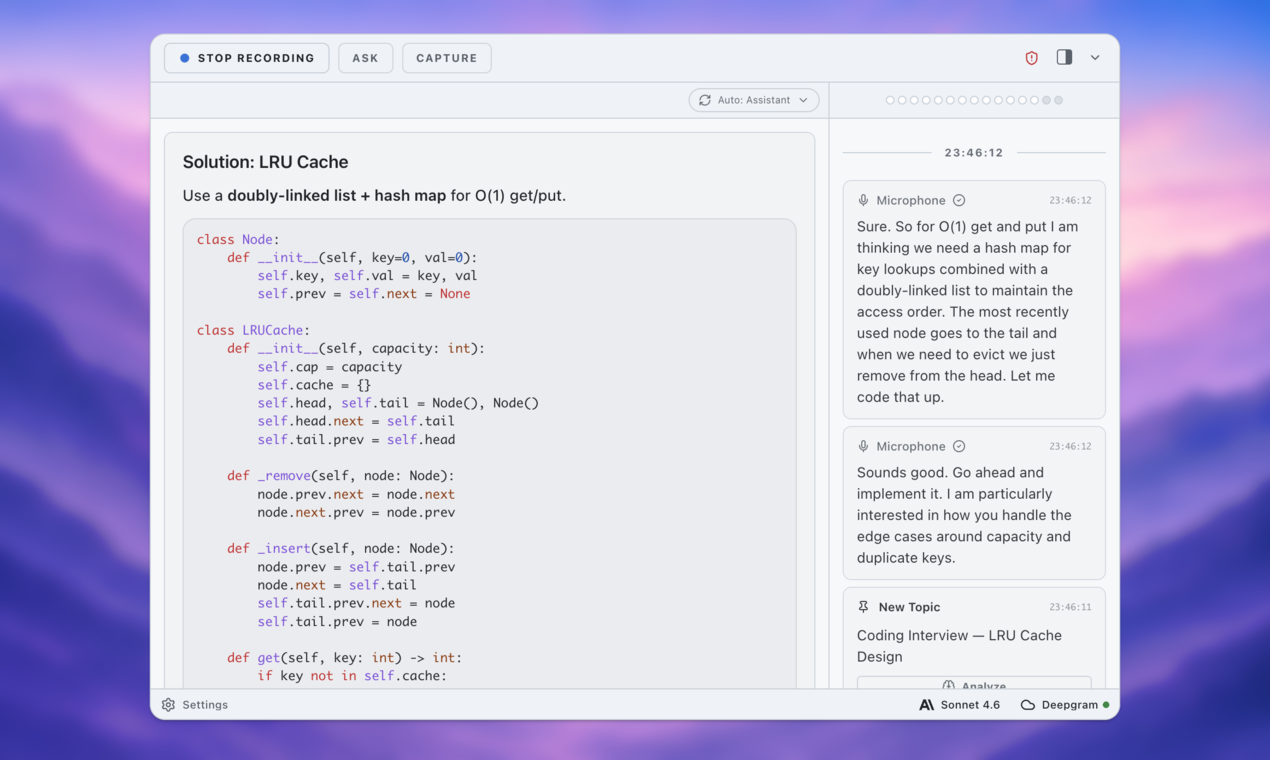
For Mac users, ExtraBrain is built as a desktop AI interview copilot rather than a browser extension. It supports live transcription, screen-aware context, local-first options, bring-your-own AI providers, and review workflows.
ExtraBrain can help generate answer outlines, STAR structures, technical explanations, and follow-up questions from live transcript and screen context. That does not make every use acceptable. Candidates remain responsible for honest and allowed use.
Use ExtraBrain before a restricted Quilgo assessment for:
- Practicing likely questions from the job description.
- Turning a resume into concise accomplishment stories.
- Running mock behavioral interviews.
- Rehearsing system design tradeoffs aloud.
- Reviewing past interview transcripts and identifying weak answers.
- Creating a study plan from topics that felt shaky.
Use ExtraBrain during a Quilgo assessment only if the rules allow the relevant workflow. That includes AI assistance, transcription, screenshots, notes, screen context, and external provider use.
Local-First Privacy Controls
ExtraBrain is local-first and available for macOS today, including Apple Silicon and Intel Macs. Windows and Linux are planned future platforms.
A fully local ExtraBrain posture requires local Parakeet transcription plus local Gemma 4 on-device AI where installed and compatible, with no external provider requests. External providers may receive selected prompts, transcript text, screenshots, audio, or context depending on configuration.
That distinction matters in interviews, assessments, school contexts, and workplace meetings. Privacy is not just about whether a tool is visible on screen. It is also about where audio, screenshots, prompts, transcript text, and generated answers are processed.
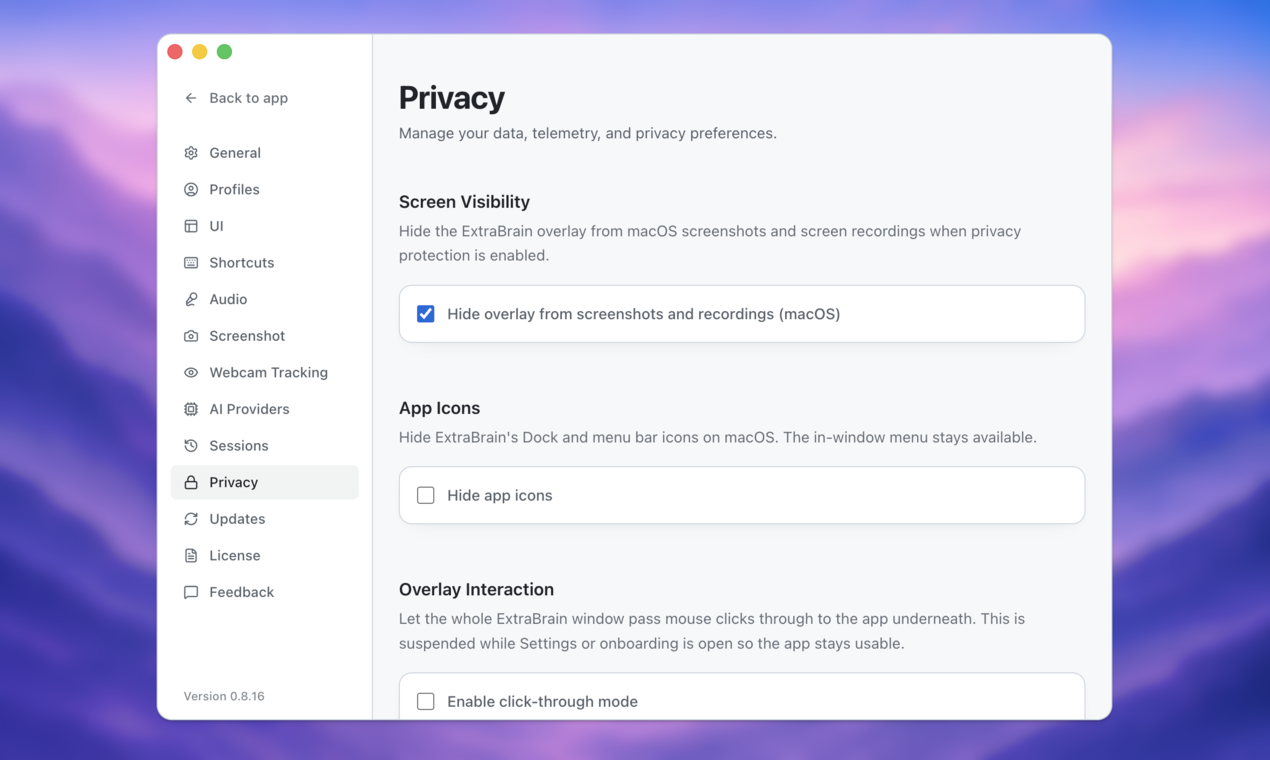
ExtraBrain is designed to stay hidden from screen sharing and screen recording on major meeting tools, while users remain responsible for following all rules. Treat that as a privacy and workflow feature, not permission to violate an assessment policy.
Setting Up the Space
The physical environment is still one of the biggest sources of avoidable risk. A cluttered desk, poor lighting, visible devices, or constant notification movement can create suspicion even when there is no misconduct.
Before a Quilgo interview or assessment:
- Use a quiet room.
- Put the webcam at eye level.
- Choose a neutral background.
- Remove unrelated notes and devices from view.
- Disable notifications on the Mac and phone.
- Close unnecessary apps and browser tabs.
- Confirm whether extra monitors are allowed.
- Confirm whether transcription, notes, or AI assistance are allowed.
If the organizer requires a second camera, set it up before the start time and check exactly what it shows. Do not improvise with visible notes, messaging apps, or extra devices in the frame.
Testing Before the Interview
The best time to discover a configuration problem is before the live assessment. Testing does not mean finding loopholes. It means making sure allowed tools, audio, camera, internet, permissions, and privacy settings behave predictably.
Run a mock setup using the same Mac, browser, camera, microphone, room, and network you plan to use. If the assessment instructions mention screen sharing, camera access, browser restrictions, or a second device, test those pieces early.
For an allowed ExtraBrain workflow, check:
- Microphone access.
- Transcription behavior.
- Screen context permissions.
- Selected AI provider settings.
- Local Gemma 4 availability where installed and compatible.
- Local Parakeet transcription if you want a local transcription posture.
- Whether any external provider may receive prompts, transcript text, screenshots, audio, or context.
For a restricted Quilgo workflow, the test should lead to a simpler setup. Close anything not permitted. Use the practice time to rehearse the material instead of relying on live assistance.
Real-Time Execution and Risk Management
During a live Quilgo assessment, the main objective is to follow the rules and keep your behavior consistent with normal test taking. Most problems come from panic, improvisation, and hidden workflows that do not match the instructions.
A Responsible Live Routine
A clean routine is better than a complicated one. Use this version when AI assistance or notes are allowed, and remove any step that the rules do not allow.
- Open the assessment early enough to verify camera, microphone, browser, and login status.
- Keep only permitted apps, documents, and tools open.
- Confirm that notifications are disabled.
- Keep your phone silent and away unless the assessment requires it as a second camera.
- Read each question fully before answering.
- Think aloud when the format expects reasoning, especially in live technical interviews.
- Use allowed AI help as a way to structure thinking, not as a substitute for understanding.
- Add your own judgment, examples, constraints, and tradeoffs before giving the final answer.
For coding prompts, write the logic in a human sequence. Clarify assumptions, sketch the approach, handle edge cases, then implement. Even when using an allowed assistant during practice or an open-resource interview, blindly pasting a complete answer usually produces worse signal than explaining how you reason.
Handling Alerts, Suspicion, and Odd Requests
Quilgo may not show candidates every flag or warning that administrators can review later. An interviewer or proctor may still ask you to adjust the camera, share the screen again, move a second camera, close a tab, or show the room.
Stay calm and follow reasonable instructions that are part of the assessment process. If a request conflicts with privacy, accessibility, workplace policy, or a documented accommodation, state that clearly and ask for the approved path.
Do not invent a story after the fact. If you need notes, a screen reader, an accessibility tool, transcription, or AI assistance, get that permission before the assessment starts.
| Signal | Better Candidate Response |
|---|---|
| Camera adjustment request | Adjust the camera without rushing and keep the desk area clean. |
| Screen share request | Share only the permitted screen or window according to the instructions. |
| Tab switch question | Explain the allowed reason if there is one, otherwise avoid switching tabs. |
| Second camera setup | Place the device where the organizer requested and keep unrelated material out of frame. |
| Timing concern | Explain your reasoning process instead of submitting polished answers with no visible work. |
Minimizing Risk Without Crossing Lines
The lowest-risk path is not a secret bypass. It is matching your setup to the rules and practicing until you can perform without scrambling.
If an interview allows AI help, use it in a way that still leaves you accountable for the answer. Ask for an outline, compare tradeoffs, request a checklist, or use it to remember a relevant story from your resume. Then answer in your own words.
If an assessment forbids AI help, use ExtraBrain before and after the session instead. Before the session, practice likely questions and review weak spots. After the session, debrief what went well, what felt hard, and what to improve for the next round.
That approach is more durable than trying to hide a browser extension, virtual machine, second device, or pasted answer stream. It also helps you avoid the bigger problem: passing a screen and then failing when the onsite, pair-programming, or follow-up round expects the same skill live.
FAQ
What can job seekers do to avoid being caught by Quilgo?
Follow the assessment rules, keep the device setup clean, and do not use unauthorized tools. If AI assistance is allowed, keep the workflow simple, documented, and consistent with the instructions. If AI assistance is not allowed, use ExtraBrain for preparation and post-interview review instead of during the assessment.
Can candidates use a phone during a Quilgo interview?
Only use a phone if the organizer allows it or requires it as a second camera. Otherwise, keep the phone silent and away from the desk. Phones create obvious risk because they can look like off-screen assistance even when the candidate is not cheating.
What should I do if Quilgo flags me?
Stay factual. Ask what signal was flagged, explain any permitted tool or accessibility setup, and provide documentation if you had prior approval. Do not claim that unauthorized assistance was allowed after the fact.
Is it safe to use browser extensions during a Quilgo assessment?
Browser extensions are risky in proctored assessments because they can interact with tabs, page focus, overlays, copy-paste behavior, and visible browser state. Use only extensions that the assessment rules allow. When in doubt, disable them before the test.
Is ExtraBrain an AI second brain for interviews?
ExtraBrain can work as a focused AI second brain for interviews and meetings. It gives candidates a second-brain-style workspace for live sessions, transcripts, notes, screen context, and review, but it is not a broad replacement for general note-taking databases.
What platforms does ExtraBrain support?
ExtraBrain is available for macOS today, including Apple Silicon and Intel Macs. Windows and Linux are planned future platforms.
Can ExtraBrain run fully local?
A fully local ExtraBrain posture requires local Parakeet transcription plus local Gemma 4 on-device AI where installed and compatible, with no external provider requests. External providers may receive selected prompts, transcript text, screenshots, audio, or context depending on configuration.