
ExtraBrain Blog
Invisible AI for iMocha Tests: A Responsible Candidate Guide

Learn how iMocha proctoring works, what red flags to avoid, and how to use ExtraBrain responsibly for preparation and allowed support.
People searching for how to get invisible AI for an iMocha test are usually trying to solve a practical problem. They have a timed assessment, a browser-based workflow, a webcam check, screen monitoring, and real anxiety about making one suspicious move.
The useful answer is not to hide rule-breaking. The useful answer is to understand how iMocha-style proctoring works, avoid accidental red flags, prepare honestly, and use AI only where the employer, school, recruiter, assessment owner, or platform rules allow it.
ExtraBrain is a free, local-first desktop AI interview assistant and meeting copilot for Mac. It can help with live transcription, screen-aware context, coding interview reasoning, system design structure, behavioral answer outlines, meeting notes, and post-session review. It should be used only where interview, employer, school, workplace, meeting, and platform rules allow AI assistance, transcription, screenshots, or notes.

Key Takeaways
- iMocha assessments may include webcam monitoring, screen activity checks, identity verification, copy-paste restrictions, full-screen enforcement, and tab-switch detection.
- The safest preparation plan is a clean room, stable device, reliable internet, tested webcam, tested microphone, and no unauthorized apps or devices.
- ExtraBrain can support iMocha preparation before the assessment and live sessions only when AI assistance, transcription, screenshots, or notes are allowed.
- Browser-tab AI tools can create obvious workflow risks because tab switching and focus loss are common proctoring signals.
- Privacy matters because transcripts, screenshots, prompts, audio, and context may stay local only when you configure a fully local posture with supported local components.
iMocha AI Proctoring Explained
Monitoring Features Overview
iMocha is used by employers and assessment teams for online screening, technical tests, role-specific evaluations, and remote candidate assessments. The exact setup can vary by company, role, test template, and proctoring configuration.
Candidates should treat an iMocha test as a monitored environment. That means your browser behavior, webcam feed, screen activity, identity checks, and testing rules may all matter.
Common monitoring areas include:
- Webcam and face visibility checks
- Audio, video, or image-based proctoring
- Screen activity monitoring
- Full-screen or window focus tracking
- Tab switching and browser focus changes
- Copy-paste restrictions
- Candidate ID or identity verification
- Randomized question and answer ordering
- IP, location, or device policy checks
This does not mean every iMocha assessment uses every control. It does mean you should read the instructions carefully before assuming an outside tool, second screen, browser extension, notes workflow, or AI assistant is allowed.
What Triggers iMocha Detection
Most proctoring issues come from behavior that looks inconsistent with normal test taking. Some flags are obvious, such as leaving full-screen mode when the instructions say not to. Others are softer signals, such as long inactivity, repeated glances away from the screen, unusual typing patterns, or sudden changes in answer style.
| Possible Signal | Why It Can Matter |
|---|---|
| Webcam anomaly | The system or reviewer may not be able to confirm face visibility, environment consistency, or identity. |
| Screen activity change | Moving away from the assessment can suggest unauthorized research or outside help. |
| Tab switching | Browser focus changes are easy for many assessment tools to detect. |
| Inactivity | Long pauses may look like waiting for external assistance or searching elsewhere. |
| Copy-paste behavior | Large pasted blocks can look inconsistent with genuine live problem solving. |
| Behavioral anomaly | Sudden changes in typing speed, vocabulary, or response rhythm can invite review. |
| Policy violation | Unauthorized devices, helpers, extensions, or notes may violate the assessment rules. |
The practical goal is to avoid accidental suspicion, not to defeat the system. If a rule says no outside help, no AI, no notes, no second screen, or no browser switching, follow that rule.
Full-Screen and Tab Tracking
Many online assessment workflows care about full-screen mode and browser focus. If the test warns you not to leave the window, treat that as a hard rule.
Browser-tab AI tools can be risky in this environment because they often require copying prompts, switching tabs, opening extensions, or moving between windows. Even when the intent is legitimate study support, the workflow can look the same as unauthorized help during a live proctored assessment.
That is why a desktop AI interview copilot is usually a better fit for preparation workflows than a tab-based assistant. ExtraBrain runs as a Mac desktop app and is built around live transcription, screen-aware context, and post-session review. It is designed to stay hidden from screen sharing and screen recording on major meeting tools, but users remain responsible for following all assessment, employer, school, workplace, meeting, and platform rules.
Preparing for an iMocha Test
Safe Environment Setup
Before an iMocha assessment, set up the room as if a human reviewer will inspect the recording afterward. That mindset prevents avoidable problems.
Use this checklist before the test starts:
- Choose a quiet room with a neutral background.
- Close doors and windows to reduce background noise.
- Use even lighting so your face is clearly visible.
- Keep only allowed materials on the desk.
- Remove extra phones, tablets, watches, notebooks, and devices unless the instructions explicitly allow them.
- Close unrelated apps, browser tabs, notifications, and messaging tools.
- Confirm that your webcam, microphone, keyboard, and trackpad work.
- Check the assessment rules for AI, notes, calculators, external monitors, browser extensions, and accommodations.
If you plan to use ExtraBrain for preparation, keep that work outside the live assessment unless the rules allow AI support. For example, you can use it before the test to rehearse technical explanations, practice behavioral stories, review a mock transcript, or identify weak areas.
Hardware and Software Choices
The boring setup is usually the strongest setup. A stable laptop, a reliable internet connection, a working camera, and a clean browser profile reduce the chance that normal technical friction looks suspicious.
Before the assessment, test:
- Your internet connection
- Your camera framing and lighting
- Your microphone input level
- Your browser compatibility
- Your keyboard and typing comfort
- Your power connection
- Your ability to enter and stay in full-screen mode
Avoid unnecessary complexity. External monitors, remote desktops, virtual machines, browser extensions, screen mirrors, and companion devices can create policy and detection risk. Use them only if the assessment instructions explicitly allow them.
ExtraBrain Preparation Workflow
ExtraBrain is most useful before the iMocha test when you want to prepare under realistic conditions. It can help you practice coding explanations, system design tradeoffs, behavioral answer structure, and role-specific reasoning.
Strong preparation prompts include:
- “Turn this job description into likely assessment topics and practice questions.”
- “Ask me one coding interview question at a time and wait for my explanation.”
- “Review my spoken answer for clarity, correctness, and missing edge cases.”
- “Help me turn this project into a concise STAR interview answer.”
- “Explain the tradeoffs in my solution without giving me a script to memorize.”
- “Create a weak-area checklist from this practice transcript.”
This is a better use of AI than trying to manufacture live answers during a restricted test. It strengthens your own reasoning so you can perform cleanly when outside help is not allowed.
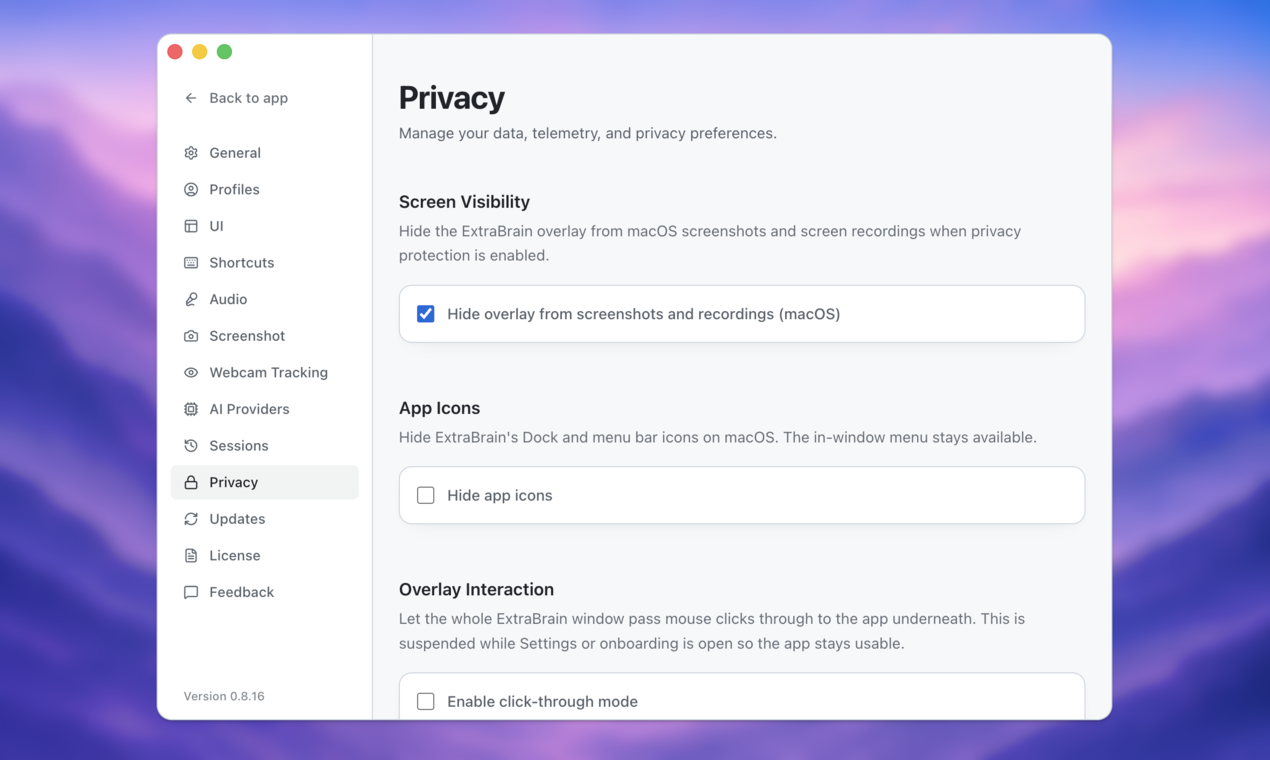
Privacy and Provider Settings
Assessment prep often includes sensitive information. You may have a job description, a recruiter email, practice questions, personal notes, code snippets, or recordings of your own answers.
ExtraBrain gives you privacy controls and local-first options. A fully local posture requires local Parakeet transcription plus local Gemma 4 on-device AI where installed and compatible, with no external provider requests. If you choose an external provider, selected prompts, transcript text, screenshots, audio, or context may leave your device depending on configuration.
Choose settings deliberately. Use local options when you want the strongest privacy posture available in your environment. Use external providers only when the rules, data sensitivity, and your own comfort level allow it.
Real-Time iMocha Test Considerations
Allowed AI Support
Some assessments may allow notes, calculators, documentation, screen sharing, accessibility tools, or AI assistance. Others prohibit all outside help. The difference matters.
If AI support is allowed, get the permission in writing or rely on the assessment instructions that clearly allow it. Then keep your setup simple and aligned with the permitted workflow.
Allowed use might include:
- Taking notes during an interview when note-taking is permitted
- Using transcription in a meeting where participants have allowed transcription
- Reviewing a shared prompt or code discussion during an allowed interview format
- Asking for clarification prompts, answer structure, or follow-up questions when the interviewer permits AI assistance
Do not assume that “the app is invisible” means “the use is allowed.” Invisible screen behavior is a privacy and presentation feature, not permission to violate assessment rules.
Virtual Machines, Mirroring, and Second Screens
People often discuss virtual machines, screen mirroring, remote access, and extra monitors when they talk about iMocha test shortcuts. Those methods create serious rule, trust, and detection risks.
Here is the responsible way to think about them:
| Method | Why People Consider It | Responsible Assessment View |
|---|---|---|
| Virtual machine | It can separate one computing environment from another. | Use only if the assessment platform permits it, because many test rules require a normal device environment. |
| Multiple monitors | They can make notes or references easier to see. | Disconnect them unless the rules explicitly allow extra screens. |
| Screen mirroring | It can show the test to another device or person. | Avoid it unless the assessment owner explicitly authorizes collaboration or shared viewing. |
| Remote desktop | It can route work through another machine. | Treat it as prohibited unless written rules say otherwise. |
| Browser extensions | They can summarize, translate, or assist with input. | Disable them unless the platform permits them. |
The cleanest iMocha setup is usually one computer, one browser, one webcam, one microphone, and no unauthorized extras.
Notes and Hidden Devices
Hidden notes, phones, smartwatches, earpieces, and off-camera devices are common examples in online cheating discussions. They are also exactly the kinds of things proctoring policies are designed to prevent.
Do not use hidden devices or off-camera notes in a closed assessment. If you need accommodations, ask the recruiter, employer, instructor, or assessment owner before the test. If the assessment allows notes, use them within the visible and written rules.
For preparation, replace hidden-note tactics with honest practice. Use ExtraBrain to turn your resume, study materials, practice transcript, or mock coding session into a compact review plan before the test begins.
Avoiding Detection and Pitfalls During iMocha Tests
Common Mistakes
Even honest candidates can trigger suspicion by looking unprepared or inconsistent. The fix is usually discipline, not a workaround.
Avoid these mistakes:
- Leaving full-screen mode after the assessment warns you not to
- Switching tabs during a restricted browser test
- Keeping unauthorized apps open in the background
- Letting notifications appear on screen
- Looking repeatedly toward another device or monitor
- Pausing for long periods without visible work
- Pasting large answer blocks into a response field
- Changing writing style suddenly from rough notes to polished final prose
- Adjusting or blocking the camera repeatedly
- Using tools that conflict with the assessment instructions
Typing behavior is worth practicing because proctored tests can make people tense. If you normally draft, edit, and correct as you go, keep that natural rhythm. Do not try to perform like someone else.
Handling AI Flags or Warnings
If the assessment shows a warning, respond calmly and follow the instructions. A full-screen warning usually means return to full-screen mode. An inactivity warning usually means resume work. A camera warning usually means fix lighting, framing, or face visibility.
Do not panic, open extra tools, or start improvising. If a live proctor contacts you, answer politely and explain technical issues directly. If something genuinely breaks, document what happened and contact the assessment owner as soon as possible.
| Flag Type | Best Response |
|---|---|
| Window violation | Return to the assessment window or full-screen mode immediately. |
| Camera issue | Recenter yourself, improve lighting, and keep your face visible. |
| Inactivity | Resume visible work or follow the prompt shown by the platform. |
| Typing anomaly | Slow down and answer naturally in your own words. |
| Device concern | Remove unauthorized devices from the room or follow the proctor’s instruction. |
| Technical failure | Report the issue through the official assessment channel. |
After the Test
After an iMocha assessment, close the test environment and save any allowed confirmation information. Do not delete evidence needed for support if you had a technical issue.
For your own improvement, write a short debrief while the experience is fresh. Capture what surprised you, which question types felt difficult, where you lost time, and what you should practice before the next assessment.
ExtraBrain can help after allowed practice sessions by reviewing transcripts, summarizing weak areas, and turning your notes into a focused study plan. That post-session review is often where AI provides the most value without crossing assessment boundaries.
Advanced 2026 iMocha Preparation Strategies
Use AI for Skill Building
The best advanced strategy is to make your real skill stronger before the test. AI is useful when it helps you practice the same reasoning you will need under pressure.
For coding assessments, practice:
- Reading the prompt carefully
- Restating assumptions
- Choosing a brute-force baseline
- Improving the algorithm
- Explaining time and space complexity
- Testing edge cases
- Debugging out loud
For behavioral or job-fit assessments, practice:
- Structuring answers with situation, task, action, and result
- Connecting stories to the role
- Explaining tradeoffs honestly
- Keeping answers concise
- Avoiding generic AI-sounding language
- Preparing follow-up details in case the reviewer asks
For system design or product reasoning, practice:
- Clarifying goals and constraints
- Naming users and use cases
- Identifying bottlenecks
- Describing data flow
- Explaining tradeoffs
- Choosing a simple starting architecture before scaling it
Build a Mock Assessment Loop
A realistic mock loop is more valuable than a folder of memorized answers. Use a timer, remove distractions, and simulate the pressure of the real test.
Try this loop:
- Pick one practice prompt that matches the role.
- Set a time limit.
- Answer without searching.
- Explain your reasoning out loud.
- Review the transcript or notes afterward.
- Identify one weak point.
- Repeat with a similar prompt two days later.
ExtraBrain can help you capture the practice session, analyze the answer, and generate follow-up drills. That workflow prepares you to perform better even when live AI help is not allowed.
Keep Answers Human
One reason candidates worry about iMocha proctoring is that AI-generated answers can sound too polished. A sudden shift from hesitant typing to perfect corporate prose may look unnatural, even aside from rule concerns.
Use AI to improve your thinking, not to erase your voice. Keep your examples specific. Mention real constraints. Use normal wording. Show the steps you considered. Admit uncertainty when appropriate.
That approach is stronger in interviews and assessments because it reflects real competence.
FAQ
Can I use ExtraBrain during an iMocha test?
Use ExtraBrain during an iMocha test only if the assessment, employer, school, recruiter, or platform rules allow AI assistance, transcription, screenshots, or notes. If the rules prohibit outside help, use ExtraBrain before or after the test for preparation and review instead.
Is ExtraBrain invisible on screen sharing?
ExtraBrain is designed to stay hidden from screen sharing and screen recording on major meeting tools. That feature supports privacy and clean presentation, but it does not override assessment rules or make prohibited assistance acceptable.
What is the safest way to prepare for iMocha with AI?
Use AI before the assessment to practice likely question types, review weak areas, improve explanations, and rehearse under time pressure. Do not rely on hidden devices, tab switching, remote helpers, or unauthorized live assistance during a restricted test.
Are virtual machines safe for iMocha assessments?
Do not use a virtual machine unless the assessment instructions explicitly allow it. Many proctored workflows expect a normal device and browser environment, and a virtual machine can create policy or compatibility problems.
Can I use my phone, smartwatch, or notes?
Use a phone, smartwatch, notes, calculator, documentation, or other reference material only if the assessment rules allow it. If you are unsure, ask the assessment owner before the test starts.
What should I do if iMocha flags me?
Stay calm and follow the on-screen instruction. Return to full-screen mode, fix camera visibility, resume activity, or contact support through the official channel if there is a real technical issue.
What platforms does ExtraBrain support?
ExtraBrain is available for macOS today, including Apple Silicon and Intel Macs. Windows and Linux are planned future platforms.
Can ExtraBrain run fully local?
A fully local ExtraBrain posture requires local Parakeet transcription plus local Gemma 4 on-device AI where installed and compatible, with no external provider requests. External providers may receive selected prompts, transcript text, screenshots, audio, or context depending on configuration.