
ExtraBrain Blog
TestDome AI Help in 2026 Without Risking Your Assessment

A practical 2026 guide to TestDome AI assistance, proctoring risks, cheating signals, and responsible ExtraBrain preparation.

Searches for “TestDome how to cheat” usually come from a stressful place. You may be facing a timed coding assessment, a job-specific skills test, webcam checks, screen monitoring, copy-paste restrictions, and a real opportunity attached to the result. It is understandable to wonder whether AI tools can help. It is also important to understand that using undisclosed AI during a restricted TestDome assessment can put your result, reputation, and job process at risk.
The safer question is how to use AI around TestDome without breaking the rules. ExtraBrain is a free, local-first desktop AI interview assistant and meeting copilot for Mac with live transcription, screen-aware context, local Gemma 4 on-device AI where installed and compatible, bring-your-own AI providers, and clear privacy controls. It can help with coding interview practice, system design rounds, behavioral answers, meeting notes, transcript review, and post-session learning. Use it only where the interview, employer, school, workplace, meeting, and platform rules allow AI assistance, transcription, screenshots, or notes.
This guide keeps the practical TestDome search intent intact. It explains what TestDome-style proctoring may watch for, why common cheating tactics create red flags, how AI answers can fail, and how to use ExtraBrain responsibly before an assessment or during a live session where assistance is explicitly allowed.
Key Takeaways
- TestDome assessments may restrict copy and paste, tab switching, DevTools, external help, second devices, and AI-generated answers depending on the employer configuration.
- Proctoring and review systems can look at behavior, timing, webcam signals, screen activity, answer originality, and whether you can explain the work afterward.
- Hidden AI use can fail even when the tool itself is not directly visible because the submitted answer may not match your normal reasoning, pace, or coding style.
- The strongest AI workflow is preparation, mock practice, answer review, and allowed live support, not undisclosed help during a closed assessment.
- ExtraBrain is useful for responsible interview preparation because it supports live transcription, screen-aware context, local-first options, provider control, and post-session review on Mac.
TestDome AI Detection And Cheating Policies
TestDome is used by employers to evaluate job-relevant skills. That can include coding, debugging, SQL, multiple-choice questions, business judgment, language skills, personality assessments, and role-specific work samples. The exact rules depend on how the company configures the test, so read the instructions for your specific assessment before starting.
Allowed And Forbidden Actions
Candidates often assume that all online assessments follow the same rules. They do not. Some TestDome tests may allow internet research. Others may limit the assessment to the test interface and explicitly ban AI tools, external help, copy and paste, or additional devices.
Here is a practical way to think about the risk areas.
| Action Type | Typical Risk | What To Do Instead |
|---|---|---|
| Copy and paste | May be blocked, logged, or treated as answer transfer. | Type your own work and practice solving without paste-based workflows. |
| AI-generated answers | Often forbidden in closed assessments. | Use AI for preparation unless the rules explicitly allow live assistance. |
| Online resources | May be allowed for documentation or forbidden entirely. | Confirm the test instructions before opening other sites. |
| Browser DevTools | Usually suspicious in a proctored assessment. | Avoid DevTools unless the instructions clearly permit them. |
| Second devices | Can create webcam, gaze, timing, and integrity concerns. | Keep the workspace clean and use only allowed materials. |
| Shared IP or outside help | Can trigger review if it suggests collaboration. | Take the assessment independently in a stable environment. |
If you are asking whether you can cheat on TestDome with AI, the honest answer is that the risk is not just technical detection. The larger risk is a mismatch between what the assessment permits and what your behavior shows.
How Proctoring Can Detect Problems
TestDome-style proctoring can involve several layers. An assessment may use browser restrictions, webcam snapshots, screen captures, copy-paste controls, focus tracking, identity checks, timing review, and manual reviewer playback. Not every assessment uses every feature, but candidates should assume the assessment owner can review more than the final score.
Suspicious events may include leaving the test window, using an unapproved app, repeatedly looking away, hearing another voice, showing another person on camera, making large answer changes without normal work in between, or submitting polished solutions that you cannot explain. AI review systems can flag moments for human review, and human reviewers can compare those moments with the submitted answer.
The cleanest way to reduce risk is not to search for a bypass. It is to prepare in a way that makes your real work calm, consistent, and explainable.
Copy-Paste And Online Resource Rules
Copy and paste restrictions exist because direct answer transfer is one of the easiest ways to undermine an assessment. Even if a platform allows limited web research, that does not mean it allows AI-generated answers, chatbots, shared solution banks, or remote helpers.
Treat the assessment instructions as the source of truth. If documentation is allowed, use only what is allowed. If outside help is not allowed, do not use outside help. If the instructions are unclear, ask the recruiter or assessment owner before the test starts.
This is where AI preparation is different from AI substitution. Practicing with AI beforehand can help you understand common problem types. Using AI to submit answers in a restricted assessment can become an integrity issue.
Choosing AI Tools Around TestDome
The right AI setup depends on when and why you are using it. For preparation, you want a tool that helps you learn the concepts, practice under pressure, and review mistakes. For a live assessment, you should only use AI if the assessment instructions explicitly permit it.
Safer AI Tool Options
ExtraBrain is built as a real-time AI interview assistant for Mac with live transcription, screen-aware context, coding and system design support, local-first options, bring-your-own AI providers, and post-interview review. That makes it useful for mock interviews, practice assessments, technical explanations, answer outlines, and debriefs after a session.
For example, before a TestDome-style coding assessment, you can use ExtraBrain to practice:
- Explaining a brute force solution before optimizing it.
- Listing edge cases for arrays, strings, maps, trees, graphs, SQL, and API tasks.
- Turning a rough coding approach into a spoken explanation.
- Comparing your answer with a cleaner alternative after the timer ends.
- Building STAR outlines for behavioral or role-specific prompts.
ExtraBrain can generate answer outlines, technical explanations, clarifying questions, and follow-up questions from live transcript and screen context. Candidates remain responsible for honest and allowed use.
Privacy And Provider Control
AI tools differ in how they handle data. External providers may receive selected prompts, transcript text, screenshots, audio, or context depending on configuration.
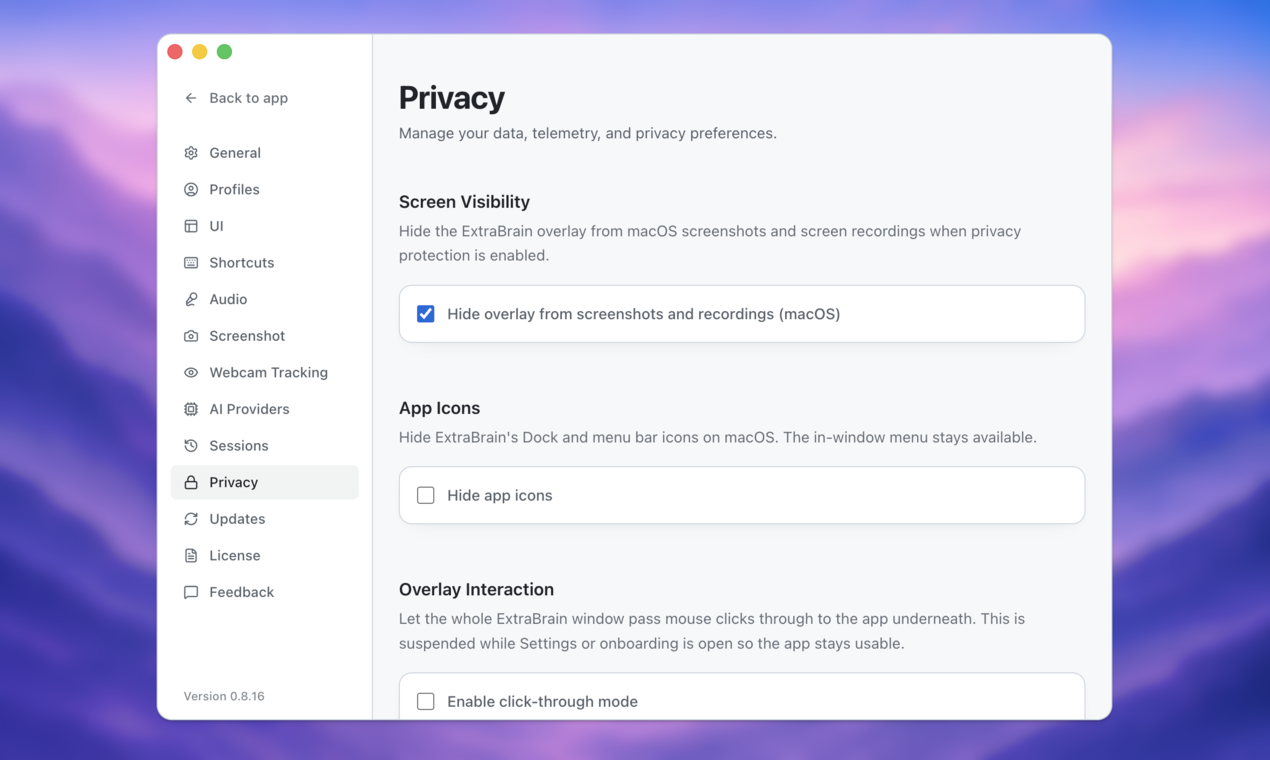
ExtraBrain supports local Parakeet transcription and local Gemma 4 on-device AI where installed and compatible. A fully local ExtraBrain posture requires local Parakeet transcription plus local Gemma 4 on-device AI where installed and compatible, with no external provider requests. Local Gemma 4 requires installation and compatible hardware and may not be available on every Mac or customer environment.
That matters when you are practicing with confidential interview material or workplace context. Use privacy controls deliberately, and do not upload assessment content to an external provider if the platform, employer, school, or workplace rules prohibit it.
Screen-Aware Context In Allowed Sessions
Some interviews and meetings permit transcription, notes, screen sharing, or AI support. In those cases, screen-aware context can reduce manual retyping and help the assistant understand the current prompt, code, diagram, or conversation.
ExtraBrain is designed to stay hidden from screen sharing and screen recording on major meeting tools, while users remain responsible for following all rules. That design is useful for privacy and focus in allowed interviews and meetings. It is not permission to use AI during a closed TestDome assessment that bans outside help.
Tools To Avoid During Restricted Assessments
Avoid any workflow that changes the integrity of a closed test. That includes remote helpers, screen-sharing bots, answer-sharing groups, clipboard automation, browser extensions that read the test page, scripts that interact with the assessment, and second-device answer lookups.
Also avoid building practice habits that depend on tools you will not be allowed to use. If your real assessment is closed-book, practice closed-book. If it allows documentation, practice with documentation but without turning every question into a chatbot prompt.
What Searches For TestDome How To Cheat Usually Miss
Many candidates focus on whether a tool can be seen. That is only one part of the problem. Proctored assessments also create behavioral evidence, answer evidence, and follow-up evidence.
Discreet Does Not Mean Allowed
A desktop AI assistant may be less visible than a browser tab. That does not make it allowed in every context.
If the rules ban AI assistance, the responsible choice is to use AI before or after the assessment, not during it. If the rules allow AI, keep the workflow simple, transparent, and consistent with the instructions.
Suspicious Patterns Matter
Even without seeing a specific AI window, reviewers may question patterns that do not look like normal problem solving. These can include:
- Long inactivity followed by a complete answer.
- Sudden use of advanced syntax or libraries that do not match your previous code.
- Perfect explanations that do not match your live reasoning.
- Repeated focus changes during a locked-down test.
- Copy-paste attempts in a test that blocks copy and paste.
- A final solution that works but cannot be explained under follow-up questioning.
The point is not to mimic natural behavior while breaking rules. The point is to build real skill so your behavior is natural.
AI Answers Can Be Too Polished
AI-generated answers often have a recognizable shape. They can jump directly to the optimal solution, overuse generic phrasing, skip the messy reasoning that humans normally show, or include code style that does not match your own habits.
That creates two problems. First, the answer may be wrong or incomplete. Second, even a correct answer can become risky if you cannot defend the tradeoffs, edge cases, time complexity, or implementation details.
During preparation, ask AI for outlines, critiques, and alternative explanations. Then close the tool and solve the problem again in your own words.
A Responsible ExtraBrain Workflow Before TestDome
The best use of AI around TestDome happens before the assessment. That is where you can practice hard, make mistakes, improve quickly, and avoid a live-session rules problem.
1. Recreate The Assessment Environment
Practice in a clean setup that resembles the real test. Use one monitor if the assessment allows one monitor. Close messaging apps, unrelated browser tabs, and notification-heavy tools. Use the same keyboard, editor style, and timing constraints you expect on assessment day.
This helps you learn the technical content and the operating conditions at the same time. You do not want the first proctored session to be the first time you discover that time pressure changes how you think.
2. Build A TestDome-Style Question Bank
Collect representative questions for the role. For software engineering, include arrays, strings, hash maps, sorting, recursion, trees, graphs, dynamic programming basics, SQL, debugging, and API reasoning. For data, operations, customer support, sales, or product roles, include spreadsheet logic, prioritization, written communication, role-play scenarios, and judgment prompts.
Use ExtraBrain or your chosen AI provider to turn each question into a learning loop. Ask for the core concept, common edge cases, an expected solution, a simpler explanation, and follow-up questions. Then solve it again without looking.
3. Practice Explaining Your Work
Many candidates can write code silently but struggle when asked to explain it. That matters because employers may review TestDome results in a follow-up interview.
For each practice problem, say the reasoning out loud:
- Restate the problem.
- Name the inputs and outputs.
- Describe the brute force approach.
- Explain the optimized approach.
- Call out edge cases.
- State time and space complexity.
- Explain one tradeoff.
ExtraBrain can help turn a rough transcript into cleaner notes after the practice session. Do not memorize the AI wording. Use it to sharpen your own explanation.
4. Review Mistakes After The Timer Ends
Timed practice should include review. After each session, ask what failed. Was the issue a missing edge case, a syntax mistake, a misunderstood prompt, a weak data structure choice, or panic under the clock?
ExtraBrain can help summarize what happened, organize missed concepts, and generate a retry plan. That turns a failed practice attempt into useful training data.
5. Decide What Is Allowed On Test Day
Before the real TestDome assessment, read the instructions slowly. Look for rules about AI tools, online resources, notes, IDEs, calculators, second monitors, copy and paste, browser tabs, screenshots, audio, webcam, and external communication.
If AI is allowed, keep your usage within those limits. If AI is not allowed, do not use it during the assessment. Use your preparation, your own reasoning, and the tools the test explicitly permits.
Common Pitfalls And Red Flags
Most TestDome problems with AI do not come from one dramatic moment. They come from small inconsistencies that add up.
Mistakes That Can Get Flagged
Candidates increase risk when they:
- Copy and paste large blocks of text or code.
- Submit polished answers immediately after long silent pauses.
- Switch tabs or windows repeatedly during a restricted test.
- Use a second device in a way that changes gaze and timing.
- Produce code that is far more advanced than their usual style.
- Use terminology they cannot explain in a follow-up conversation.
- Ignore stated rules because the tool appears technically hidden.
A good preparation process reduces these risks because you no longer need a live shortcut. You have practiced the concepts and the explanation.
Possible Signs Of A Review Event
Different assessment configurations behave differently, but candidates may notice signs that the session is under review or has hit a rule boundary.
| Possible Signal | What It May Mean |
|---|---|
| Warning message | The platform detected behavior that may violate instructions. |
| Forced webcam check | The proctoring setup needs to re-confirm identity or environment. |
| Screen or browser prompt | The test detected a focus, permission, or compatibility issue. |
| Locked question | The assessment rules prevent returning to a prior answer. |
| Recruiter follow-up | The employer wants clarification about behavior, timing, or solution quality. |
If something happens, stay calm. Finish the assessment honestly, follow the platform instructions, and respond truthfully if the employer asks for clarification.
What To Do If You Broke A Rule
Do not invent a technical excuse. Do not delete evidence or argue with the platform. If contacted, explain what happened clearly and accept the consequence.
The better long-term move is to reset your preparation process. Use AI for practice, review, and allowed support. Do not use it to misrepresent your independent ability in a restricted assessment.
Ethics And Smarter Alternatives
Cheating is not just a detection problem. It can damage trust with an employer, create an unfair comparison with other candidates, and place you in a role where you cannot perform confidently.
AI can still be valuable when used responsibly. The goal is to make your real ability easier to access under pressure.
Use AI For Preparation
Before a TestDome assessment, use AI to:
- Learn the format and likely question categories.
- Practice coding and debugging under a timer.
- Generate edge-case checklists.
- Improve plain-English explanations.
- Build behavioral answer outlines from your real experience.
- Review practice transcripts and identify weak spots.
This is where ExtraBrain fits naturally. It can act as a focused AI second brain for interviews and meetings: a workspace for live sessions, transcripts, notes, screen context, and review.
Build Real Skills
The strongest candidates do not need perfect memorized answers. They need reliable reasoning habits.
For coding assessments, practice reading constraints, choosing data structures, testing edge cases, and explaining complexity. For job-simulation assessments, practice prioritizing tradeoffs and writing concise explanations. For behavioral assessments, practice specific stories that show judgment, ownership, conflict resolution, and learning.
AI can accelerate this work, but it cannot replace it.
Know ExtraBrain’s Role
ExtraBrain is available for macOS today, including Apple Silicon and Intel Macs. Windows and Linux are planned future platforms. The core Mac app is free, with ExtraBrain Pro available as a paid upgrade.
Use ExtraBrain where it is allowed and useful: mock interviews, practice calls, allowed live interviews, meetings, lectures, research calls, and post-session review. For restricted TestDome assessments, use it before and after the test unless the assessment instructions explicitly allow AI assistance.
FAQ
Can I Use ChatGPT During A TestDome Assessment?
Only if the specific assessment instructions allow it. Many closed assessments ban AI-generated answers or outside help. If the rules do not allow ChatGPT or similar AI tools, do not use them during the live test.
Will TestDome Know If I Use A Second Device?
The platform may not directly see every object in your room, but second-device use can still create suspicious behavior. Repeated looking away, long pauses, sudden answer changes, and inconsistent explanations can all create review risk. Use only permitted materials.
Is ExtraBrain Detectable During A TestDome Interview?
ExtraBrain is designed to stay hidden from screen sharing and screen recording on major meeting tools. That privacy-focused behavior does not override TestDome, employer, school, or workplace rules. Use ExtraBrain during a TestDome session only if AI assistance, transcription, screenshots, or notes are allowed.
How Can I Prepare For TestDome With ExtraBrain?
Use ExtraBrain before the assessment to run mock practice, generate edge-case lists, explain coding tradeoffs, structure behavioral answers, and review your mistakes. After each practice session, turn the transcript into a short retry plan. Then solve the same problem again without relying on AI.
What If The Test Allows Online Resources But Not AI?
Follow that distinction. Documentation, web search, calculators, notes, and AI tools are different categories. If the instructions allow documentation but ban AI, use documentation only.