
ExtraBrain Blog
Does Proctorio Detect AI? What Its Help Center Says
Short answer
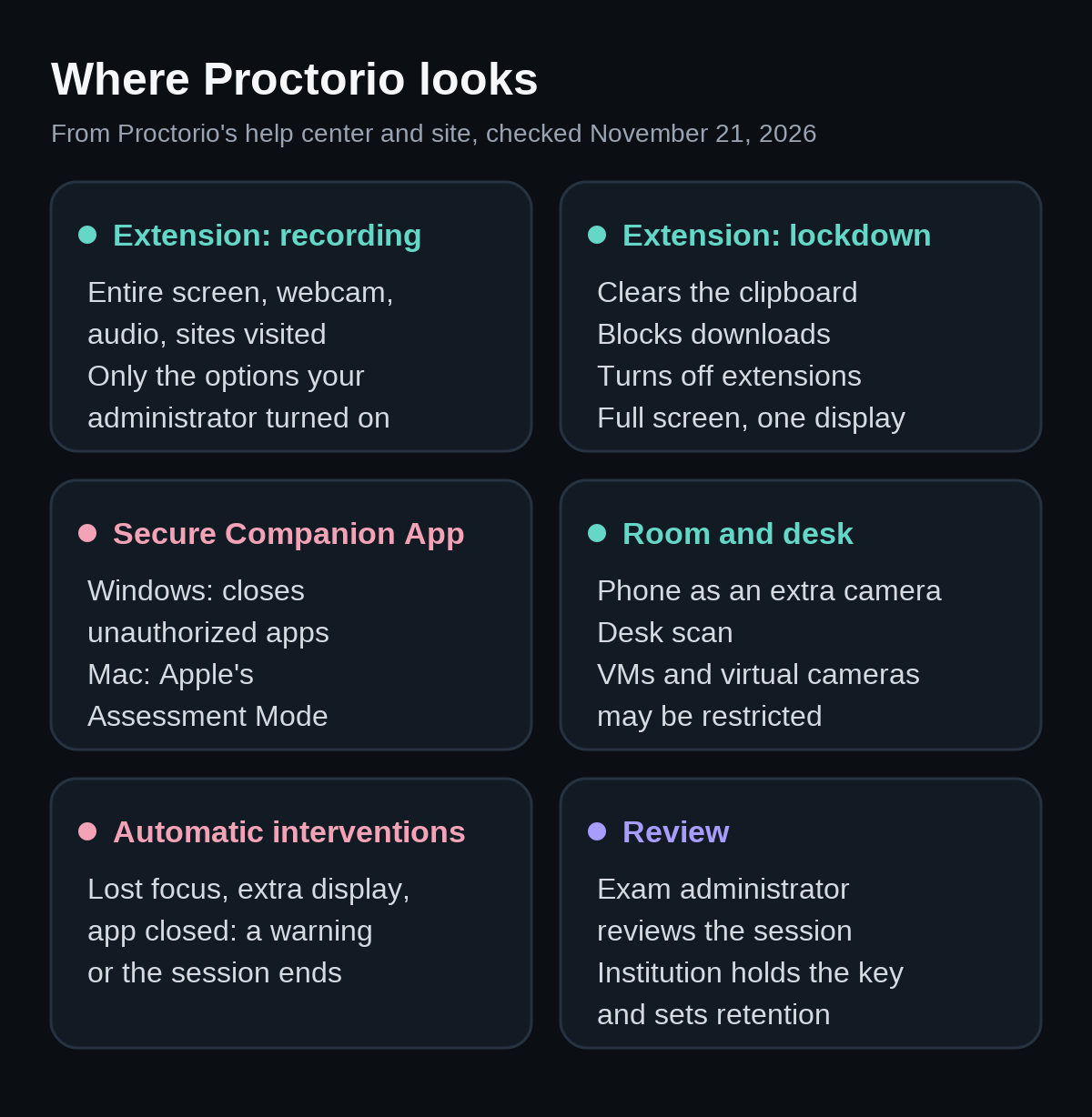
Proctorio's help center describes blocking and recording rather than reading your answers for signs of AI. Depending on the settings your exam administrator picked, its browser extension can record your entire screen, webcam, audio and visited sites, clear the clipboard and turn off other extensions. Its Secure Companion App closes unauthorized apps on Windows and uses Apple's Assessment Mode on Mac. Software flags events, and your exam administrator reviews the session and decides.
What Proctorio documents about its browser extension, Secure Companion App, screen recording, extra camera and review, and what it means for test takers.
Proctorio is one of the few proctoring companies whose help center explains its own permissions line by line. That makes “does Proctorio detect AI?” easier to answer than usual. You don’t have to guess, as long as you know one thing first: almost everything depends on the settings your exam administrator chose.
Disclosure: ExtraBrain makes an AI assistant, so we are not a neutral party here. We checked every claim below against Proctorio’s public help center and Apple’s developer documentation on November 21, 2026.
Your exam administrator picks the settings
Proctorio is a toolkit, not a single fixed check. Its integrity solutions page describes monitoring through “any combination of webcam, screen sharing, audio, and web traffic,” lockdown options covering websites, extensions and external devices, and “adjustable flagging.” The same page lists “Detect AI use” and “Block AI assistance” among its capabilities without saying how they work. The help articles below fill that gap.
The extension: what each permission is for
Every test taker on a desktop or laptop needs the Secure Exam Proctor extension in a Chromium-based browser. When you install it, Chrome shows a long list of things it “can do.” Proctorio’s article translates each permission, and the conditions matter as much as the permissions.
| Permission Chrome shows | What Proctorio says it’s for |
|---|---|
| Read and change all your data on all websites | Launch the exam and record open tabs or sites visited, if your administrator enabled that |
| Modify data you copy and paste | Clear the clipboard when the exam begins, if copy and paste are prohibited |
| Capture content of your screen | Record your screen during the exam, only after you grant permission for that attempt |
| Manage your downloads | Restrict downloads during the exam, if prohibited |
| Manage your apps, extensions, and themes | Temporarily disable other browser extensions, if prohibited |
Proctorio adds that the extension is “only active during an exam” and that approved assistive technology such as JAWS, NVDA and VoiceOver won’t be disabled.
When screen recording is on, it covers your whole display. The screen sharing troubleshooting article is explicit: “You must share your entire screen, not just the exam tab or browser window.”
The Secure Companion App is where other apps get stopped
A browser extension can’t control desktop software, so for exams with Advanced Security, Proctorio requires the Secure Companion App as well. Proctorio describes the mechanism by platform. On Windows, “the Desktop App closes unauthorized applications before your exam.” On macOS, it “uses Apple’s Assessment Mode to restrict access to other applications during your exam.” Chromebooks use the Proctorio Mobile App instead.
Apple’s Automatic Assessment Configuration documentation explains what that Mac mode does. An assessment session blocks access to the Dock, Notification Center and “other apps, except those that you selectively allow.” It also prevents screen recording and screen capture, disables Siri and Handoff, and clears the clipboard at the start and end.
Proctorio applies this directly to AI tools. In a May 28, 2025 post on blocking Cluely, it says it “blocks tools like Cluely by preventing unauthorized apps from launching during exams.” An assistant’s ability to stay out of screen captures doesn’t help when the app isn’t allowed to run.
The room and the desk: extra camera, one display, full screen
Proctorio’s article on exam interruptions lists what can stop a session. Some exams require an Additional Camera, a phone placed in portrait mode with a clear view and connected by QR code. If a single display is required and another monitor is detected, the session ends. If full screen is required and your exam window “exited full-screen mode or lost focus,” you may get a warning or the session may end. Closing the Secure Companion App or removing the extension mid-exam also ends it.
On virtual machines and virtual cameras, Proctorio’s page on avoiding software conflicts says it “may detect or restrict virtual machines or virtual devices,” depending on the administrator’s settings. It also says plainly that “a detected application or service does not, by itself, indicate an exam integrity violation.”
Who looks at the recordings
People make the decisions. Proctorio’s integrity page talks about validating incidents “manually with post-exam review,” and the interruptions article repeats that a session ended by a live proctor “does not, by itself, establish that an exam rule was broken.” Your exam administrator decides what happens next.
On privacy, the data privacy and security article says recordings use zero-knowledge encryption where only the institution holds the decryption key, that Proctorio “cannot access personal files on your device or monitor anything you do outside the exam session,” and that each institution sets its own retention period.
What the documentation doesn’t claim
The gaps deserve the same precision as the features. None of the Proctorio pages we read describes scoring your typed answers for signs that a model wrote them. “Detect AI use” appears on the marketing page with no explanation of the method. The help center also doesn’t describe spotting a phone outside the camera’s view; its answer to the room is the Additional Camera and a desk scan, which are optional requirements your administrator sets. If a forum post tells you Proctorio does something that isn’t in its own documentation, treat it as a rumor in either direction.
What this means if you’re taking a Proctorio exam
Before exam day, read which recording options your exam uses; Proctorio says it discloses them before each exam. Unplug extra monitors physically, because Proctorio’s guide to disabling multiple displays says powering one off usually doesn’t count. Quit everything you weren’t told to use, since the companion app may close it or ask you to close it before you can continue. If you rely on assistive software that isn’t on Proctorio’s protected list, ask for an accommodation in advance.
AI belongs in your preparation for an exam like this, not inside it unless your instructor says so. If you use ExtraBrain to study, keep it closed during the exam. Our article Is ExtraBrain detectable? explains why its capture protection is irrelevant against an app-blocking proctor, and our responsible use page covers the broader rules. Honorlock, another proctoring vendor, now also covers job interviews; see what Honorlock documents.
FAQ
Can Proctorio see the other apps on my computer?
With Advanced Security, yes in effect. The Secure Companion App closes unauthorized apps on Windows and restricts other apps through Apple’s Assessment Mode on Mac.
Does Proctorio record my whole screen?
When your administrator turns on screen recording, yes. Proctorio says you must share your entire screen, not only the exam tab.
Does Proctorio monitor me after the exam?
Proctorio says the extension is only active during an exam and that it can’t monitor anything outside the exam session. You can remove it after you submit.
Does Proctorio decide whether I cheated?
No. It records and flags according to the exam’s settings, and your exam administrator reviews the session and decides.
Sources (checked November 21, 2026)
- Proctorio: Online proctoring software and exam security
- Proctorio Help Center: Proctorio Secure Exam Proctor Extension
- Proctorio Help Center: Screen Sharing Troubleshooting
- Proctorio Help Center: Proctorio Secure Companion App
- Apple Developer: Automatic Assessment Configuration
- Proctorio blog: How Proctorio Blocks Cluely (May 28, 2025)
- Proctorio Help Center: Understanding Exam Interruptions
- Proctorio Help Center: Performing a Desk Scan
- Proctorio Help Center: Disabling Multiple Displays
- Proctorio Help Center: Avoiding Software Conflicts
- Proctorio Help Center: Data Privacy and Security