
ExtraBrain Blog
Is ExtraBrain Detectable? An Honest Answer From Our Own Docs
Short answer
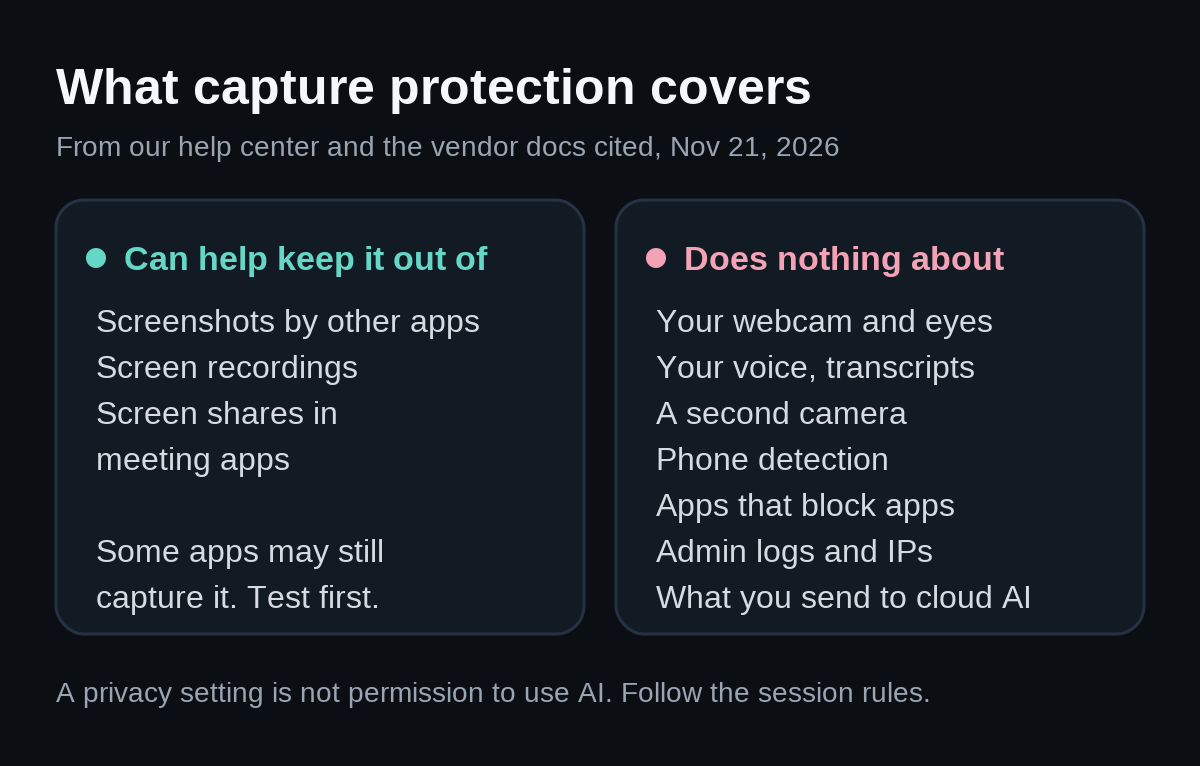
Sometimes, yes. Our screen capture protection helps keep the overlay out of screenshots, recordings and screen shares, but our own help center says some apps may still capture it and that it doesn't guarantee invisibility. It does nothing about your webcam, your voice, a second camera, phone detection, or proctoring software that blocks or closes other apps. Test it with the app you'll actually use, and only use it where the rules allow.
What our screen capture protection covers and what it doesn't, what the docs say about Mac and Windows, and what meetings and proctoring can still observe.
It’s a fair question to ask about any AI assistant, and most answers online are written to sell something. So here is ours, written by the team that makes the app, using only what our help center and product pages say. Where the docs are silent, we say that too.
Disclosure: this article is about ExtraBrain, our own product. Every claim below comes from our help center and product facts as of November 21, 2026, plus the vendor documentation linked at the end.
What capture protection is designed to do
The relevant switch lives in Settings → Privacy. Our privacy controls page describes it in one line: Protect overlay from screen capture “helps exclude” the app “from screenshots, recordings, and screen sharing. Some apps may still capture it.”
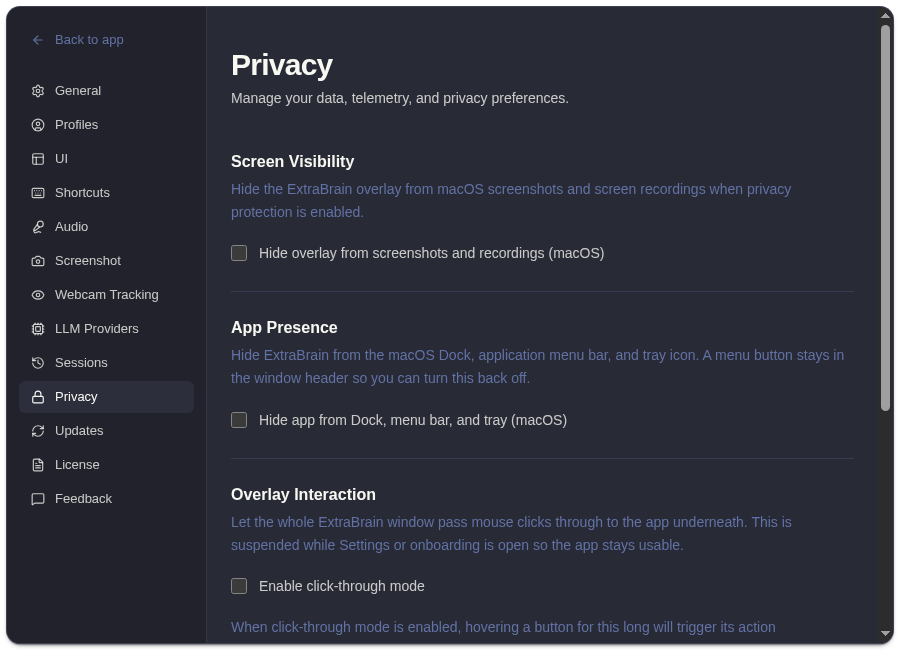
The same page lists the neighboring controls, and it’s careful about what each one doesn’t do. Hide app icon hides the menu-bar icon, so check the recovery shortcut first. Click-through passes mouse clicks to the app underneath, but “it does not hide the window or change provider data flow.” Our interface settings page adds that background opacity “does not provide screen capture protection.” And the macOS permissions page points out that capture protection doesn’t grant the app permission to capture your screen either; those are separate settings.
The app also doesn’t join your call. It runs on your Mac or Windows PC, not as a bot in the participant list.
What our help center tells you not to assume
Three sentences in our docs set the limits.
The privacy controls page: “Test capture protection with your meeting or recording app; do not assume it guarantees invisibility.” The permissions page: “Test protection with the meeting or capture app you actually use; some apps may still include the overlay.” And the guide to using the app in interviews: “Screen capture protection can help exclude the overlay, but some apps may still capture it. Test with your actual meeting app. Follow the interviewer, employer, school, and platform rules for AI assistance and recording.”
So the honest answer to “is it detectable?” starts with “it depends on the app doing the capturing.” If you use the app where it’s allowed and want to know what others will see when you share your screen for a demo or a meeting, test it: start a practice call with a friend, share your entire screen, and ask what they see. If you record, look at the recording too.
Mac and Windows: what the docs cover and what they don’t
The app runs on Mac, both Apple Silicon and Intel, and on Windows. Linux is planned, not shipped. On Mac, you grant Screen Recording or Screen & System Audio Recording and microphone access. On Windows, the getting-started guide says to allow the microphone and screen capture access the app requests.
The installation guide is frank that “the rest of this help center is written for the Mac app, so menu names and permission prompts can differ on Windows.” The docs don’t describe a separate Windows behavior for capture protection. Our advice follows from that: on Windows, treat your own test as the evidence, not the Mac description.
On Mac there are two builds. The Mac App Store version lacks local Gemma, external subscription integrations and the local MCP server. Nothing in the docs says capture protection differs between them, but test the build you installed.
What a meeting or a proctored session can still observe
Capture protection is about one channel, the pixels another app records. Everything else is untouched.
| Channel | Does capture protection affect it? | Why |
|---|---|---|
| A window or tab share of another app | Usually not involved | Zoom, Teams and Meet describe sending the window or tab you pick; test your setup |
| An entire-screen share or recording | It helps, but not with every app | Our docs: some apps may still capture it |
| Your webcam | No | Interviewers see where your eyes go |
| Your voice and transcripts | No | Zoom, Teams and Meet AI summaries work from what you say |
| Proctoring apps that block apps | No | Honorlock can block unapproved apps; Proctorio closes them on Windows |
| Mac Assessment Mode | No | Apple says it blocks other apps and screen capture |
| Admin logs | No | Meeting admins can see device and network details |
| Cloud AI requests | No | Transcripts, prompts and screenshots go to the provider you pick |
The proctoring rows need more explanation. Proctoring software doesn’t need to see the overlay. Honorlock’s desktop application lets admins block every app not on an allow list, and Proctorio’s Secure Companion App closes unauthorized apps on Windows and uses Apple’s Assessment Mode on Mac. Apple’s Automatic Assessment Configuration documentation says that mode blocks other apps and prevents screen recording and screen capture. Our app won’t help you there, and it shouldn’t be running.
The last row is about privacy rather than detection. Cloud analysis can send transcripts, prompts, document excerpts and actual screenshot images to the provider you choose, as our data handling page explains. Nobody on the call sees those requests, but they do leave your computer.
A phone controller is still a phone in the room
Phone Control lets an iPhone or Android phone start sessions and trigger actions while answers stay on the computer. It’s convenient at a desk. In a proctored exam, though, Honorlock says it flags phones on camera and nearby Apple devices, and Proctorio can require a phone set up as an extra camera with a clear view of your workspace. A controller in your hand is exactly what those checks are built to find.
Use it where the rules allow it
We built the app for preparation, notes, accessibility and live help where it’s permitted: practice interviews, real meetings, lectures, research calls, and interviews where the employer says AI assistance is fine. It isn’t a way around an interviewer’s, school’s or employer’s rules, and no setting changes that. Our responsible use page says it plainly: use live AI assistance only where the rules allow it.
If you’re unsure, ask: “Is it alright if I use an AI assistant for notes and transcription during the call?” For what each meeting app documents, read our articles on Zoom, Microsoft Teams and Google Meet. If you want to try it for practice first, you can download ExtraBrain for Mac or Windows.
FAQ
Does ExtraBrain join my Zoom, Teams or Meet call?
No. It runs as a desktop app on your computer, not as a participant in the meeting.
Can an interviewer see the overlay if I share my screen?
Possibly. Capture protection helps keep it out of shares and recordings, but our docs say some apps may still capture it. Test with your actual meeting app.
Will it work in an Honorlock or Proctorio exam?
Don’t use it there unless your instructor allows it. Both vendors document blocking or closing unapproved apps.
Is capture protection on Windows the same as on Mac?
Our help center is written for the Mac app and doesn’t describe a separate Windows behavior, so test it on your own Windows PC.
Sources (checked November 21, 2026)
- Help center: Privacy controls
- Help center: Grant macOS audio and screen permissions
- Help center: Using the app in interviews
- Help center: Install on Mac and Windows
- Help center: How data is handled
- Honorlock: Block unauthorized applications during proctored exams
- Proctorio Help Center: Proctorio Secure Companion App
- Apple Developer: Automatic Assessment Configuration
- Zoom Support: Sharing your screen or desktop on Zoom
- Google Meet Help: Present during a video meeting