
ExtraBrain Blog
Reading Answers While Keeping Eye Contact in Interviews: What Actually Looks Natural
A practical guide to virtual interview eye contact, why reading answers looks suspicious, and how ExtraBrain supports responsible preparation.
A lot of candidates discover the eye contact problem the hard way. They open a virtual interview, place notes or an AI answer window beside the meeting, and assume they can glance over quickly without anyone noticing. Then the recording tells a different story. Their eyes keep drifting down, their hands keep moving, their answers sound smoother than their thinking, and the interviewer starts to wonder what is happening off screen.
The search phrase usually sounds blunt: how do I fake eye contact in a virtual interview while reading answers? The better question is more useful: how do I prepare and use notes in a way that keeps me present, honest, and natural?
This article keeps the same practical concern at the center: eye contact, reading answers, AI interview tools, virtual interviews, and the risk of looking suspicious. But it reframes the goal around responsible use. If an interview, assessment, school, employer, workplace, or platform does not allow AI assistance, transcription, screenshots, or notes, do not use them. If assistance is allowed, tools like ExtraBrain work best when they help you structure your own thinking instead of replacing it.
Why virtual interview eye contact is harder than it looks
In an in-person interview, looking at the other person and looking engaged are almost the same action. In a video interview, they are different. The interviewer is on your screen, but the camera is usually above that screen. If you look at the interviewer’s face, you may appear to be looking slightly down. If you look directly into the camera, you may not be able to read facial cues.
That mismatch is why candidates often reach for notes, second screens, phones, sticky notes, or AI answer windows. They want to stay calm and avoid blanking out. The problem is that the camera turns every small glance into a visible signal.
A quick look at a prepared outline can be normal. Repeated sideways glances while delivering polished answers can feel different. Interviewers do not need special surveillance software to notice that pattern. They can usually sense when a candidate is thinking aloud versus reading from somewhere else.
How interviewers notice unnatural reading behavior
Interviewers usually expect some normal screen movement. You may look at a shared document, a coding editor, a whiteboard, your own resume, or the interviewer’s face. That is not the issue. The issue is a pattern that does not match the conversation.
| Signal | What it can look like in a virtual interview |
|---|---|
| Eye movement | The candidate repeatedly looks to the same off-screen spot before answering important questions. |
| Hand movement | The candidate scrolls, types, or moves a mouse while pretending to listen or answer naturally. |
| Facial expression | The candidate holds a fixed expression while delivering an answer that sounds unusually complete. |
| Voice pattern | The candidate pauses in the same way before every answer, then switches into polished wording. |
| Answer quality | The candidate handles complex prompts smoothly but struggles with simple follow-ups about their own answer. |
None of these signals proves cheating by itself. A candidate might be nervous, reading permitted notes, managing accessibility tools, or checking a shared prompt. Still, when several signals appear together, the interaction can feel less trustworthy. That trust problem is often more damaging than the technical mistake.
Why common fake eye contact setups usually fail
Many candidates try to solve the problem by moving the answers closer to the webcam. That sounds logical, but the setup often creates new problems.
Reading from a phone
A phone is small, portable, and easy to hide near a laptop. It is also usually too low or too far to the side. When you read from it, your gaze drops sharply. Even if the interviewer cannot see the phone, they can see the repeated downward eye movement.
A phone also encourages small hand movements. You may unlock it, scroll, tap, or adjust brightness. Those movements are distracting during a live answer. They can make you look less present even when your words are strong.
Reading from a tablet or second monitor
A tablet or second monitor can sit closer to eye level. That helps slightly, but it rarely solves the issue. If the device is beside the laptop, your eyes shift left or right. If it is in front of the laptop, it can block the meeting, the coding environment, or the shared screen.
This setup becomes especially awkward in screen-share interviews. You may need to move windows, switch tabs, or adjust the second device mid-call. The more you manage the setup, the less you sound like you are having a conversation.
Putting sticky notes around the webcam
Sticky notes around the webcam are a classic workaround. They keep your notes near the lens, which can reduce obvious eye movement. They also force your notes to be short.
That can be useful for allowed reminders, such as names, role priorities, or a STAR outline. It is not useful for reading full answers. There is limited physical space, the text becomes tiny, and the notes cannot adapt to follow-up questions.
Sticky notes work best as anchors, not scripts. Use them to remember the shape of your answer, not to replace the answer.
The real risk is not just being noticed
Candidates often frame the problem as detection. They ask how to keep eye contact, avoid suspicion, or make an AI answer overlay invisible. That misses the bigger risk.
The bigger risk is losing your own reasoning in the moment. If you are reading full answers, you are not practicing the skill the interview is trying to measure. You may sound fluent for one question and then collapse when the interviewer asks, “Can you explain why you chose that tradeoff?”
This is especially risky in technical interviews. A coding interview does not only test whether you can state the answer. It tests whether you can clarify requirements, choose data structures, explain edge cases, debug mistakes, and respond to hints. A system design interview does not only test architecture vocabulary. It tests prioritization, tradeoffs, constraints, and communication under ambiguity.
Behavioral interviews have the same issue. A polished answer about leadership can sound impressive until the interviewer asks for more detail. If the story is not actually yours, the follow-up will expose the gap.
A better goal: natural presence instead of fake eye contact
Natural eye contact does not mean staring into the camera nonstop. That can look unnatural too. Natural presence means your gaze, speech, and thinking rhythm match the conversation.
A good pattern looks like this:
- Look at the interviewer when listening.
- Look toward the camera when making an important point.
- Glance briefly at permitted notes when you need a reminder.
- Return to the camera or interviewer quickly.
- Think aloud when you are working through uncertainty.
That pattern feels human. It also gives you room to use allowed preparation materials responsibly. The key is that the notes support your thinking instead of becoming a hidden script.
Where ExtraBrain fits when AI help is allowed
ExtraBrain is a free, local-first Mac desktop AI interview assistant and meeting copilot. It provides live transcription, screen-aware context, local Gemma 4 on-device AI where installed and compatible, bring-your-own AI providers, and privacy controls. It is available for macOS today, including Apple Silicon and Intel Macs, with Windows and Linux planned.
For interview preparation and allowed live support, ExtraBrain is most useful when it helps you keep track of the conversation. It can help organize transcript context, outline possible STAR structures, suggest clarifying questions, and support post-interview review. It can also help with coding interviews, system design rounds, behavioral interviews, product interviews, meetings, lectures, and research calls.
That is different from using AI to secretly impersonate your thinking. ExtraBrain should be used only where interview, employer, school, workplace, meeting, and platform rules allow AI assistance, transcription, screenshots, or notes. The candidate remains responsible for honest and allowed use.
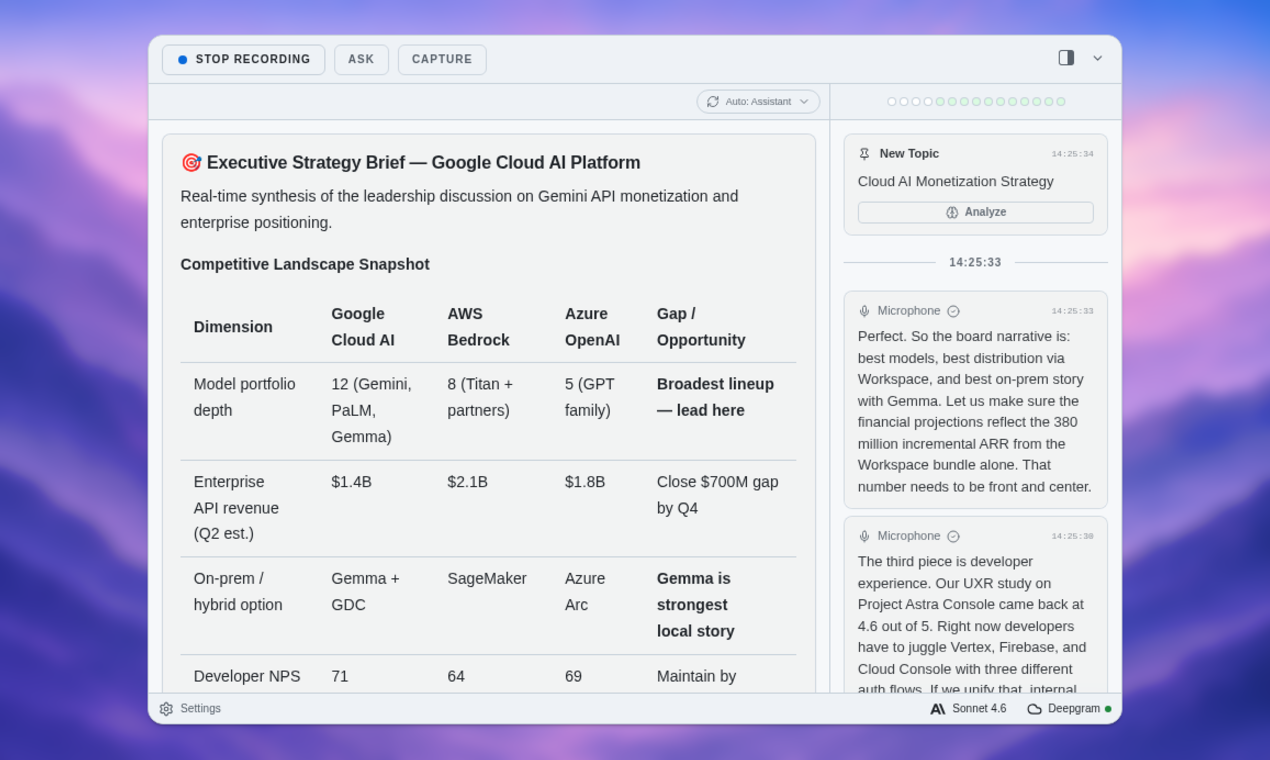
A responsible setup for notes near the camera
If notes are allowed, keep the setup simple. Your goal is not to hide a wall of text. Your goal is to reduce panic and keep your attention on the conversation.
Put reminders near the lens, not full answers
Place only short prompts near the camera. Good examples include:
- “Clarify before solving.”
- “State tradeoffs.”
- “Use STAR.”
- “Mention impact.”
- “Ask about constraints.”
These reminders help you stay organized without forcing you to read. They also make your eye movement brief and natural.
Keep the meeting window high on the screen
Move the meeting window as close to the webcam as practical. If the interviewer’s face is near the top of your display, your gaze will look more natural. This is a simple fix that works without any special tool.
For coding or whiteboard interviews, keep the prompt, editor, and meeting controls arranged so you do not need constant window switching. The fewer moving parts you manage, the calmer you will look.
Practice with a recording
Before the interview, record a short mock answer. Do not only listen to the words. Watch your eyes, posture, hands, and pauses.
Ask yourself:
- Do I keep looking to one side before every answer?
- Do my hands move when I claim I am thinking?
- Do I sound like I am explaining or reciting?
- Do I recover naturally when I lose my place?
A five-minute recording can reveal more than an hour of guessing.
How to use AI without sounding like AI
The strongest AI-assisted candidates do not read generated answers word for word. They use AI to prepare, structure, and review. During the live moment, they speak from their own experience.
For example, instead of asking an AI tool for a full answer to “Tell me about a time you handled conflict,” prepare a small answer map:
| Part | Your notes |
|---|---|
| Situation | Which real project, team, or customer context was involved? |
| Task | What were you personally responsible for? |
| Action | What did you do that another teammate did not do? |
| Result | What changed because of your action? |
| Reflection | What would you do differently next time? |
This gives you structure without making you sound scripted. It also makes follow-up questions easier because the material is real.
ExtraBrain can support this workflow as a focused second-brain-style workspace for live sessions, transcripts, notes, screen context, and review. It is not a broad replacement for general note-taking databases. It is designed around the actual interview or meeting flow.
Camera and screen positioning checklist
Use this checklist before a virtual interview when notes or AI assistance are allowed:
- Close tabs and apps that are not relevant.
- Turn off notifications and badges.
- Put the meeting window near the camera.
- Keep allowed notes short and visible without scrolling.
- Use a comfortable chair height so the camera is close to eye level.
- Test your microphone and lighting.
- Record one practice answer and watch your eye movement.
- Prepare a no-tool fallback in case something fails.
The fallback matters. If your notes, transcription, or AI provider stops working, you should still be able to continue. A candidate who can recover calmly looks far more credible than one who freezes because the hidden script disappeared.
Privacy and provider choices matter
Interview and meeting tools can handle sensitive information. That may include company names, customer details, compensation conversations, coding prompts, screenshots, or personal career stories. Before using any assistant, understand where that data goes.
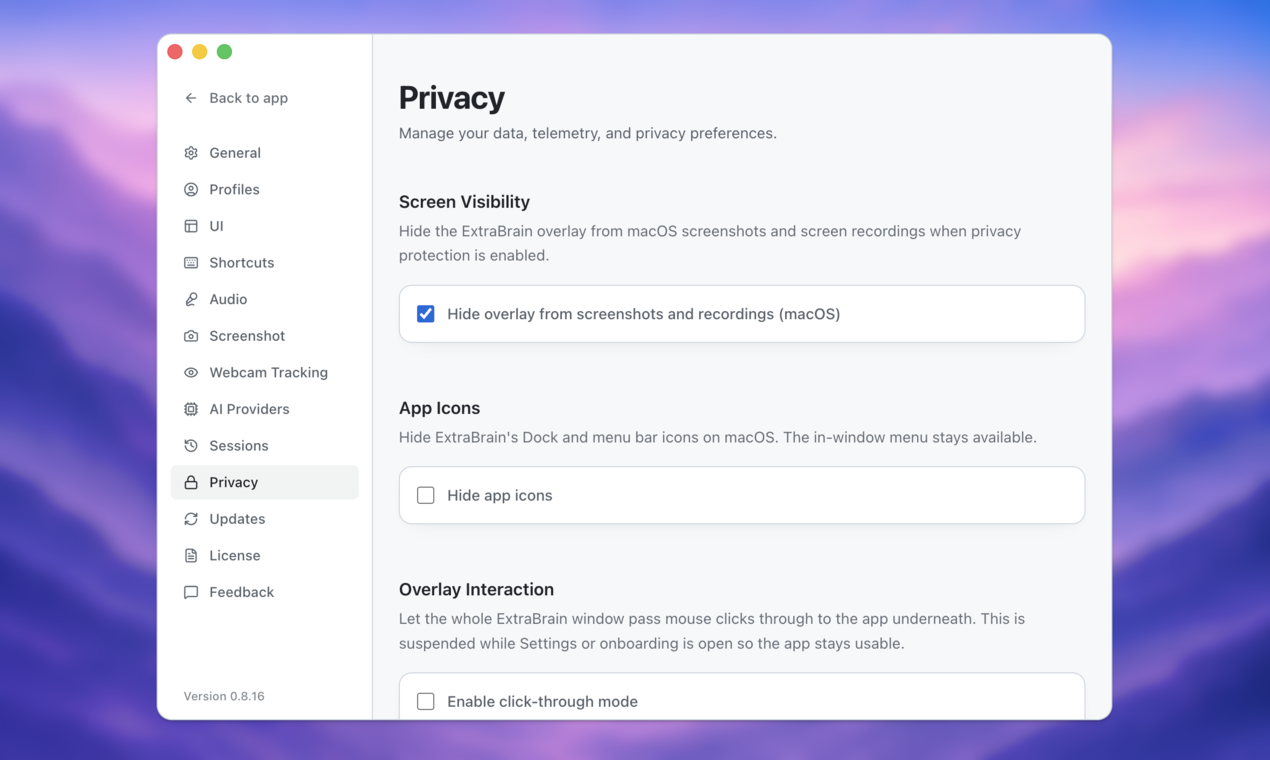
ExtraBrain supports local Parakeet transcription and local Gemma 4 on-device AI where installed and compatible. With local Parakeet and local Gemma 4, transcription and AI prompts can stay local. If you configure external providers, selected prompts, transcript text, screenshots, audio, or context may leave the device depending on that provider setup.
This is why privacy controls and provider choice matter. Use the most restrictive setup that still fits your allowed workflow. If you are not permitted to record, transcribe, screenshot, or send interview context to an AI provider, do not do it.
What about AI eye contact correction features?
Some camera and video tools can adjust gaze or simulate stronger eye contact. They can be useful for accessibility, presentation comfort, or reducing the awkward camera-screen mismatch. They are not a substitute for knowing your material.
If you use gaze correction, test it before the interview. Overcorrected eye contact can look strange. It can also create a mismatch between your face and your speech if you are clearly reading something while the camera makes your eyes appear fixed.
The safer approach is still preparation. Know your stories, practice your tradeoffs, and use short reminders instead of long hidden answers.
Step-by-step responsible interview workflow
Before the interview
Build a short preparation brief. Include the role, company priorities, likely interview format, your strongest examples, and a few questions you want to ask. If you use ExtraBrain, set up the profile and provider options you are allowed to use. Choose local options where available and appropriate.
Practice aloud, not silently. Silent preparation makes you feel familiar with an answer, but it does not train delivery. A virtual interview is spoken, interactive, and time-constrained.
During the interview
Stay conversational. If you need a moment, say so naturally. For example: “Let me think through the tradeoff for a second.” That sounds more credible than staring at a hidden answer while pretending to respond instantly.
Use notes as prompts. Use AI assistance only within the rules. If you are unsure whether a tool is allowed, ask before the interview or avoid using it live.
After the interview
Review what happened while it is fresh. What questions made you pause? Where did your examples feel thin? Which follow-ups were hardest? What would you answer differently next time?
This is one of the best uses of an interview copilot. A transcript and debrief can help you improve without turning the live interview into a performance you cannot defend.
FAQ
How do I keep eye contact while reading interview notes?
Keep notes short and near the camera. Do not read full answers if the goal is to sound natural. Use reminders that trigger your own thinking, then return your attention to the interviewer.
Is it safe to read AI answers during a virtual interview?
It depends on the rules, but secretly reading AI-generated answers is risky and often inappropriate. It can violate interview, employer, school, workplace, or platform expectations. It can also fail when the interviewer asks follow-up questions that require your own reasoning.
What is the best way to use ExtraBrain in an interview?
Use ExtraBrain where AI assistance, transcription, screenshots, or notes are allowed. It can help with live transcription, screen-aware context, answer outlines, clarifying questions, and post-interview review while you remain responsible for honest use.
Can ExtraBrain run fully local?
A fully local ExtraBrain posture requires local Parakeet transcription plus local Gemma 4 on-device AI where installed and compatible, with no external provider requests. External providers may receive selected prompts, transcript text, screenshots, audio, or context depending on configuration.
What if I am asked whether I am using AI?
Answer honestly. A good rule is to disclose allowed tools in the same practical way you would disclose notes, accessibility support, or a coding environment. If AI use is not allowed, do not use it.