ExtraBrain Blog
Canvas Exams and Invisible AI Help in 2026: What Students Should Know
A practical 2026 guide to Canvas exam monitoring, AI risks, and responsible ExtraBrain study workflows before online assessments.
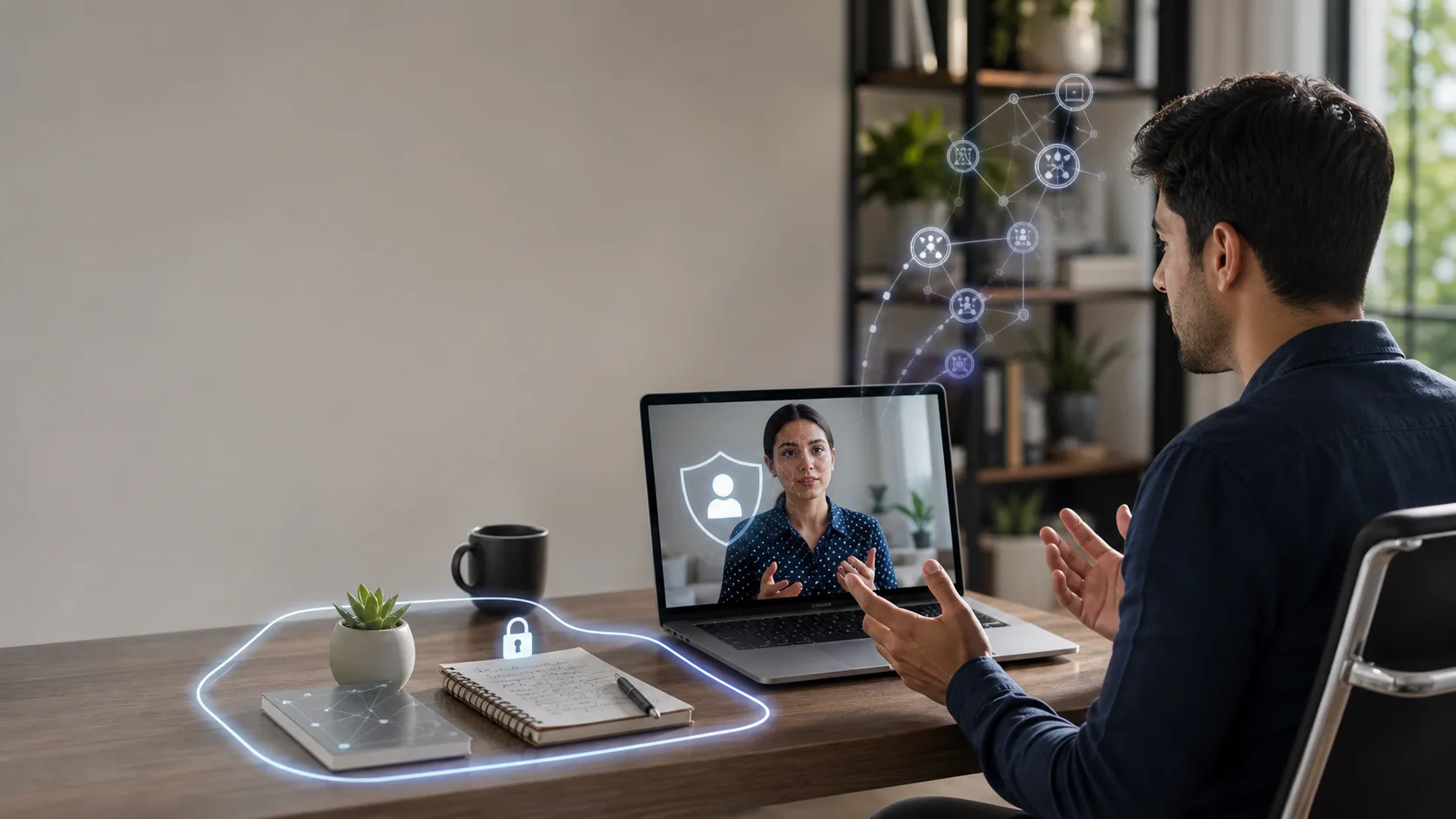
Canvas exams can feel intimidating in 2026 because the test page, the instructor settings, and any attached proctoring tool can all shape what is allowed. Many students search for phrases like “how to cheat Canvas” because they are anxious, underprepared, or unsure what the platform can actually see. The risky part is that most advice online turns that anxiety into bad tactics that can violate school rules, create academic misconduct records, and still fail technically.
This guide keeps the practical structure students look for, but reframes it around what you should understand before you risk your grade, your transcript, or your integrity. ExtraBrain can be useful for study sessions, mock exams, lectures, research calls, and review workflows, but it should only be used where your school, instructor, exam platform, and assessment rules allow AI assistance, transcription, screenshots, or notes.
Quick answer: can you cheat Canvas without getting caught?
There is no reliable or safe way to guarantee that a Canvas cheat attempt will not be detected. Canvas can log quiz activity, instructors can configure question banks and time limits, and many schools attach tools such as Respondus LockDown Browser, Proctorio, Honorlock, plagiarism checkers, webcam monitoring, identity checks, or manual review. Even when a method sounds invisible, the larger pattern can still look suspicious. That pattern might include fast answer timing, unusual focus changes, matching responses, device access logs, copied formatting, file metadata, or behavior that does not match your normal work.
The smarter path is to use AI before the exam to prepare in a way you can defend. That means practicing under exam-like constraints, organizing approved notes, reviewing explanations, building memory for common question types, and learning how Canvas monitoring works so you do not accidentally break a rule.
Why students search for Canvas exam shortcuts
Most students do not start by wanting to commit academic misconduct. They usually start with a pressure problem.
Common reasons include:
- The exam is timed and covers too much material.
- The instructions are unclear about AI, notes, calculators, browser tabs, or collaboration.
- The course uses lockdown software that makes students nervous.
- The student has practiced passively but has not tested recall under pressure.
- The student thinks everyone else is using hidden help.
- The student had a bad experience with a prior online exam.
Those pressures are real. However, a hidden phone, a browser extension, a second laptop, a copied AI answer, or a friend in a chat can create a bigger problem than the exam itself.
Canvas exam types and what changes by setup
Not every Canvas exam has the same risk profile. Before you decide how to prepare, identify the exam setup from the syllabus, Canvas instructions, and any pre-test checks.
| Exam setup | What it usually means | Better preparation move |
|---|---|---|
| Native Canvas quiz | The exam runs inside Canvas without an obvious third-party proctoring layer. | Study with timed practice, approved notes, and clear answer templates. |
| Open-book Canvas quiz | Notes or materials may be allowed, but rules can still limit collaboration or AI. | Build a concise, searchable study sheet before the exam. |
| Lockdown browser exam | A special browser may restrict tabs, apps, copy-paste, printing, and navigation. | Complete the technology check early and practice without outside materials. |
| Webcam-proctored exam | A proctoring layer may record face, audio, room, screen, or behavior. | Prepare your room, ID, camera, microphone, and permitted materials in advance. |
| In-person Canvas exam | The quiz is online, but a professor or proctor watches the room. | Treat it like a traditional closed-room exam unless written rules say otherwise. |
The key distinction is permission, not cleverness. If the instructor says AI, notes, messaging, or outside tabs are not allowed, using them during the exam is a rule violation even if the software does not immediately stop you.
Device and environment setup before a Canvas exam
A strong setup reduces accidental flags and panic. It also helps you avoid desperate last-minute decisions.
Computer and internet
Use a reliable Mac or Windows computer that meets the exam and proctoring requirements. Some proctoring services may not support every device type, especially Chromebooks or managed school machines with unusual restrictions. Restart your computer before the exam if your instructor or proctoring tool recommends it. Close unrelated apps that could display notifications, play audio, or interfere with the lockdown browser.
Webcam and microphone
If the exam uses Respondus Monitor, Proctorio, Honorlock, or another remote proctoring service, test your webcam and microphone before the official start time. Make sure your camera angle, lighting, and audio are stable. If you need accommodations, request them through the official school process before the exam instead of improvising during the session.
Testing space
Clear your desk and surrounding area. Keep only the materials explicitly allowed by the exam instructions. If the exam requires a room scan, make the room simple enough that there is nothing ambiguous to explain later.
Approved notes and materials
If notes are allowed, organize them before the timer starts. Do not rely on frantic searching during the exam. A one-page concept map, formula sheet, vocabulary list, or worked example index is usually more useful than a huge folder of copied answers.
What Canvas and proctoring tools may monitor
Students often underestimate Canvas itself and overestimate folklore about hidden tricks. The exact data available depends on instructor settings, school integrations, and the proctoring tool, but these categories are worth understanding.
Canvas-native signals
Canvas may show quiz activity events such as when an attempt began, when answers were submitted, and whether the quiz page lost focus. Instructors can use access codes, IP filters, time limits, question shuffling, randomized banks, one-question-at-a-time settings, and limited backtracking. Canvas can also connect to plagiarism or similarity review workflows for written submissions.
Proctoring layer signals
A remote proctoring platform may add webcam recording, microphone recording, screen capture, ID verification, browser restrictions, copy-paste restrictions, device checks, or automated behavior flags. Some systems combine automated signals with instructor review. A flag does not always mean guilt, but it can trigger a stressful review process.
Response-pattern signals
Even without proctoring software, suspicious answer patterns can stand out. Examples include completing complex questions unusually fast, submitting long prose instantly, producing answers that do not match your prior writing style, matching another student’s unusual mistake, or uploading files with inconsistent metadata.
Common Canvas cheat methods people discuss in 2026
The methods below appear frequently in student forums and search results. They are included so you can understand why they are risky, not as instructions to use them.
Phone searches during the exam
Students often assume a phone is safer because Canvas runs on the computer. That assumption can fail when the exam uses webcam monitoring, room scans, audio monitoring, live proctors, access logs, or behavior review. It also creates divided attention, which can make your answer timing and eye movement look unnatural.
Split-screen searching
Split-screen workflows are sometimes discussed for native Canvas quizzes. The problem is that many quizzes can record focus changes, and any proctoring layer may also record screen activity. Even when a split view is technically possible, it can violate closed-book or no-outside-resource rules.
Browser extensions
Some browser extensions promise instant answers, screenshot analysis, or stealth panels. These tools can break exam rules, leak sensitive course content, or fail under lockdown browsers. They can also leave traces in the browser profile, extensions list, network traffic, screenshots, or screen recordings.
AI-generated answers
AI tools can produce convincing explanations, but they can also hallucinate, overfit to the wording, miss course-specific constraints, or write in a style that does not sound like you. For essay, math, and coding questions, an answer that you cannot explain afterward is a liability. The responsible use case is preparation and review, not unauthorized live answer generation during a restricted exam.
Collaboration with friends
Group chats and shared answers may feel normal in homework contexts, but exams often prohibit collaboration. Canvas question banks, shuffled options, timestamps, IP overlap, matching wrong answers, and message records can all make collaboration easier to investigate than students expect.
Network failure excuses
Pretending that your internet failed is a bad plan. Canvas, proctoring tools, school networks, browser logs, and support tickets can create a timeline. If you have a real technical problem, report it honestly and immediately through the official channel.
A safer way to use AI before a Canvas exam
ExtraBrain is a free, local-first desktop AI interview assistant and meeting copilot for Mac. It can help with live transcription, screen-aware context, local Gemma 4 on-device AI where installed and compatible, bring-your-own AI providers, and privacy controls. For students, the responsible value is not cheating during a restricted test. The value is turning lectures, practice problems, study calls, and mock exams into reviewable learning sessions.
Build a practice session
Open a practice quiz, old worksheet, lecture slide deck, or study guide outside the official exam. Use ExtraBrain to capture your spoken reasoning while you solve questions aloud. Afterward, review the transcript and identify where your explanation became vague, slow, or wrong.
Practice screen-aware explanations
Screen-aware context can help during practice because you can work through a prompt, diagram, code snippet, or formula and ask for feedback on your reasoning. Use this before the exam to improve your process. Do not assume screen awareness is allowed during an official assessment unless the rules explicitly permit it.
Create allowed answer frameworks
For essay-heavy or short-answer exams, practice reusable structures. For example, build a three-part answer pattern for definition, evidence, and implication. For problem-solving exams, build a pattern for assumptions, formula choice, calculation, and final check. For coding exams, build a pattern for clarifying constraints, explaining complexity, and testing edge cases.
Review with local-first privacy controls
A fully local ExtraBrain posture requires local Parakeet transcription plus local Gemma 4 on-device AI where installed and compatible, with no external provider requests. External providers may receive selected prompts, transcript text, screenshots, audio, or context depending on configuration. Use privacy settings intentionally, especially when working with school materials, personal notes, or sensitive recordings.
Practical pre-exam checklist
Use this checklist before the official Canvas attempt. It is designed to reduce stress and improve performance without relying on unauthorized help.
| Timing | Action | Why it helps |
|---|---|---|
| 7 days before | Collect syllabus topics, lecture notes, readings, and practice questions. | You avoid last-minute guessing about scope. |
| 5 days before | Run a timed practice session and explain every answer aloud. | You expose weak recall and unclear reasoning. |
| 4 days before | Use ExtraBrain to review transcripts from practice and extract weak topics. | You turn mistakes into a targeted study plan. |
| 3 days before | Build an approved notes sheet if the exam allows notes. | You make retrieval faster and cleaner. |
| 2 days before | Complete any lockdown browser, webcam, or ID verification test. | You avoid technical surprises. |
| 1 day before | Practice one short mock exam with the same constraints as the real one. | You train under pressure without breaking rules. |
| Exam day | Read the instructions again before starting. | You confirm what is allowed for this specific attempt. |
If the exam allows AI or open resources
Some instructors now allow AI in specific ways. If that is your situation, be precise. Allowed AI use usually has boundaries.
You might be allowed to:
- Use AI for brainstorming before writing your own final answer.
- Use AI to explain a concept after you make an initial attempt.
- Use a calculator, documentation, or notes but not generative AI.
- Use AI only if you cite the prompts and outputs.
- Use AI for grammar cleanup but not for problem solving.
If the instructions are ambiguous, ask before the exam. If you cannot ask, choose the conservative interpretation. A conservative choice is easier to defend than a clever workaround.
What not to do with ExtraBrain or any AI tool
Do not use ExtraBrain to violate exam, school, workplace, interview, or platform rules. Do not use any AI tool to impersonate your knowledge in a closed assessment. Do not feed private course material, student data, exam screenshots, or protected content into an external provider unless you have permission and understand the data flow. Do not assume that an app being hidden from screen sharing means the use is allowed. ExtraBrain is designed to stay hidden from screen sharing and screen recording on major meeting tools, but users remain responsible for following all rules.
Reliability of Canvas cheat methods
Most Canvas cheat methods are less reliable than they sound. They also tend to create compounding risk. A phone search can become an eye-movement flag. A copied answer can become a timing anomaly. A browser extension can become a technical trace. A shared answer can become a similarity pattern. A network excuse can become a support-log timeline.
Here is a clearer way to think about it.
| Method people discuss | Main risk | Responsible alternative |
|---|---|---|
| Phone lookup | Webcam, timing, distraction, rule violation. | Practice retrieval with timed drills before the exam. |
| Split screen | Focus logs, screen recording, rule violation. | Build approved notes and learn where each concept lives. |
| Browser extension | Lockdown failure, privacy risk, technical trace. | Use AI on practice material before the official attempt. |
| Live AI answer generation | Hallucinations, style mismatch, misconduct review. | Ask AI to critique your practice answers afterward. |
| Friend collaboration | Matching answers, timestamps, chat evidence. | Form a study group before the exam, then work independently. |
| Fake technical issue | Inconsistent logs and credibility loss. | Report real issues immediately and honestly. |
How ExtraBrain fits into responsible exam preparation
ExtraBrain works best as a focused second-brain-style workspace for live sessions, transcripts, notes, screen context, and review. For Canvas preparation, that means you can collect your practice reasoning, identify recurring mistakes, and improve before the exam starts.
Useful workflows include:
- Recording yourself solving practice problems aloud.
- Turning a transcript into a list of weak concepts.
- Asking for clearer explanations of topics you already attempted.
- Practicing behavioral-style explanations for oral exams or presentations.
- Reviewing lecture or study-group discussions after the session.
- Comparing your first answer with a stronger answer outline.
- Building a final checklist of concepts to review.
ExtraBrain is available for macOS today, including Apple Silicon and Intel Macs. Windows and Linux are planned future platforms. The core Mac app is free, with ExtraBrain Pro available for users who want paid features. External AI and transcription provider usage is billed separately by the providers users choose.
What I would do before a high-stakes Canvas exam
I would start by reading the rules carefully and writing down what is allowed. Then I would create a practice environment that copies the real constraints as closely as possible. If notes are not allowed, I would practice without notes. If the exam is timed, I would use a timer. If the exam is problem-based, I would explain each step out loud and review the transcript afterward.
I would use ExtraBrain before the official exam to find weak spots, not during a restricted attempt to generate answers. I would make sure my computer, browser, webcam, microphone, and internet are ready. I would keep the room simple and remove anything that could look suspicious. Most importantly, I would avoid building a plan that depends on not getting caught. A plan that depends on secrecy is fragile. A plan that depends on preparation is much stronger.
FAQ
How do I know if Canvas is tracking my activity?
Read the exam instructions, quiz settings, and any proctoring setup prompts. Look for access codes, lockdown browser requirements, webcam checks, microphone checks, room scans, ID verification, time limits, or statements about outside resources. If you are unsure, ask your instructor before the exam.
Can Canvas detect switching tabs?
Canvas quiz logs may record when the quiz page loses focus, depending on the setup and available logs. A third-party proctoring tool may add more direct screen or browser monitoring. The safest approach is to follow the exam rules and avoid outside navigation unless it is explicitly allowed.
Is it safe to use a phone during a Canvas exam?
Only if the exam rules explicitly allow it. For many exams, a phone is considered an unauthorized resource. If webcam monitoring or live proctoring is active, phone use can also create visible behavior flags.
Can I use AI tools like ChatGPT or ExtraBrain during Canvas exams?
Only use AI during an official Canvas exam if the written rules allow it. If AI is not allowed, use ExtraBrain for preparation before the exam instead. You can practice aloud, review transcripts, clarify concepts, and build stronger answer patterns without violating the official assessment rules.
What if Canvas flags me as inactive?
Do not invent a story. If something real happened, document it honestly and contact your instructor or support channel as soon as possible. For future exams, practice under timed conditions so long thinking pauses feel less stressful.
What is the best responsible alternative to cheating on Canvas?
Use AI as a preparation coach before the exam. Run practice sessions, explain your reasoning, review transcripts, target weak topics, and learn the material well enough to perform under the official rules. That is the ExtraBrain workflow that protects both your score and your credibility.
See also
Online AI exam assistant: responsible study workflows with ExtraBrain
Ethical AI job search and assessment preparation
Private-by-default interview prep notes