
Grant macOS Audio And Screen Permissions
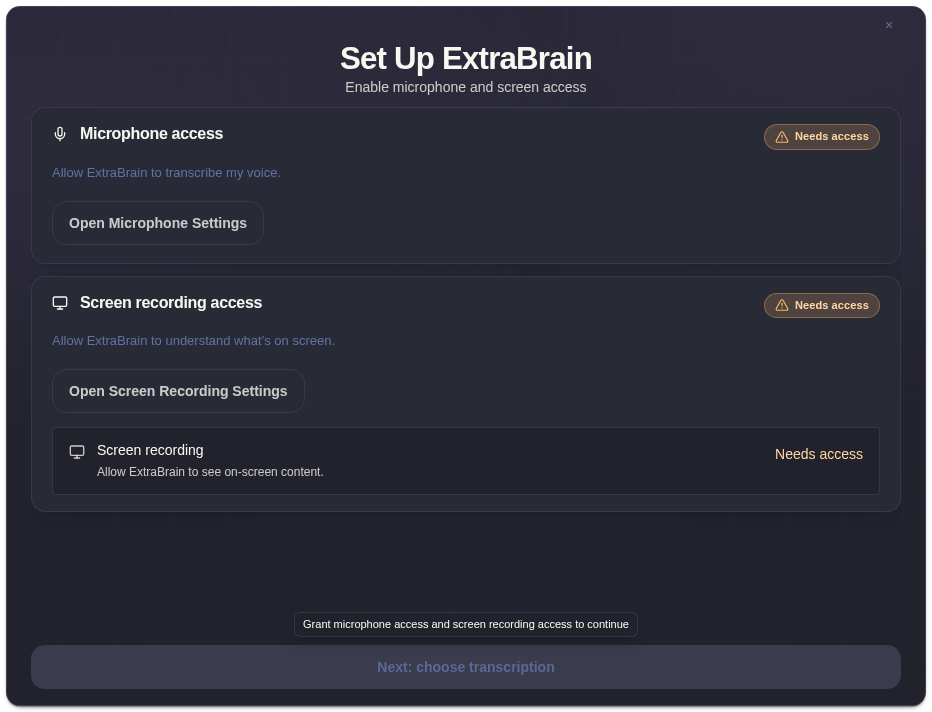
ExtraBrain needs macOS permissions before it can use live audio and screen context. Grant these during onboarding or from macOS System Settings.
Permissions ExtraBrain Uses
Section titled “Permissions ExtraBrain Uses”| Permission | Why ExtraBrain Uses It |
|---|---|
| Microphone | Transcribes your spoken audio during live sessions. |
| Screen Recording | Captures screenshots and screen context you ask ExtraBrain to analyze. |
| System Audio | Captures meeting, call, or video audio when the session needs system sound. |
Open macOS Settings
Section titled “Open macOS Settings”- Open System Settings.
- Go to Privacy & Security.
- Check Microphone, Screen Recording, and system audio related prompts if macOS shows them.
- Enable ExtraBrain.
- Restart ExtraBrain if macOS asks for it or if the permission state does not update immediately.
If A Permission Still Looks Blocked
Section titled “If A Permission Still Looks Blocked”- Quit and reopen ExtraBrain.
- Toggle the permission off and on in System Settings.
- Restart the Mac if Screen Recording remains stuck.
- Reopen onboarding or Settings after restarting.
Permission warnings such as “Mic stopped”, “System audio stopped”, or “Audio stopped” mean ExtraBrain lost access to part of the capture pipeline and needs permission or device recovery.
Permission Questions
Section titled “Permission Questions”Why does ExtraBrain need Screen Recording permission?
Section titled “Why does ExtraBrain need Screen Recording permission?”Screen Recording lets ExtraBrain capture screenshots and screen context that you explicitly use for analysis. Without it, screenshot capture and screen-context workflows can fail.
Why does ExtraBrain need system audio permission?
Section titled “Why does ExtraBrain need system audio permission?”System audio helps ExtraBrain capture meeting, call, video, or shared-audio context when supported. Without it, you may only see microphone transcription.