
Privacy Controls
Open Settings -> Privacy to control app visibility, overlay behavior, and usage sharing.
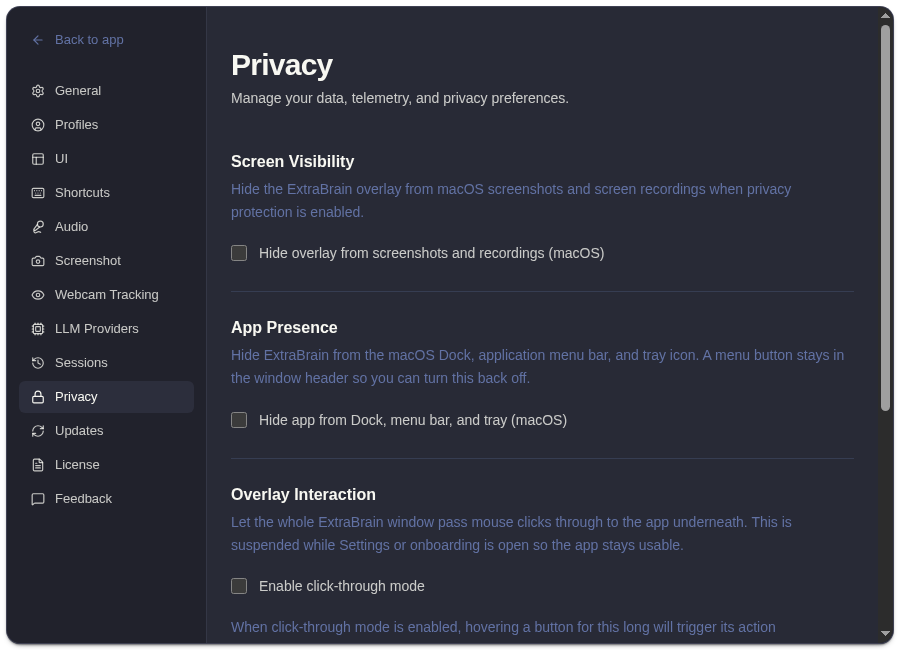
Available Controls
Section titled “Available Controls”| Control | What It Does |
|---|---|
| Screenshot protection | Helps hide the overlay from screenshots or screen capture contexts supported by the operating system. |
| Hide from Dock and menu bar | Reduces visible app presence in macOS app chrome. |
| Hide from tray | Hides tray visibility where supported. |
| Click-through mode | Lets clicks pass through the overlay. |
| Hover action delay | Controls how long hover actions wait before activating in click-through workflows. |
| Share anonymous usage data | Controls whether usage data is shared to improve ExtraBrain. |
Recovering From A Hidden Or Hard-To-Click Window
Section titled “Recovering From A Hidden Or Hard-To-Click Window”If the window is hidden or click-through makes it difficult to interact:
- Use the toggle window shortcut.
- Disable click-through from Settings if you can reach it.
- Reopen the app from macOS if Dock or menu bar visibility is enabled.
Privacy controls affect visibility and telemetry; they do not change the fact that cloud provider analysis may send selected context to the provider you chose.
Privacy Control Questions
Section titled “Privacy Control Questions”Does screenshot protection replace provider privacy settings?
Section titled “Does screenshot protection replace provider privacy settings?”No. Screenshot protection is a local visibility control. It does not change what may be sent when you ask a cloud LLM provider to analyze transcript or screenshot-derived context.
What should I do before a sensitive session?
Section titled “What should I do before a sensitive session?”Choose Local Parakeet if audio should stay local, confirm the AI provider you plan to use, disable anonymous usage sharing if needed, and delete local session history you do not want to keep.