Customize ExtraBrain Appearance
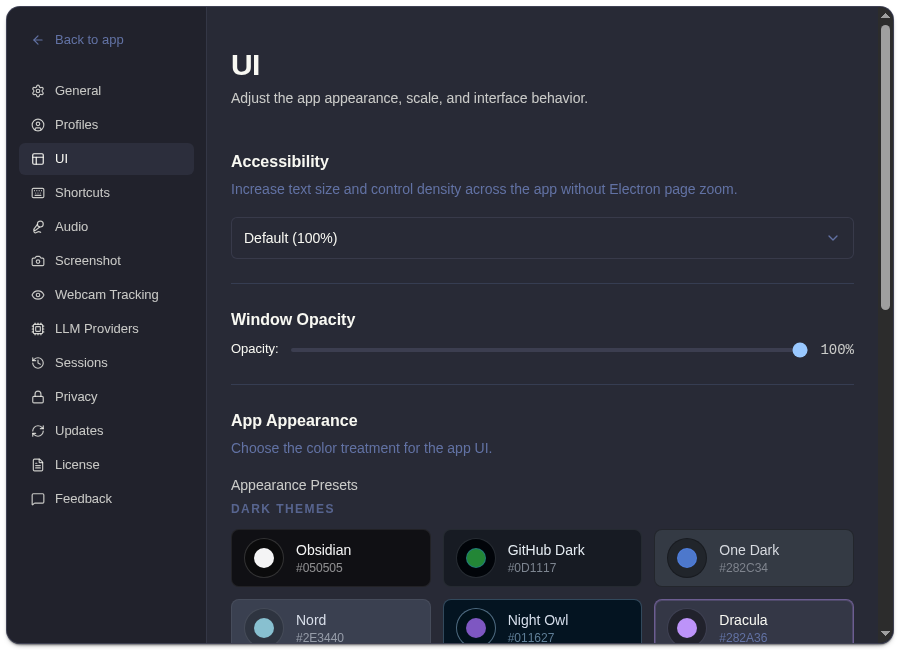
Use Settings -> UI to tune how ExtraBrain looks during repeated live use.
Appearance Controls
Section titled “Appearance Controls”| Control | What It Changes |
|---|---|
| Font size | Text density across the app. |
| Opacity | Main window transparency. |
| Appearance presets | Window color palette. |
| Tips | Whether in-app tips appear. |
| Code block theme | Syntax highlighting style for code shown in answers. |
Recommended Setup
Section titled “Recommended Setup”- Choose a font size you can read quickly under pressure.
- Keep opacity high if you take documentation screenshots or need maximum legibility.
- Pick an appearance preset that works over the apps you use most.
- Choose a code block theme that keeps syntax readable in your current light or dark workflow.
- Disable tips once you know the core controls.
Opacity and appearance affect visibility. They do not change what ExtraBrain stores locally or what may be sent to your selected providers during analysis.
Related
Section titled “Related”Common Questions
Section titled “Common Questions”Should I lower opacity during interviews or meetings?
Section titled “Should I lower opacity during interviews or meetings?”Only if it helps you keep context visible. For readability, screenshots, and reduced visual noise, 100% opacity is usually better.
Does the code block theme affect the model response?
Section titled “Does the code block theme affect the model response?”No. It only changes how code is displayed in the app.