
ExtraBrain Blog
Google Meet Setup for Interviews: Tab Sharing, Call Audio and Notifications
Short answer
Open the invite in Chrome, test your microphone and speakers on Meet's preview tile, and choose the same microphone in ExtraBrain's Audio settings. Wear headphones. When asked to share, click Present now and pick A tab or A window, never the tab running the meeting. Turn on your computer's Do Not Disturb, then run a short test session before you click Join now.
Set up Google Meet and ExtraBrain before the call: test your mic and speakers, present a tab or window, silence notifications and fix common problems.
A Google Meet invite is only a link, with nothing to install. That’s convenient, and it’s also why Meet problems tend to surface in the first minute of the call: Chrome was never allowed to use the microphone, or the share picker opens and you click the wrong thing while the interviewer waits. Fifteen minutes of setup the day before prevents both.
This is a setup guide. For how to use AI well once the conversation starts, read using AI in Google Meet interviews the right way. Everything below assumes the interview allows AI assistance or that you’re rehearsing; if the rules are unclear, ask the recruiter, and see our responsible use page.
Test your devices on the preview tile, before you join
Meet shows a preview before you enter the call, and its Connect your video & audio page explains the controls at the bottom of the tile. Click Microphone and speak; if the bar moves, the mic works. Click Speaker, then Test speakers, with your headphones already on. Use the dropdown next to each device to pick a specific one rather than whatever the system chose.
You can change devices later through the arrow next to the microphone icon, or More options → Settings → Audio, but switching mid-answer is exactly what you’re trying to avoid.
If Chrome never asked for the microphone, Google’s audio troubleshooting page has two fixes: click View site information in the address bar and turn on Microphone, or open chrome://settings/content/microphone and choose “Sites can ask to use your microphone.” It also warns about Companion mode, where the microphone and speaker are unavailable. If you joined that way by mistake, leave and rejoin.
On a Mac, Chrome and ExtraBrain each need permission
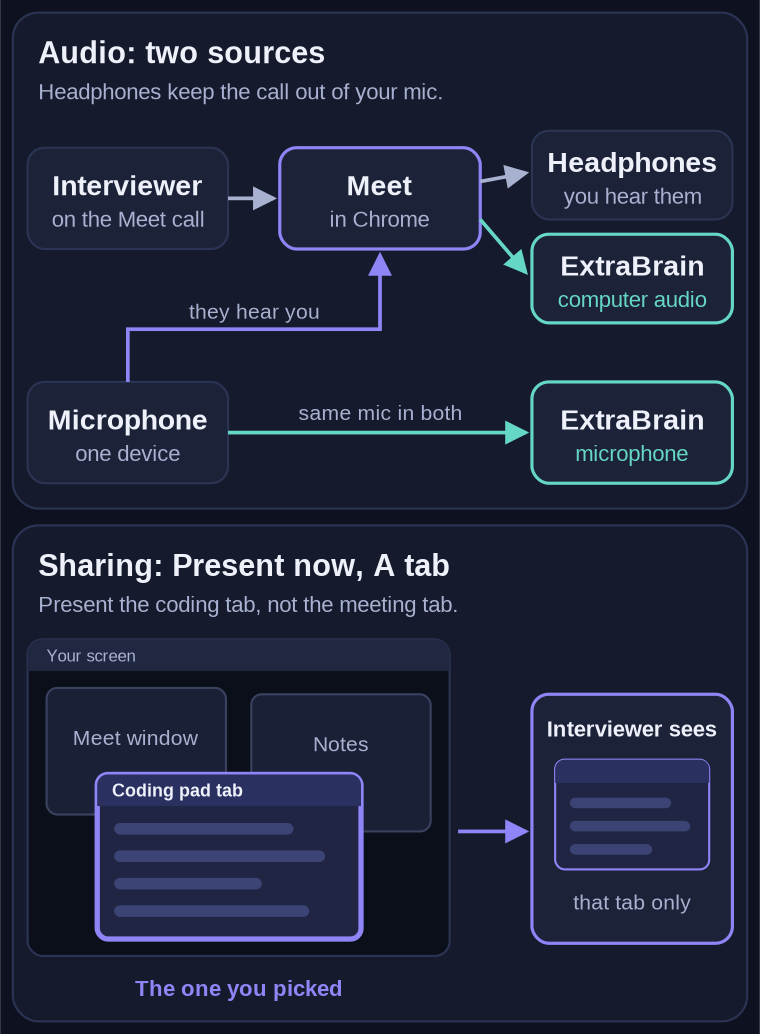
Meet runs inside Chrome, so the browser is the app playing the interviewer’s voice. ExtraBrain, a desktop app that doesn’t join the call as a participant, transcribes that as computer audio and transcribes you through the microphone. Apple’s page on screen and system audio recording lists each app with its own switch under Privacy & Security → Screen & System Audio Recording. Chrome needs its switch to present; ExtraBrain needs microphone access plus system audio, as its permissions guide explains. On Windows, allow the access the app requests; the help center is written for the Mac app, so menu names there can differ.
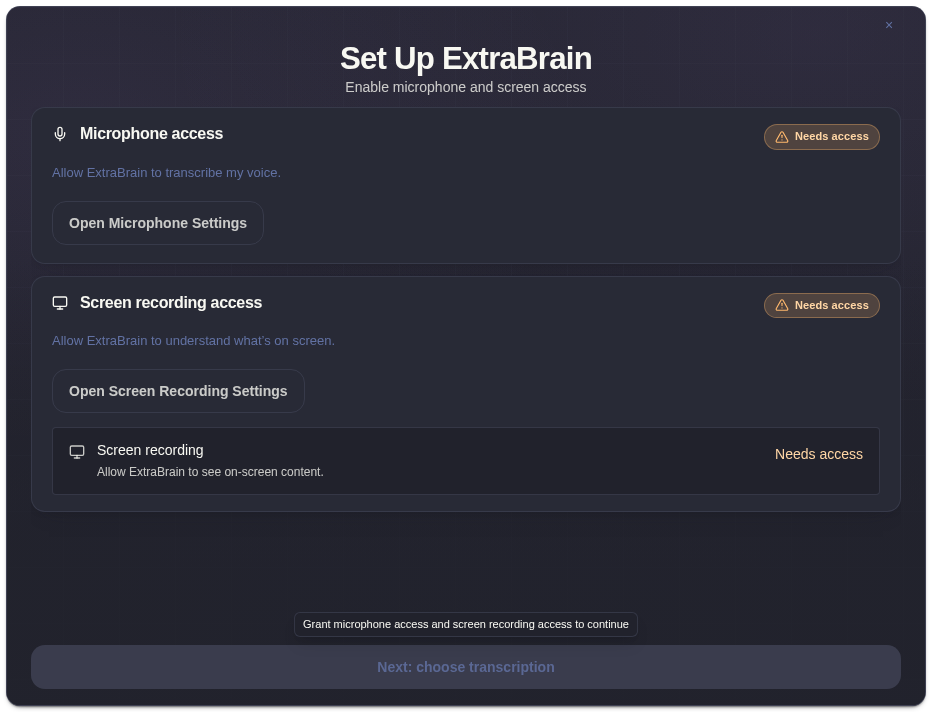
Then open Settings → Audio (audio settings) and select the microphone you chose on the preview tile. Pick a transcription provider while you’re there: local Parakeet on your computer, Apple Speech on compatible Macs, or Deepgram in the cloud with your own API key.
Then choose a profile, from Settings → Profiles or the profile chip in the main window. The built-in ones include Coding, System Design, Behavioral and HR Screen; Auto switches between them as the conversation changes, while a pinned profile stays put (profiles).
Google’s audio page makes the case for headphones: other participants hear your device’s background audio, and headphones stop it. They also stop the interviewer’s voice from reaching your microphone transcript a second time. If you are stuck with speakers, turn on Reduce speaker audio picked up by the mic under Show advanced audio controls, accept the restart if one is requested, and check the result in a fresh session.
Present a tab or a window, never the meeting tab
Google’s presenting guide is short: click Present now, select A tab, A window or Your entire screen, then click Share.
| Option | What gets shared | Audio | Good for |
|---|---|---|---|
| A tab | One Chrome tab | That tab’s audio, by default | A browser coding pad or a shared doc |
| A window | One app window | Only with Also share system audio | A local editor, slides, a portfolio |
| Your entire screen | Everything on that display | Only with Also share system audio | Only when the interviewer asks for it |
A small habit makes this easier: before the call, drag the meeting tab into its own Chrome window, away from the tabs you might present. The picker then shows the coding pad and the meeting as clearly separate choices.
Google also recommends sharing “a new window or a specific tab instead of the meeting window”, because presenting the tab that’s running Meet creates a mirror effect. On a Mac, select Allow when Chrome asks for permission; if you missed that dialog, turn Chrome on in System Settings. And if the interviewer wants your entire screen, give them your entire screen. Picking a tab keeps a personal inbox out of view, but it doesn’t change what the interview allows.
For questions about the problem on screen, use Capture Region Screenshot in ExtraBrain and select only the prompt. The image can go to the AI provider you selected, so leaving the rest of the screen out is the safer habit (screenshot settings).
Silence your other tabs and your computer
The interruptions to plan for come from everything else open in the browser: a mail tab, a chat tab, a calendar reminder. Close what you don’t need, then silence the whole computer. Mac users can switch on the Do Not Disturb Focus in Control Center or Option-click the menu bar clock (Apple), and recent macOS versions add a notification setting for screen sharing, Show Notifications: when mirroring or sharing the display, which you can set to Notifications Off (Apple). Windows 11 users can click the zZ bell in the notification center (Microsoft).
Leave Also share system audio off unless you have a clip to play.
Before you click Join now
- Close everything you don’t need, and open the tab or window you’ll present.
- Turn on Do Not Disturb.
- Open the invite in Chrome and test the microphone and speakers on the preview tile.
- In Settings → Audio, confirm the same microphone and a ready transcription provider. Under Settings → Personalization, check that your resume is a Ready reference document.
- Start a session with Start, speak, then play a short video in another tab, and make sure the transcript picks up both (session guide).
- Click Join now.
If Meet or the transcript misbehaves
| Symptom | Likely cause | Fix |
|---|---|---|
| Meet can’t find your mic | Chrome’s site permission is blocked | View site information, then Microphone |
| No mic or speaker controls at all | You joined in Companion mode | Leave and rejoin |
| The interviewer hears an echo | Your speakers feed your mic | Headphones |
| The share shows a tunnel of windows | You presented the meeting tab or whole screen | Present a specific tab or a new window |
| Nothing to share on a Mac | Chrome lacks Screen & System Audio Recording | Turn Chrome on in System Settings, then reopen it |
| The interviewer is missing from the transcript | No system audio permission, or computer audio is muted | Check Privacy & Security and the computer audio control |
The troubleshooting page covers transcription and provider errors, starting from the status the app shows.
FAQ
Should I present a tab or a window?
A tab, if the work happens in the browser. It’s the narrowest share, and Chrome includes that tab’s sound by default. Use a window for a desktop editor.
Do I need a browser extension?
No. ExtraBrain is a desktop app for Mac and Windows that transcribes your microphone and computer audio, including a call running in the browser.
Can I play a video clip during the interview?
Yes. Present the tab that plays it, since a Chrome tab shares its audio by default, or turn on Also share system audio when presenting a window.
Will the interviewer see ExtraBrain when I present?
That’s a question about the rules before it’s a technical one. Where AI help is allowed, it’s fine to say you’re using it; where it isn’t, leave the app closed, and if the interviewer asks for a full-screen share or a proctoring tool, do what they ask. Technically, presenting a tab sends that tab, and Protect overlay from screen capture is no guarantee: the privacy controls page says some apps may still capture the overlay.
Sources (checked November 21, 2026)
- Google Meet Help: Present during a video meeting
- Google Meet Help: Connect your video & audio
- Google Meet Help: Fix audio issues in Google Meet
- Apple Support: Control access to screen and system audio recording on Mac
- Apple Support: Turn a Focus on or off on Mac and Notifications settings on Mac
- Microsoft Support: Notifications and Do Not Disturb in Windows
More setup guides: Microsoft Teams, Zoom, phone interviews, and the Google Meet page.