
Add And Manage Reference Documents
Open Settings → Personalization → Reference Documents to add material ExtraBrain can search across profiles.
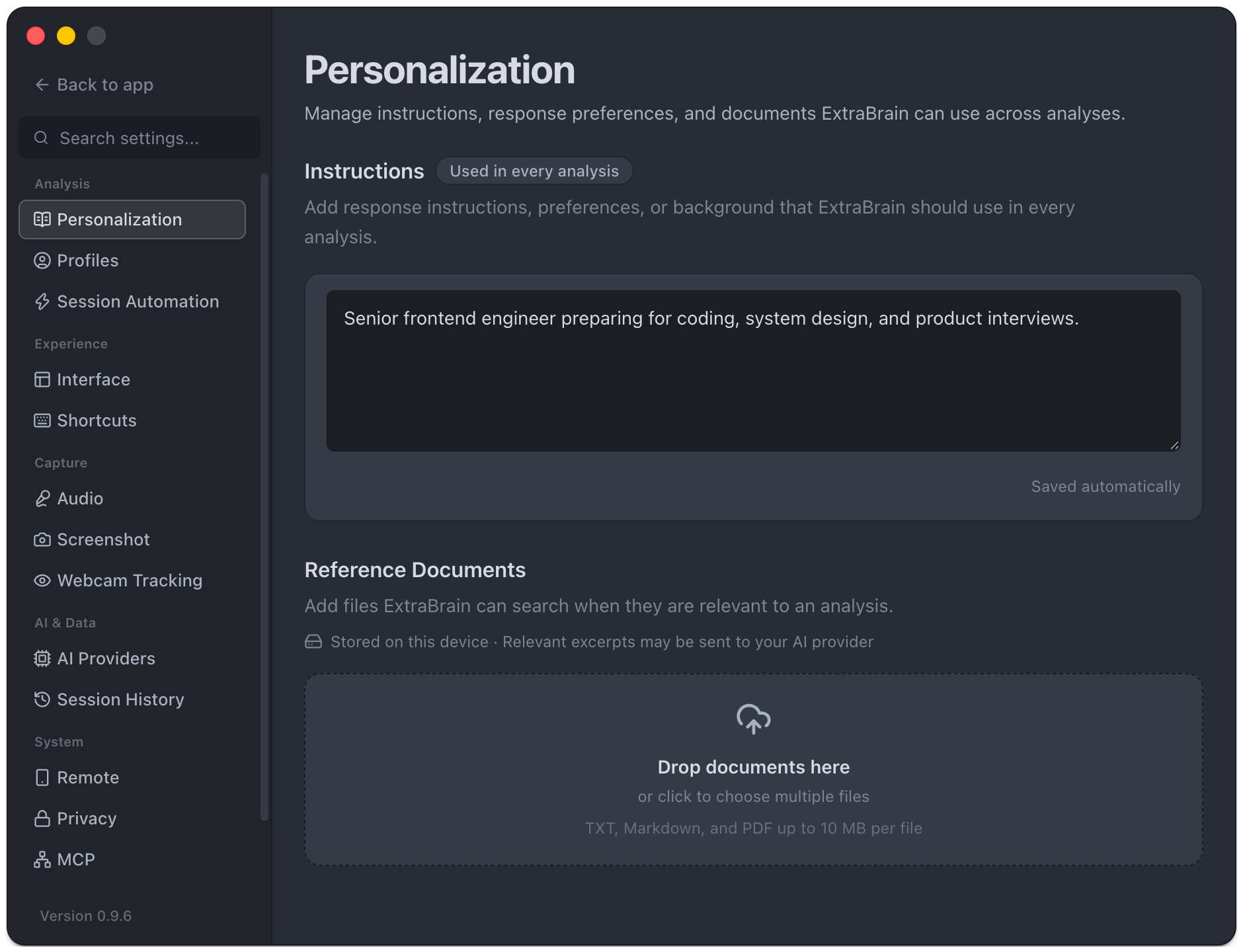
Import Documents
Section titled “Import Documents”- Click Add documents or drop files into the upload area.
- Choose a destination group, or use Ungrouped.
- Select TXT, Markdown, or PDF files up to 10 MB per file.
- Wait for checking, extraction, and indexing to finish.
- Confirm the document is Ready and Use in analysis is enabled.
- Ask a specific question about the imported material.
Audio files are not accepted here. Live audio transcription is a separate feature. Password-protected PDFs and files with no extractable text cannot be indexed; provide a readable text version.
Organize And Update
Section titled “Organize And Update”Use search and filters to find ready, excluded, or failed documents. Document details show the extracted preview, original file information, and index diagnostics.
The document menu offers rename, replace, reindex, retry, reveal in the file manager, enable/disable, and removal. An unsuccessful replacement can leave the previous indexed version in use; read the displayed status before assuming the new file is available.
Groups organize related files. Deleting a group removes its imported files from ExtraBrain after confirmation; your original source files stay unchanged.
Control Context
Section titled “Control Context”Enabled documents are stored and indexed locally. ExtraBrain searches relevant passages rather than attaching every file in full to every analysis. Relevant excerpts may be sent to the selected AI provider. Disabling a document excludes it from future retrieval; removing it deletes its imported copy and index, without rewriting past sessions.
If an answer misses a document, check Ready status, the enable switch, extracted text, and the selected provider’s retrieval/tool capabilities. See data handling for cloud and analytics paths.