
ExtraBrain Blog
Microsoft Teams Setup for Interviews: Window Sharing, Computer Sound and Notifications
Short answer
Join from the Teams desktop app so you can run Make a test call, choose the same microphone in Teams and in ExtraBrain's Audio settings, and wear headphones. When asked to present, share one window rather than your whole screen and leave Include sound off. Set your Teams status and your computer to Do not disturb, then run a short test session before the call.
Set up Microsoft Teams and ExtraBrain before the call: pick audio devices, share one window, silence notifications, run a final check and fix problems.
The invite says Microsoft Teams, and the link opens a page asking whether to continue in the browser or in the Teams app. Both work without a Teams account. Microsoft’s guide to joining without an account lists Edge and Chrome for the browser, and warns that if you skip the emailed passcode, everyone sees “Unverified” next to your name. Before you click either, spend twenty minutes on the setup below.
This guide assumes the interview allows AI assistance, or that you’re running a practice call. If you aren’t sure, ask the recruiter first and read our responsible use page. If the interviewer asks you about it mid-call, here’s how to answer honestly. The Microsoft Teams page has an overview.
Use the desktop app, because the test call lives there
Teams in a browser is fine for joining, but Microsoft’s Make a test call feature is “currently only available in Teams desktop app for Windows and Mac.” A bot records a short message and plays it back, so you hear yourself as the interviewer will, and Microsoft says the recording is deleted right after.
In the desktop app, open Settings and more, then Settings, then Devices, as Microsoft’s device settings guide describes. Pick a specific speaker and microphone, not a default that changes when you plug in a headset. Then run the test call. No playback means the wrong speaker is selected; no voice on the recording means the mic is muted or wrong.
These settings belong to a signed-in Teams app. If you join as a guest, you may not have them, so use the pre-join screen instead: Microsoft’s guest guide suggests joining before the meeting starts to test your setup there.
Give ExtraBrain the same microphone Teams uses
ExtraBrain doesn’t join the call as a participant. It runs on your Mac or Windows PC and transcribes two sources: your microphone for what you say, and computer audio for the interviewer’s voice coming out of Teams. Each needs its own permission. On a Mac, the permissions guide covers Microphone and Screen & System Audio Recording, and Apple’s page on screen and system audio recording shows where the switches are. On Windows, allow the microphone and screen capture access the app requests. The menu names below come from the help center, which is written for the Mac app, so they can differ slightly on Windows.
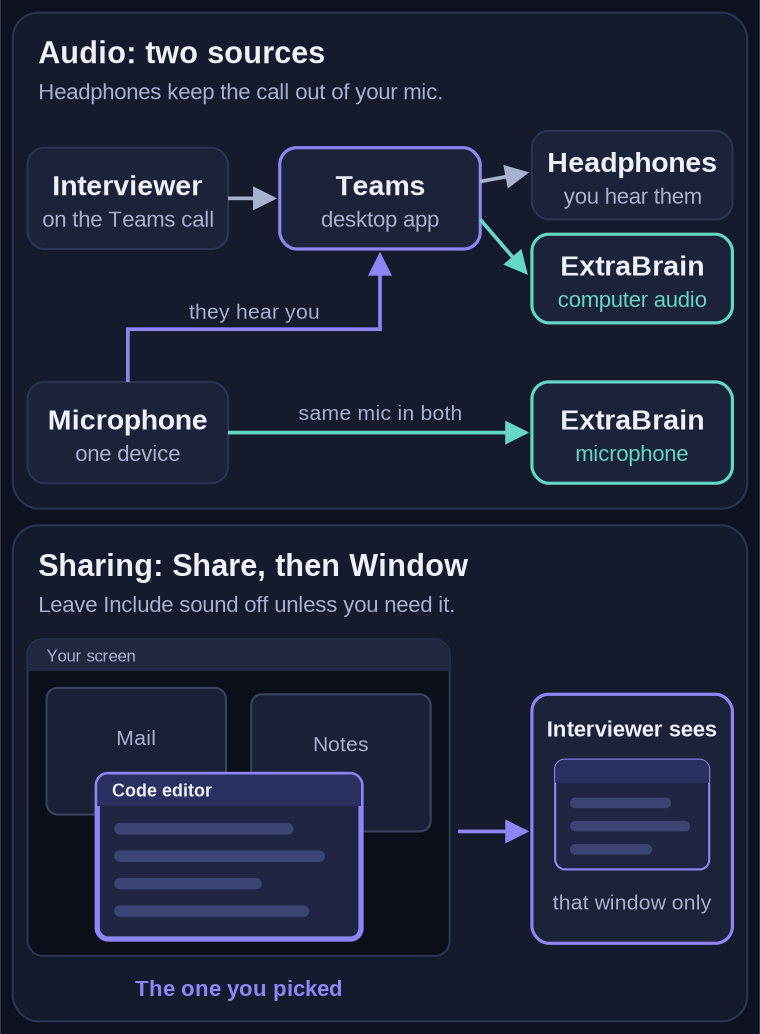
Open Settings → Audio (audio settings) and select the same microphone you chose in Teams. This is also where you pick transcription: local Parakeet runs on your computer with no API key, while Deepgram sends audio to Deepgram’s cloud. Wait until the local model shows ready before an important call.
Wear headphones. On laptop speakers, the interviewer’s voice leaks back into your microphone and can land in the transcript twice. If speakers are your only option, open Show advanced audio controls and turn on Reduce speaker audio picked up by the mic. The stronger reduction setting may also suppress your own voice when you both talk at once, so start with the normal one. If the app asks for a restart after the change, do it and test again in a new session.
Share a window, not your whole screen
When you’re asked to present, select Share in the meeting controls. Microsoft’s presenting guide says you can present your entire screen or a window. For a coding round or a portfolio walkthrough, choose the window you’re talking about: the editor, the slide deck, or the coding pad. The desktop app offers windows rather than browser tabs, so drag the coding pad into a browser window of its own first; otherwise the share shows your whole tab strip.
| Share option | What the interviewer gets | Use it when |
|---|---|---|
| Window | The one window you pick | You’re coding, or showing a document or portfolio |
| Screen | Everything on that display, including any pop-up that appears | The interviewer asks for your whole screen, or you must switch apps |
| Include sound | All computer audio, notifications included | You need to play a clip; leave it off otherwise |
Microsoft’s page on sharing computer sound explains the last row: when you share with sound, “all audio from your computer, including notifications, will be heard by participants.”
If the interviewer asks for your entire screen, share it. Choosing a window is about keeping a personal chat or a stray tab out of view, and an interviewer who wants to see more is entitled to ask.
On a Mac, Teams needs its own permission before it can share. Microsoft says to turn on Microsoft Teams under Screen & System Audio Recording, return to the meeting and select Share again. Teams for the web can share only from Chrome or the latest Edge, and then the browser needs that permission instead. Grant it the day before, not during the first minute of the call.
A Teams share and an ExtraBrain screenshot are separate things. The share goes to the interviewer. A screenshot goes to the AI provider you selected (and to the analytics service, if analytics sharing is on in Settings → Privacy), and only when you capture one or when Take a screenshot before starting analysis is on in Settings → Screenshot, which adds a fresh capture every time analysis starts (screenshot settings). Decide before the call whether you want that.
Turn on Do not disturb in Teams and on your computer
Teams already does part of this. Under Settings and more → Settings → Privacy, the option Set my status to Do not disturb when I’m sharing my screen is on by default, according to Microsoft’s status guide. That covers only the minutes you’re presenting. Before you join, set your status yourself: select your profile picture, then your status, or type /dnd in the search box. To have it reset on its own, choose your profile picture, your current status, then Duration.
Your Teams status silences Teams, not your mail or other chat apps. On a Mac, turn on Do Not Disturb from Control Center, or hold Option and click the date and time in the menu bar (Apple). On recent macOS versions, System Settings → Notifications also lets you set Show Notifications: when mirroring or sharing the display to Notifications Off (Apple). On Windows 11, open the notification center and select the bell marked zZ, which silences notifications until you turn it off (Microsoft).
A checklist for the last fifteen minutes
- Close what the interview doesn’t need and open the window you expect to share.
- Set Teams and your computer to Do not disturb.
- Plug in your headphones, confirm the speaker and microphone under Devices, and run Make a test call.
- Check that Settings → Audio shows the same microphone and a ready transcription provider.
- Add your resume or project notes as reference documents and wait for Ready.
- Click Start to begin a session, say a sentence, play a few seconds of any video, and confirm both appear in the transcript. Watch for “mic stopped” or “system audio stopped” (session guide).
- Join five minutes early. Microsoft suggests the pre-join screen for a last look at your setup.

When something goes wrong
| Symptom | Likely cause | Fix |
|---|---|---|
| The interviewer can’t hear you | Teams is using another mic, or it’s muted | Check the microphone under Devices and the mute state |
| The interviewer’s words are missing from the transcript | No computer audio permission, or that source is muted | Check Privacy & Security, relaunch if asked, unmute the computer audio control |
| The interviewer’s words appear twice | Speaker sound leaking into the mic | Headphones, or Reduce speaker audio picked up by the mic |
| Share does nothing on a Mac | Teams lacks screen recording permission | Turn it on, return to the meeting, select Share again |
| The overlay vanished or ignores clicks | Visibility or click-through was toggled | Toggle Window Visibility or Toggle Click-Through; check bindings in Shortcuts |
Muting a source doesn’t end the session, and if a device disconnects, the app can fall back to the default one. For anything else, the troubleshooting page starts from the exact status message you see.
FAQ
Do I need a Teams account to join an interview?
No. Microsoft says you can join from the invite in a browser or the app without one, though the organizer’s policies can require sign-in.
Should I use Teams in the browser or the desktop app?
The desktop app, if you can sign in. Both play the interviewer’s voice as computer audio, but only the desktop app has Make a test call.
Will the interviewer see ExtraBrain when I share?
Start from the rules. If the interview allows AI help, you can say you’re using it when asked; if it doesn’t, don’t run the app. Some interviews also ask for a full-screen share or run proctoring software, and those requests come first. On the technical side, a window share sends the window you pick, and Protect overlay from screen capture under Settings → Privacy only helps: the privacy controls page says some apps may still capture the overlay.
Sources (checked November 21, 2026)
- Microsoft Support: Present content in Microsoft Teams meetings
- Microsoft Support: Share sound from your computer in Teams meetings
- Microsoft Support: Make a test call
- Microsoft Support: Manage your device settings in Microsoft Teams
- Microsoft Support: Change your status in Microsoft Teams
- Microsoft Support: Join a meeting without an account
- Microsoft Support: Notifications and Do Not Disturb in Windows
- Apple Support: Turn a Focus on or off on Mac, Notifications settings on Mac and screen and system audio recording access
Setting up a different call? See the guides for Google Meet, Zoom and phone interviews.