
Start Recording And Run Analysis
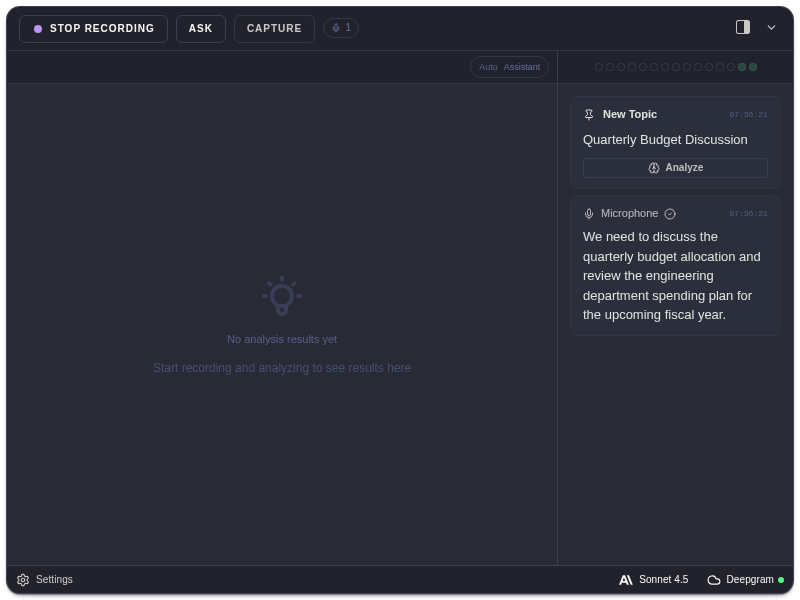
The main ExtraBrain window is built around recording, transcript context, screenshots, and analysis.
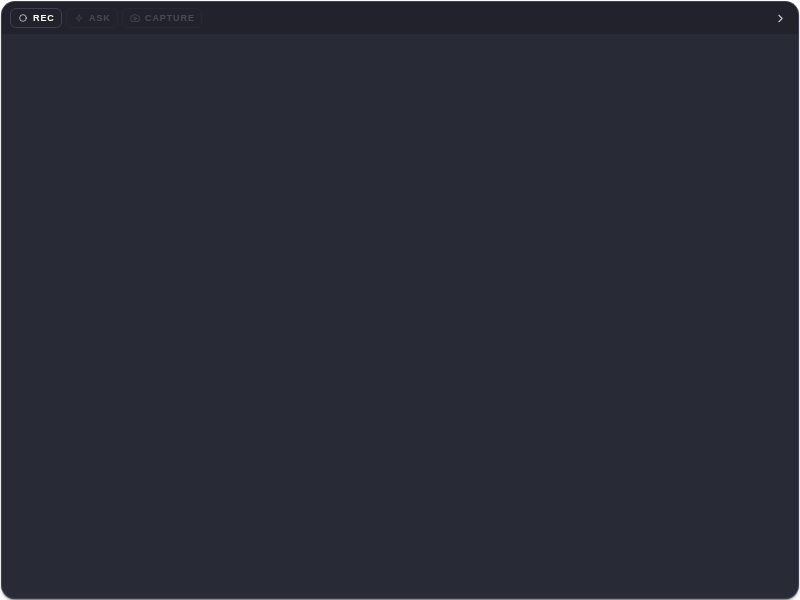
Main Controls
Section titled “Main Controls”| Control | What It Does |
|---|---|
| Start Recording | Starts a live session and begins capturing enabled audio sources. |
| Stop | Ends the active session. |
| Ask | Sends the current context to the selected AI provider for analysis. |
| Capture | Adds a screenshot to the active session. |
| Expand or collapse | Toggles between compact and expanded window layouts. |
Basic Workflow
Section titled “Basic Workflow”- Open ExtraBrain before the call starts.
- Click Start Recording.
- Wait for transcript entries or detected topic cards.
- Click Capture if screen context matters.
- Click Ask to request analysis.
- Use follow-ups or type a custom question.
When Buttons Are Disabled
Section titled “When Buttons Are Disabled”Buttons can be disabled while ExtraBrain is starting, stopping, analyzing, validating provider access, or waiting for required permission and session state. If a button stays disabled, check Troubleshooting.
Before important sessions, review audio settings, screenshot settings, and profiles.
Privacy Reminder
Section titled “Privacy Reminder”When you click Ask with a cloud LLM provider selected, relevant transcript text, screenshot-derived context, prompts, and custom questions may be sent to that provider.
Recording Questions
Section titled “Recording Questions”When should I click Ask?
Section titled “When should I click Ask?”Click Ask after useful transcript context, a detected topic, a detected question, or a screenshot is available. You can also ask with minimal context for a quick prompt.
What happens when I stop recording?
Section titled “What happens when I stop recording?”ExtraBrain ends the active session. Local session history can keep transcripts, analyses, screenshots, facts, and entries unless you delete that session later.