
ExtraBrain Blog
Zoom Setup for Interviews: Window Sharing, Call Audio and Notifications
Short answer
Use the Zoom desktop app and test your speaker and microphone under Settings, then in a test meeting at zoom.us/test. Choose the same microphone in ExtraBrain's Audio settings and wear headphones. When asked to share, click Share and pick one application window on the Screens tab, with Share sound unchecked. Turn on your computer's Do Not Disturb and run a short test session first.
Set up Zoom and ExtraBrain before the call: test your speaker and mic, share one app window, silence notifications, run a final check and fix problems.
Zoom asks you to make several choices in a hurry. Join with computer audio? Which speaker? Then, halfway through the interview, a share picker opens with a thumbnail of every window you have open, and you have a few seconds to pick the right one. Make those choices the day before, with nobody watching, and the interview itself gets much calmer.
This guide covers setup only. For how to use AI during the conversation without sounding scripted, read using a Zoom interview AI assistant without losing your voice. It assumes the interview allows AI assistance or that you’re practicing; if you’re not sure, ask the recruiter, and see our responsible use page.
Test your audio in Zoom, then in a test meeting
Zoom’s guide to testing your audio settings starts in the desktop app: click your profile picture in the top-right corner, then Settings, then the Audio tab. Test speaker plays a tone through the selected speaker, and Test microphone checks your mic. Pick specific devices here, so plugging in a headset just before the call doesn’t change them behind your back.
Next, open the Zoom test meeting at zoom.us/test. Zoom describes it as a way to check your internet connection and adjust audio and video before a real meeting. When you join any meeting, Test speaker and microphone runs the same check, and No, Try Another Speaker cycles devices if you don’t hear the ringtone. During a call, the arrow next to Mute switches devices.
Point ExtraBrain at the same microphone
ExtraBrain runs on your Mac or Windows PC instead of joining the meeting as a participant, and it transcribes two sources: your microphone and the computer audio coming out of Zoom. On a Mac, both need permission under Privacy & Security (the permissions guide lists them, and Apple’s screen and system audio recording page shows the switches). On Windows, allow the access the app requests, and expect menu names to differ a little from the Mac-based help center.
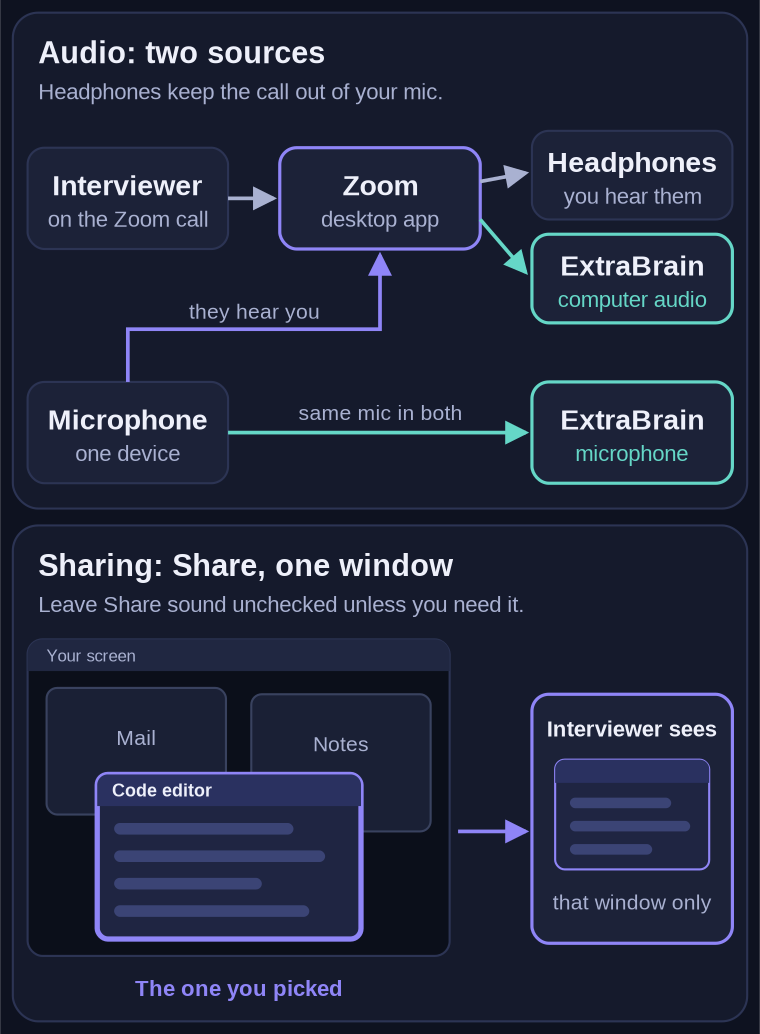
In Settings → Audio (audio settings), choose the microphone you picked in Zoom and a transcription provider that shows ready. Then put headphones on. With speakers, the interviewer’s voice gets back into your mic and is transcribed twice. If you can’t avoid speakers, the fallback is Reduce speaker audio picked up by the mic under Show advanced audio controls; restart if the app asks, then run a new test session.
Mic volume has its own switches on each side. Zoom’s audio settings include Automatically adjust microphone volume. ExtraBrain’s advanced audio controls include Automatic microphone gain control, and the help page’s advice is to leave it off if your voice fades while computer audio plays.
Share one application window from the Screens tab
Zoom’s article on sharing your screen explains the picker: click Share in the meeting controls, and the Screens tab lets you “share your entire screen or specific application windows.”
| Choice | Where in the picker | What the interviewer gets |
|---|---|---|
| One application window | Screens tab | That window only; the right default for coding or a portfolio |
| Entire screen | Screens tab | Everything on that display; use it when asked |
| Portion of screen | Advanced tab | A region inside a green border you can resize |
| Share sound | Checkbox in the picker | ”any sound played by your computer”, notification chimes included |
Leave Share sound unchecked unless you need to play a clip. Zoom’s computer audio guide adds that you set its volume in the app playing the sound or with the device volume. By default the Zoom window itself isn’t shared; the Show Zoom windows checkbox changes that. When an interviewer asks for the entire screen, switch to it without arguing. One window is the polite default for privacy, not a limit on what they may see.
On a Mac, Zoom needs screen recording permission before the picker works, so grant it in Privacy & Security the day before.
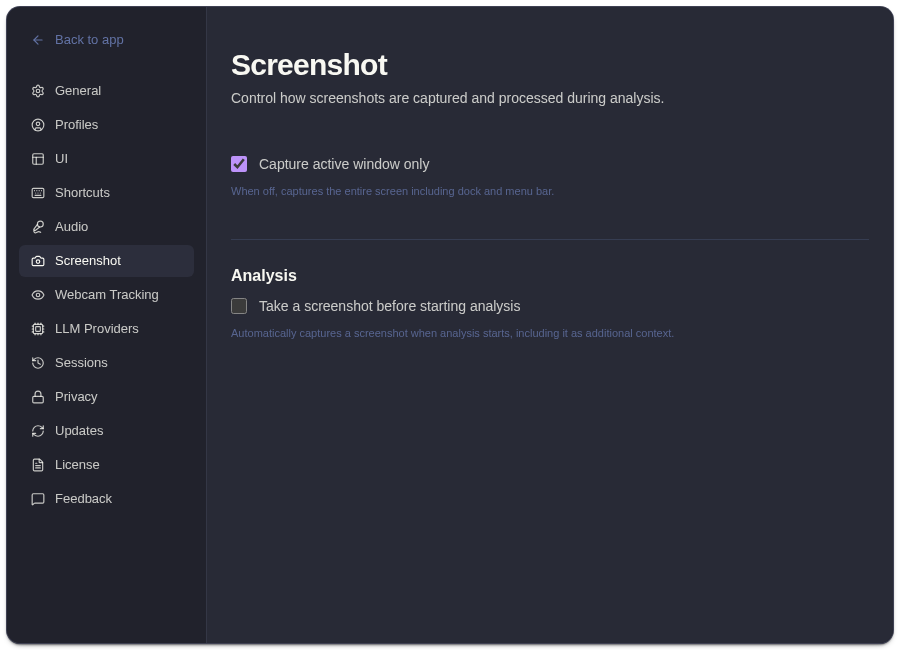
ExtraBrain’s screenshots have the same kind of scope setting. Settings → Screenshot has Capture active window only, and when it’s off a capture includes the whole screen, menu bar and Dock (screenshot settings). Keep it on for interviews; the image can go to the AI provider you selected.
Silence notifications before you share
Silence the operating system, not only your chat apps. Apple’s Focus guide gives two quick ways on a Mac: the Focus control in Control Center, or Option-clicking the date and time. Recent macOS versions also let you pause notifications during screen sharing with Show Notifications: when mirroring or sharing the display (notification settings). On Windows 11 it’s the zZ bell in the notification center (Microsoft). Quit music players and other apps that make sounds of their own.
Before you click Join audio
- Close what you don’t need and open the window you’ll share.
- Turn on Do Not Disturb.
- With headphones on, run Test speaker and Test microphone in Zoom’s Audio settings.
- Confirm the same microphone in Settings → Audio, and check under Settings → Personalization that your resume is a Ready reference document.
- Press Start, talk for a few seconds, play a short clip, and confirm the transcript shows both. Look for warnings like “mic stopped” or “system audio stopped” (session guide).
- Join the interview a few minutes early and choose Join audio.
When the interview ends, click End so recording stops. If you turned on Generate session summary in Session Automation, a recap with key points, decisions and follow-ups appears in Settings → Session History, subject to your plan. It’s a good base for the thank-you email, as long as you check it against what was actually said.
Fixes for common Zoom problems
| Symptom | Likely cause | Fix |
|---|---|---|
| No ringtone during the speaker test | Wrong output device | No, Try Another Speaker, or pick it in Settings → Audio |
| The interviewer can’t hear you | Wrong mic, or you never joined audio | Arrow next to Mute; click Join audio |
| Your voice fades while the interviewer talks | Automatic microphone gain control | Turn it off in the advanced audio controls |
| The picker shows no windows on a Mac | Zoom lacks screen recording permission | Turn Zoom on in Privacy & Security, then reopen it |
| The interviewer is missing from the transcript | No system audio permission, or computer audio is muted | Check the permission and the computer audio control |
| The overlay is gone or won’t take clicks | Visibility or click-through was toggled | Use your shortcuts for window visibility or click-through |
For anything else, start from the status the app shows and follow the troubleshooting page.
FAQ
Can the host see my screen before I share?
Not through Zoom’s screen sharing: Zoom’s article says “meeting hosts cannot monitor your screen activities unless you choose to share your screen.” Proctoring software or a shared coding tool is a separate matter with its own rules.
Can I share my editor and a terminal together?
Yes. Zoom says you can hold Shift on a Mac, or Ctrl on Windows, to select several application windows on the Screens tab. That’s narrower than sharing the whole screen.
Should I join from the browser or the app?
The desktop app. The audio tests above live there, and the share picker described here is the desktop one.
Will the interviewer see ExtraBrain when I share?
Settle the rules first: if AI help is allowed, you can say so when asked, and if it isn’t, don’t run the app. If you’re asked to share everything or install a proctoring tool, do it. Technically, sharing one window sends that window, and Protect overlay from screen capture in Settings → Privacy is a privacy setting rather than a promise; the privacy controls page says some apps may still capture the overlay.
Sources (checked November 21, 2026)
- Zoom Support: Sharing your screen or desktop on Zoom
- Zoom Support: Sharing background music or computer audio on Zoom
- Zoom Support: Testing your audio settings for Zoom meetings
- Zoom Support: Joining a Zoom test meeting
- Apple Support: Control access to screen and system audio recording on Mac, Turn a Focus on or off on Mac and Notifications settings on Mac
- Microsoft Support: Notifications and Do Not Disturb in Windows
More setup guides: Microsoft Teams, Google Meet, phone interviews, and the Zoom page.