
Configure Session Automation
Open Settings → Session Automation to configure behavior before, during, and after a session.
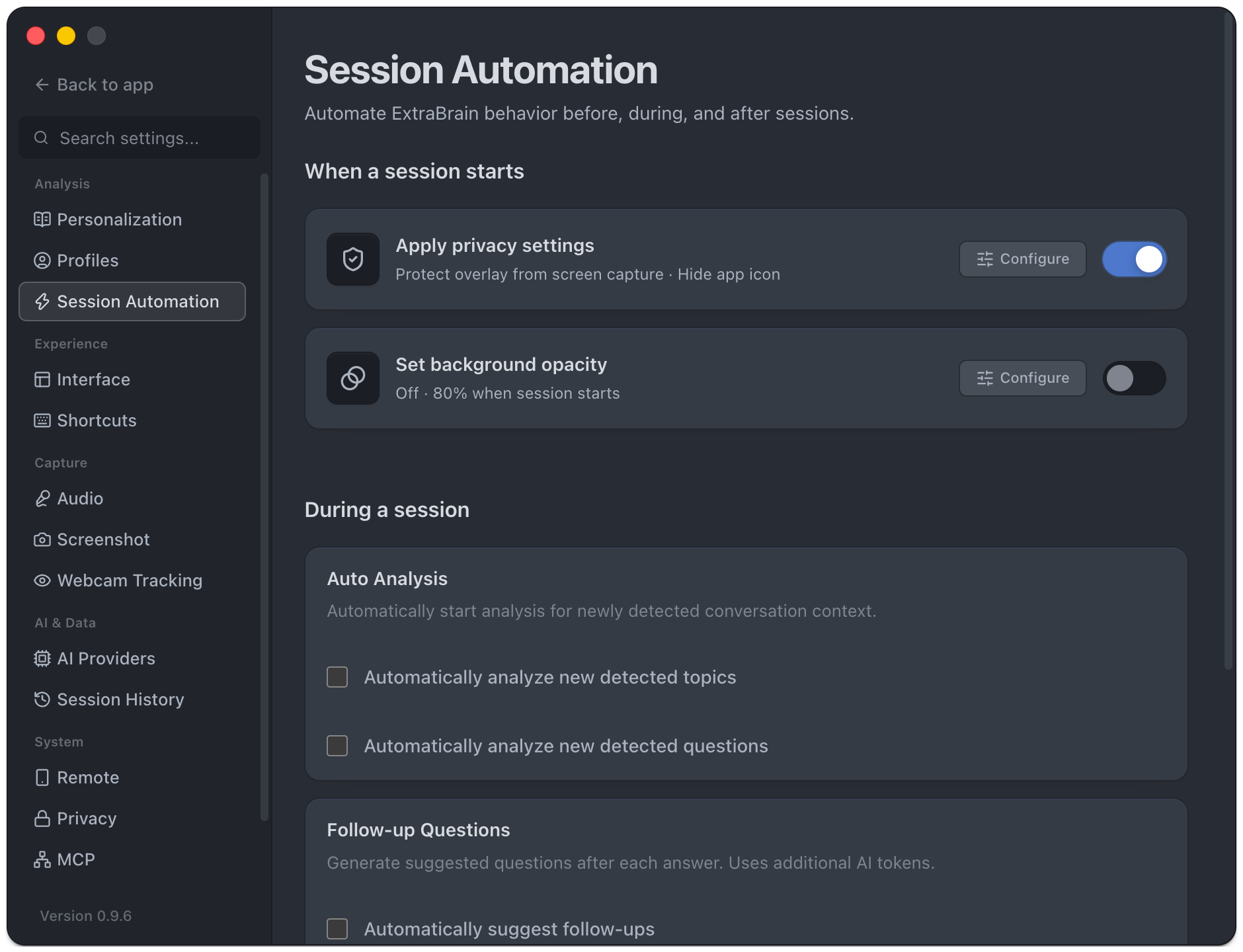
When A Session Starts
Section titled “When A Session Starts”Enable Apply privacy settings and use Configure to choose the protections to apply. Optional click-through can make mouse clicks pass to the app underneath; learn your recovery shortcuts first.
You can also set the main window’s background opacity at session start. Saving an opacity value while its action is off does not enable the action.
During A Session
Section titled “During A Session”- Automatically analyze new detected topics starts analysis for eligible new topic detections.
- Automatically analyze new detected questions starts answers for eligible question detections.
- Automatically suggest follow-ups generates suggestions after answers and uses additional AI tokens.
Automatic topic and question analysis requires Pro. Quick Settings exposes the question option as Answer automatically. Detection and provider readiness still affect when an answer can run.
When A Session Ends
Section titled “When A Session Ends”Enable Generate session summary to request a recap with key points, decisions, and follow-ups, subject to the available plan controls. You can also set background opacity after the session ends.
Check Session History for the generated recap and any error. Turning on an automation does not confirm that it has run successfully. You can generate or regenerate summaries manually.
Test The Automation
Section titled “Test The Automation”Use a short test session, confirm the start behavior, speak a question, and end the session. Automatic AI requests use the selected provider and its tokens or credits. Review data handling before enabling unattended analysis.