Set Up ExtraBrain For The First Time
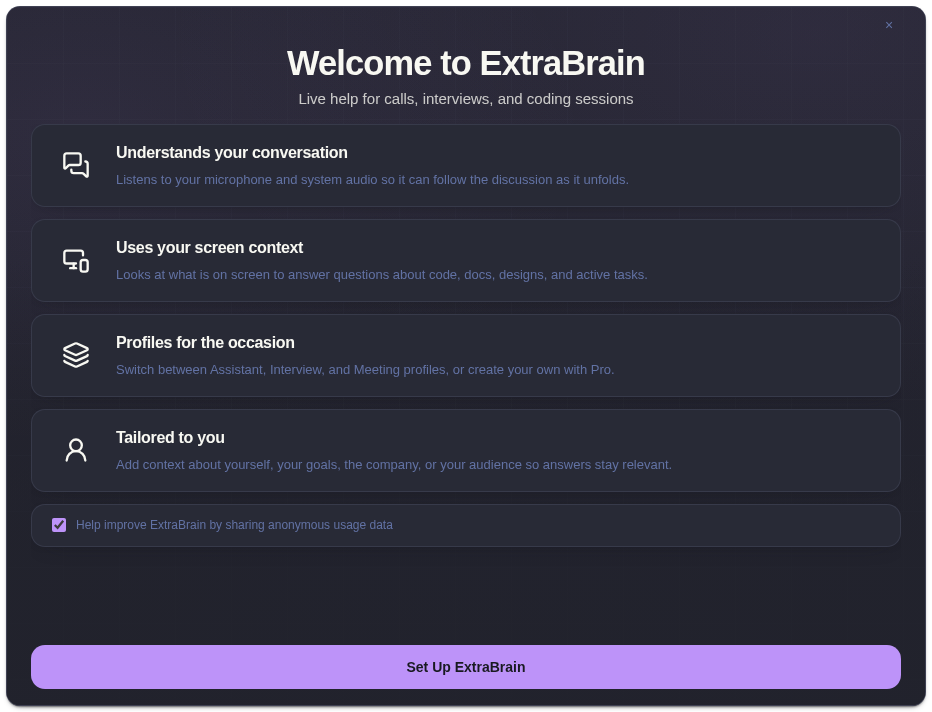
Complete onboarding before relying on ExtraBrain in a live conversation.
1. Grant Capture Permissions
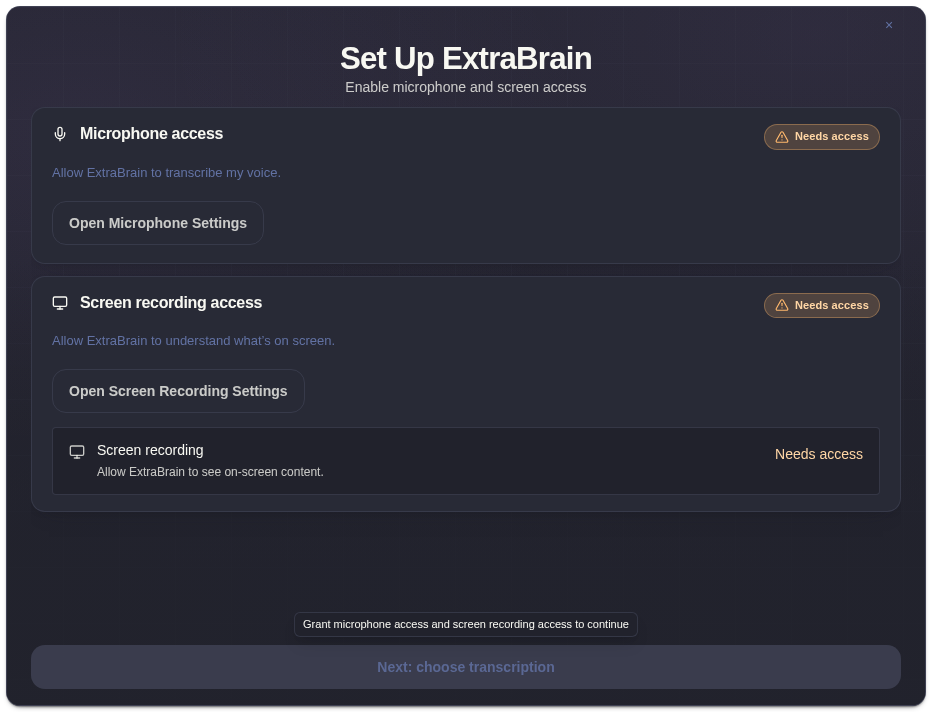
Section titled “1. Grant Capture Permissions”Follow the onboarding permission cards for microphone, screen recording, and computer audio. macOS can require a relaunch after screen access changes. Permission recovery steps explain where to check.
2. Choose Transcription
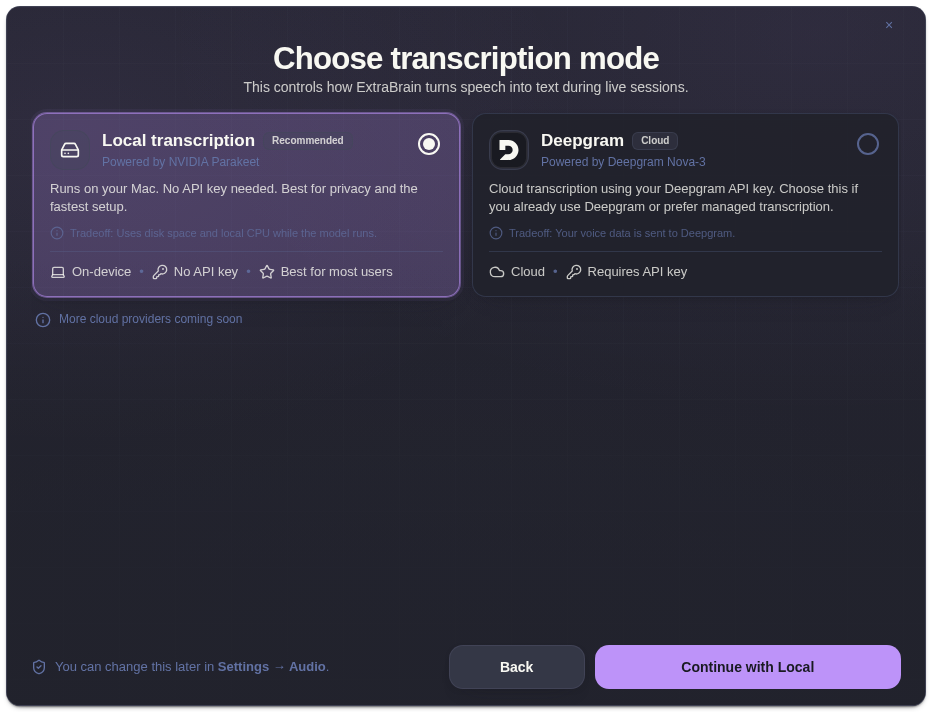
Section titled “2. Choose Transcription”- Local (NVIDIA Parakeet) runs speech-to-text on the Mac without an API key. Allow its model setup to finish.
- On-device (Apple Speech) uses Apple Speech on compatible macOS 26+ systems. Choose a language and install its language asset if requested.
- Cloud (Deepgram) sends audio to Deepgram using your Deepgram API key.
See Choose a transcription provider.
3. Connect AI
Section titled “3. Connect AI”Use built-in ExtraBrain AI or connect your preferred provider, then validate the connection. ExtraBrain AI uses credits included with eligible plans.
For advanced local processing, configure Gemma in Settings after onboarding on a supported Mac.
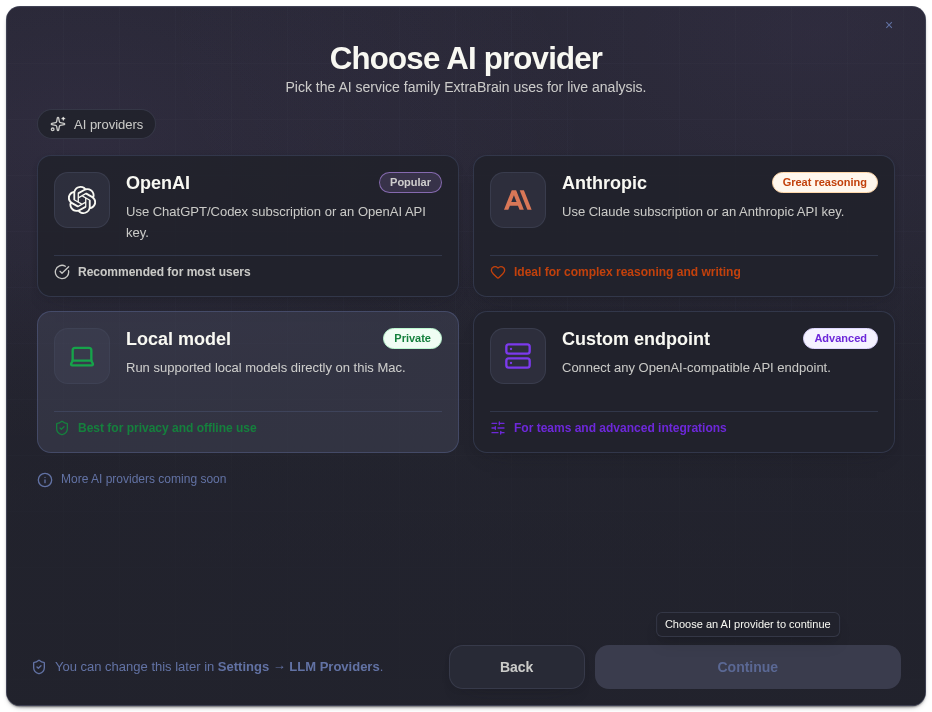
The direct-download app supports local Gemma and external subscription integrations. Those options are unavailable in the Mac App Store build.
4. Run A Short Test
Section titled “4. Run A Short Test”- Ask a typed question to test AI access.
- Click Start Session and say a short sentence.
- Confirm transcription appears and test the computer audio you intend to use.
- Capture a screenshot, then click Ask.
- End the session and open Settings → Session History.
You can change transcription in Settings → Audio, AI connections in AI Providers, and persistent guidance in Personalization. Check privacy controls and shortcuts before a real session.