
Use Screenshots And Screen Context
Screenshots help ExtraBrain understand code, prompts, diagrams, slides, terminals, browser pages, and other visual context.
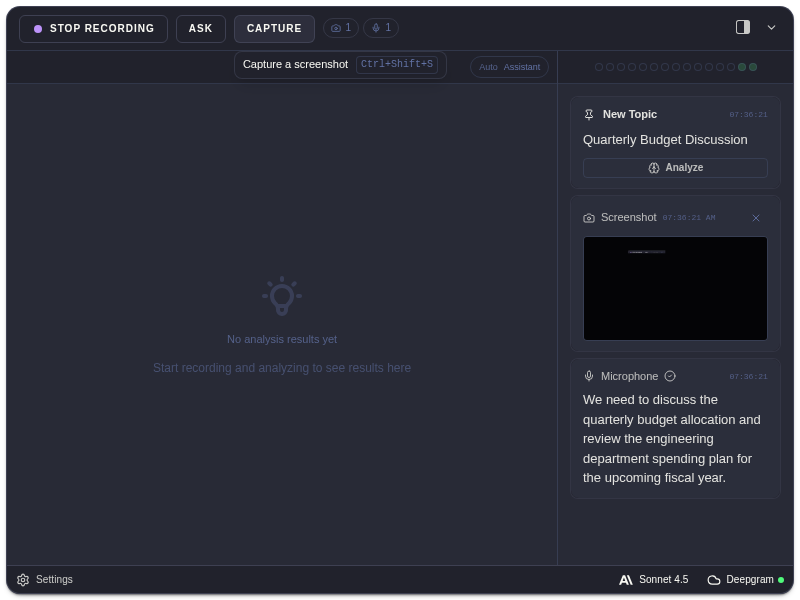
Capture Modes
Section titled “Capture Modes”Open Settings -> Screenshot to choose how screenshots work.
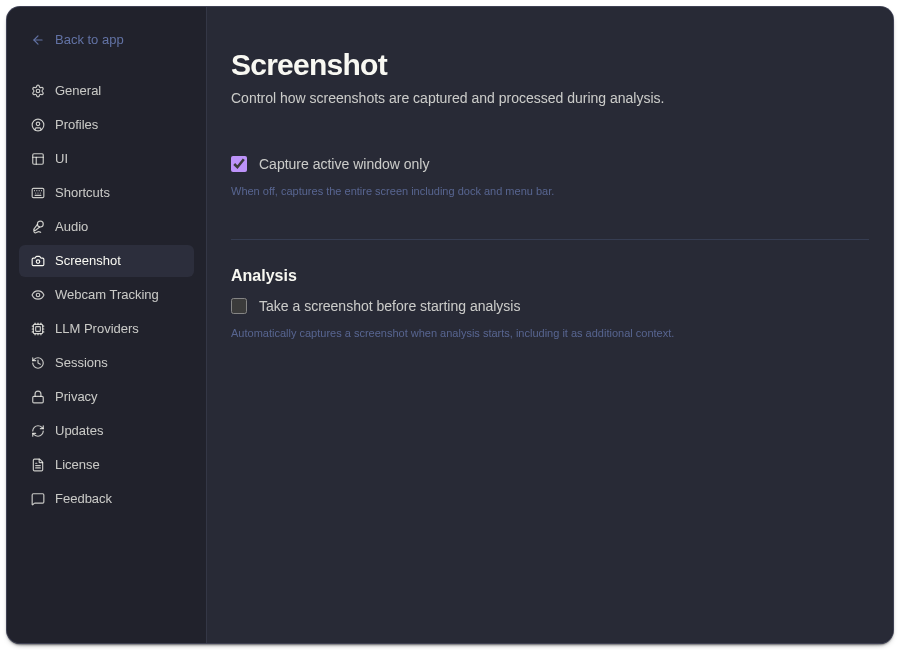
| Setting | Use It When |
|---|---|
| Active window | You want screenshots scoped to the current app window. |
| Full screen | You need broader desktop context. |
| Capture before analysis | You want ExtraBrain to automatically capture a screenshot before running analysis. |
During A Session
Section titled “During A Session”- Start recording.
- Click Capture.
- Confirm the screenshot entry appears in the transcript panel.
- Click Ask to include current context in analysis.
If a screenshot does not appear, confirm the session is active and macOS Screen Recording permission is granted.
Delete Screenshots
Section titled “Delete Screenshots”Use screenshot deletion when you captured the wrong context or do not want a screenshot kept in the local session record.
Data Flow
Section titled “Data Flow”Screenshots are stored locally as session artifacts. When you ask a cloud provider for analysis, screenshot-derived context may be sent to the selected provider.
Related
Section titled “Related”Screenshot Questions
Section titled “Screenshot Questions”Should I use active-window or full-screen capture?
Section titled “Should I use active-window or full-screen capture?”Use active-window capture when you want narrower context from the current app. Use full-screen capture only when the broader desktop view is relevant and acceptable for the session.
Why are screenshots not appearing in analysis?
Section titled “Why are screenshots not appearing in analysis?”Check that recording is active, Screen Recording permission is granted, and a screenshot entry appears in the transcript panel before analysis starts.