
Set Up General Context And Coding Language
Use Settings -> General to give ExtraBrain stable context about you and tune how analysis appears during a live session.
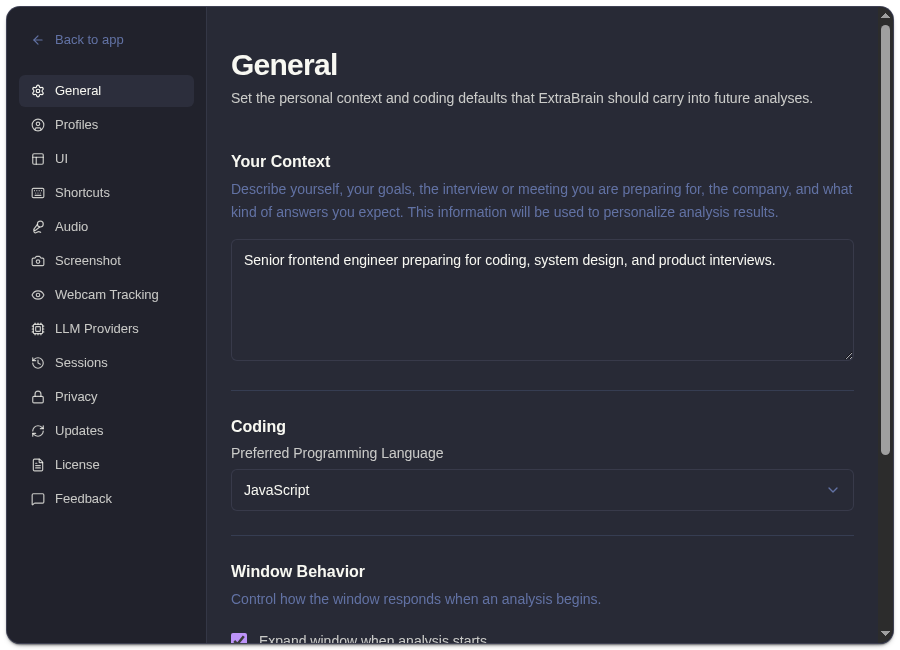
What To Configure
Section titled “What To Configure”| Setting | What It Changes |
|---|---|
| Your Context | Background ExtraBrain can use when generating answers, such as your role, interview goals, or preferred communication style. |
| Preferred language | The programming language ExtraBrain should assume when coding context is ambiguous. |
| Expand window on analysis | Opens the expanded two-panel view when a new analysis starts. |
| Show only latest analysis | Keeps the analysis panel focused on the newest answer instead of stacking older answers. |
Recommended Setup
Section titled “Recommended Setup”- Add concise context that helps answers match your situation.
- Choose the coding language you use most often.
- Keep Expand window on analysis enabled if you want answers to be visible immediately.
- Enable Show only latest analysis when you prefer a quieter live workflow.
- Start a short test recording and ask for analysis to confirm the behavior.
Good context is specific but not overloaded. For example, include your role, target interview type, product area, or speaking preference. Avoid adding secrets, customer data, or details you would not want included in prompts sent to your selected AI provider.
Related
Section titled “Related”- Set up ExtraBrain for the first time
- Use ExtraBrain profiles
- How ExtraBrain handles data
- Start recording and ask for analysis
Common Questions
Section titled “Common Questions”What should I put in Your Context?
Section titled “What should I put in Your Context?”Use short, durable guidance: your role, interview type, preferred coding language, and response style. Do not paste confidential project details.
Does preferred language override screenshots?
Section titled “Does preferred language override screenshots?”No. It helps when context is ambiguous. If a screenshot or transcript clearly shows another language, ExtraBrain can still use that visible context.