
Chat And Use Profile Actions
The chat composer lets you type requests without starting microphone recording. Connect a ready AI provider first.
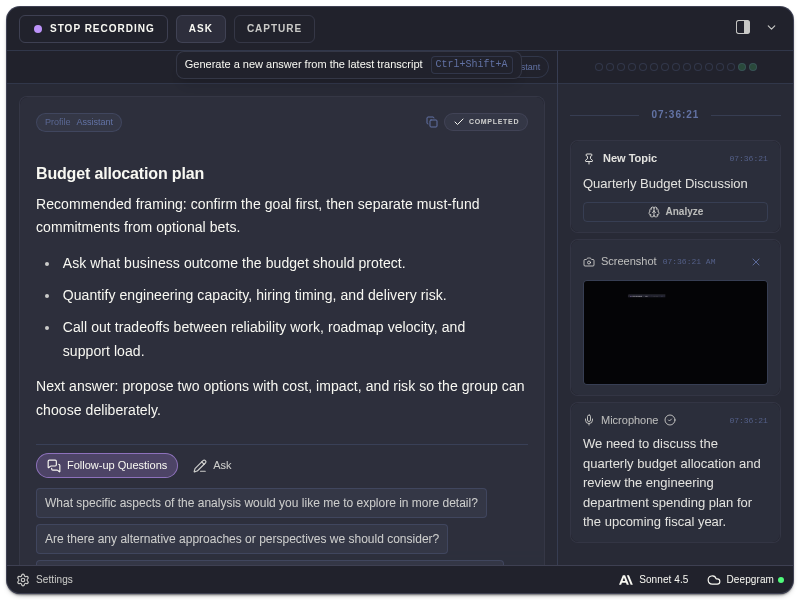
Send A Request
Section titled “Send A Request”- Expand the main window if needed and show the composer.
- Type a specific question or instruction.
- Press Enter to send; use Shift+Enter for a new line.
- Wait for the answer before sending another request.
Use Toggle Chat Composer in Shortcuts if the composer is hidden. An open action menu can use Enter or Tab to run the selected action instead of submitting ordinary text.
Use Session Context And Quote Text
Section titled “Use Session Context And Quote Text”Chat uses the available session context. To focus on an exact passage, select transcript text and use the quote action. Quoting reopens a hidden composer and attaches the selection to your request.
Check the selected session before asking about earlier content. A fresh view and a completed session have different available context; starting audio is not required just to type a question.
Profile Actions
Section titled “Profile Actions”Open the composer action menu to use prompts associated with the current profile. Manage available actions in Settings → Profiles. Built-in actions cannot be edited; custom actions are managed where the profile UI permits them.
These are ExtraBrain prompts. They do not load personal Codex or Claude skill files. For persistent response instructions, use Personalization.
Review And Feedback
Section titled “Review And Feedback”Use response copy controls to move useful text into notes. Where shown, response feedback records whether an answer was useful; the selected feedback state remains visible in its toolbar. Follow-up suggestions can be requested from an answer or enabled in Session Automation.