
Connect External AI Apps With MCP
The direct-download Mac app can expose ExtraBrain tools to an MCP-compatible client. The local MCP server is unavailable in the Mac App Store build.
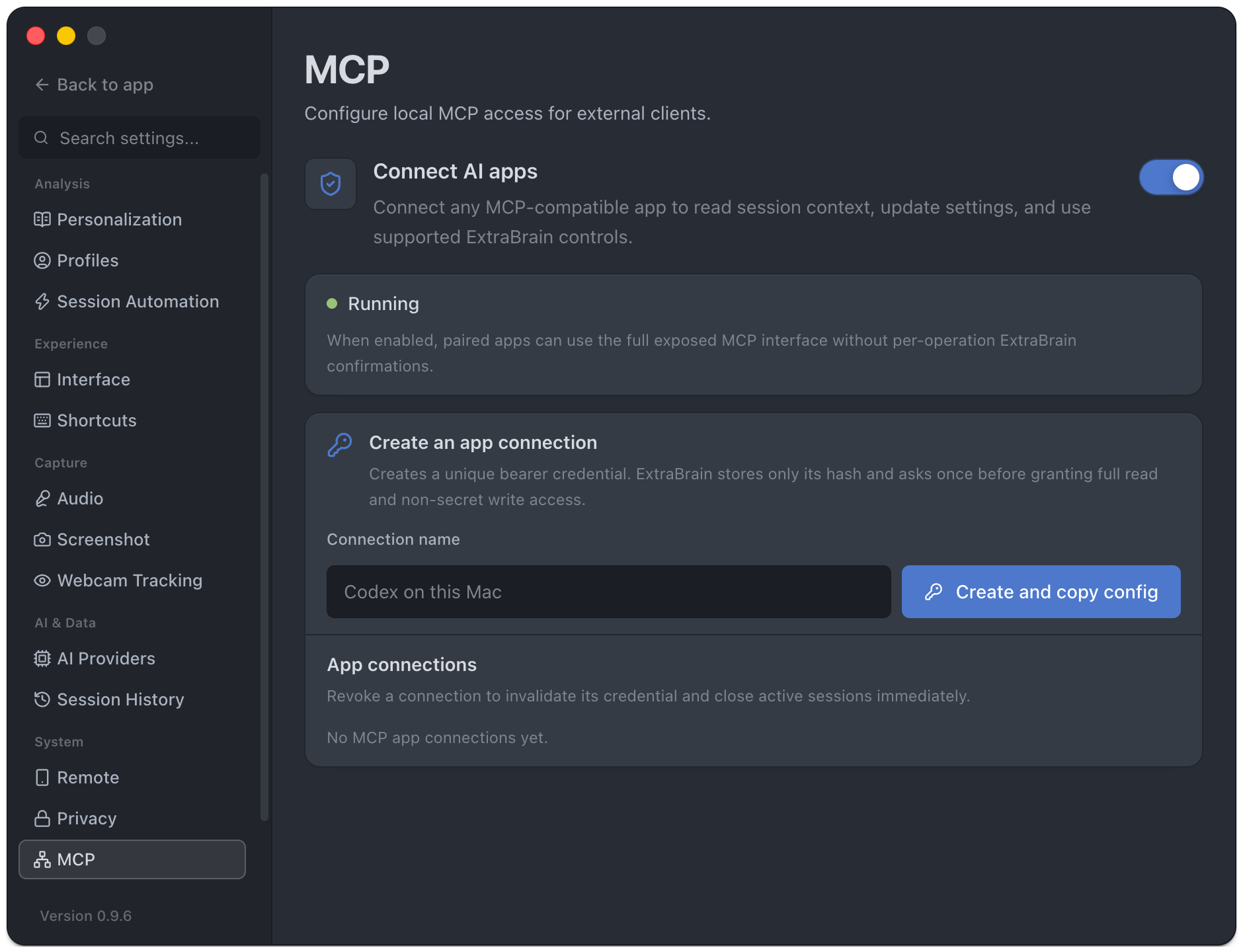
Create A Connection
Section titled “Create A Connection”- Open Settings → MCP.
- Turn on the switch beside Connect AI apps (Allow paired MCP apps) and confirm the server status.
- Enter a recognizable connection name.
- Choose Create and copy config.
- Paste the one-time configuration into your MCP client’s server settings.
- Connect within 15 minutes and approve the pairing request in ExtraBrain.
- Confirm the connection appears as approved.
The configuration contains a connection credential and is revealed once. Keep it private and use a separate connection for each app. Do not paste it into support messages or public examples. Use the server URL supplied by the app rather than guessing a port.
What Approval Allows
Section titled “What Approval Allows”Approved apps can use the full exposed MCP interface for session reads and non-secret writes or supported controls, without per-operation ExtraBrain confirmations. This can include reading context, updating exposed settings, profile/document operations, and controlling supported app actions. Review the tools shown by your client before approving.
API keys, billing/licensing, analytics identity, and MCP security settings are excluded from exposed access. This is broader than read-only help; a client can cause changes through supported tools.
Revoke Access
Section titled “Revoke Access”Open the app connections list and choose Revoke for a connection you no longer trust or use. Revocation invalidates its credential and closes active sessions. Turn off the Connect AI apps switch when you do not want the server enabled.
External MCP connections are separate from the bundled product-help tool ExtraBrain uses internally. See data handling and Phone Control for the separate phone pairing flow.