
Use The Android Phone Controller
Pair your Android phone before using these controls with your Mac. ExtraBrain Mobile is available for Android; iOS is in progress.
Ask A Question
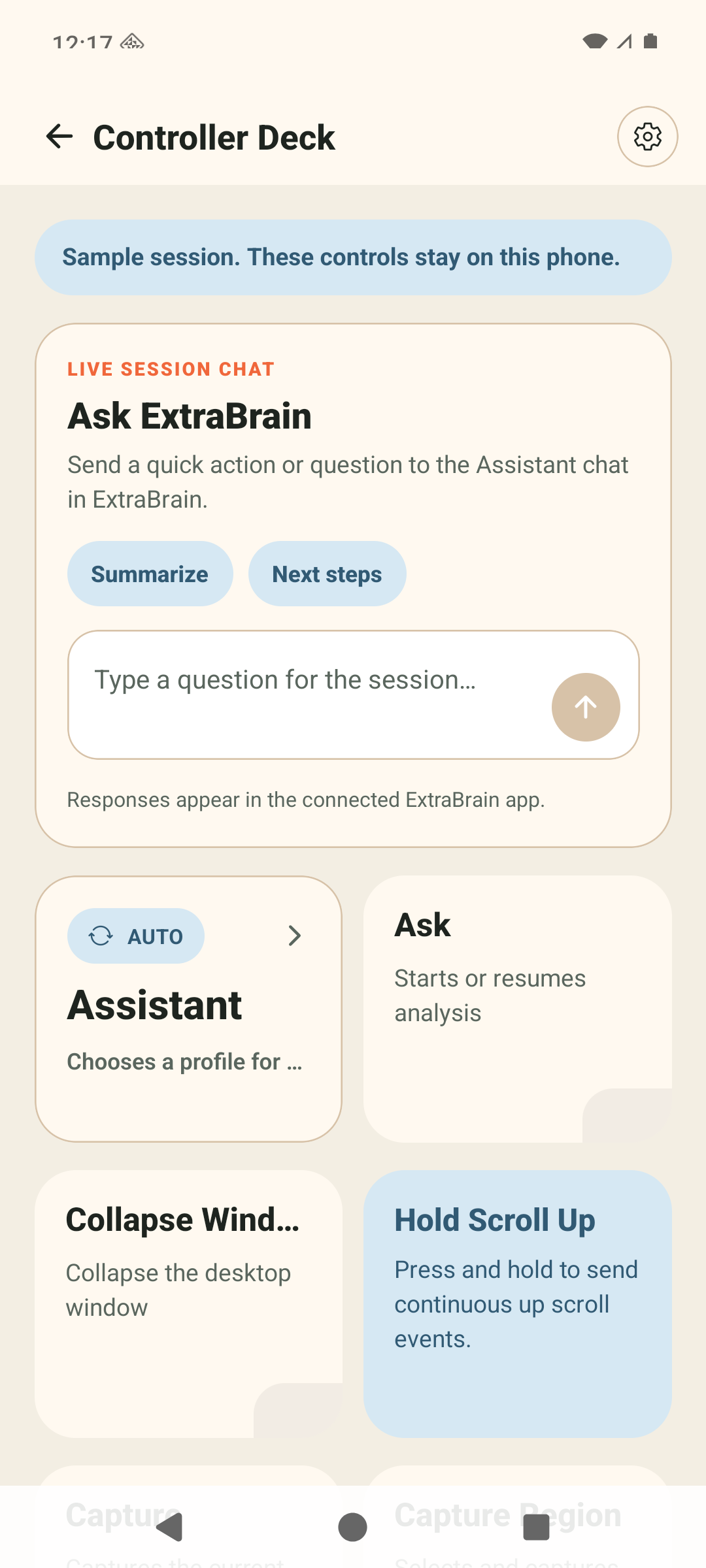
Section titled “Ask A Question”In Ask ExtraBrain, type your question and tap the send arrow. You can also tap an available quick action, such as Summarize or Next steps. Actions depend on the active profile and Mac state.
Responses appear in ExtraBrain on your Mac. The phone does not display the answer, transcript text, or a live desktop preview.
Run Your Session
Section titled “Run Your Session”Scroll through the controller cards to find the action you need. Available actions and labels change with the Mac’s session state.
| Control | What happens on the Mac |
|---|---|
| Session start/end | Starts or ends the desktop session. |
| Ask / cancel analysis | Requests analysis or stops the current response. |
| Profile card | Switches profiles, including Auto when available. |
| Topic, question, and follow-up actions | Requests help with a detected topic, question, or suggested follow-up. |
| Capture | Captures desktop context using your Mac’s screenshot settings. |
| Capture Region | Opens region selection on the Mac; finish selecting the region there. |
The phone’s camera is for pairing. Capture uses the Mac screen, not the phone camera. macOS permissions, AI configuration, and profile settings still determine what the Mac can do. See screenshot settings and connect AI.
Adjust Your Workspace
Section titled “Adjust Your Workspace”Use the window cards to show or hide ExtraBrain, move or resize the window, change opacity, or toggle click-through where supported. Transcript controls show or hide the companion panel. Hold Scroll Up and Hold Scroll Down scroll the desktop answer while pressed.
Open the controller’s settings to arrange your cards so the actions you use most are easy to reach. Keep the Mac visible when reading answers or selecting a capture region.
Return To The Connection Screen
Section titled “Return To The Connection Screen”Use the back arrow to return to the connection screen. If your connection drops or your phone was in the background, check the connection status before sending another command. See reconnection and troubleshooting.