
Run Local AI With Gemma
Gemma runs analysis on your Mac. It is available in supported direct-download builds and is absent from the Mac App Store build.
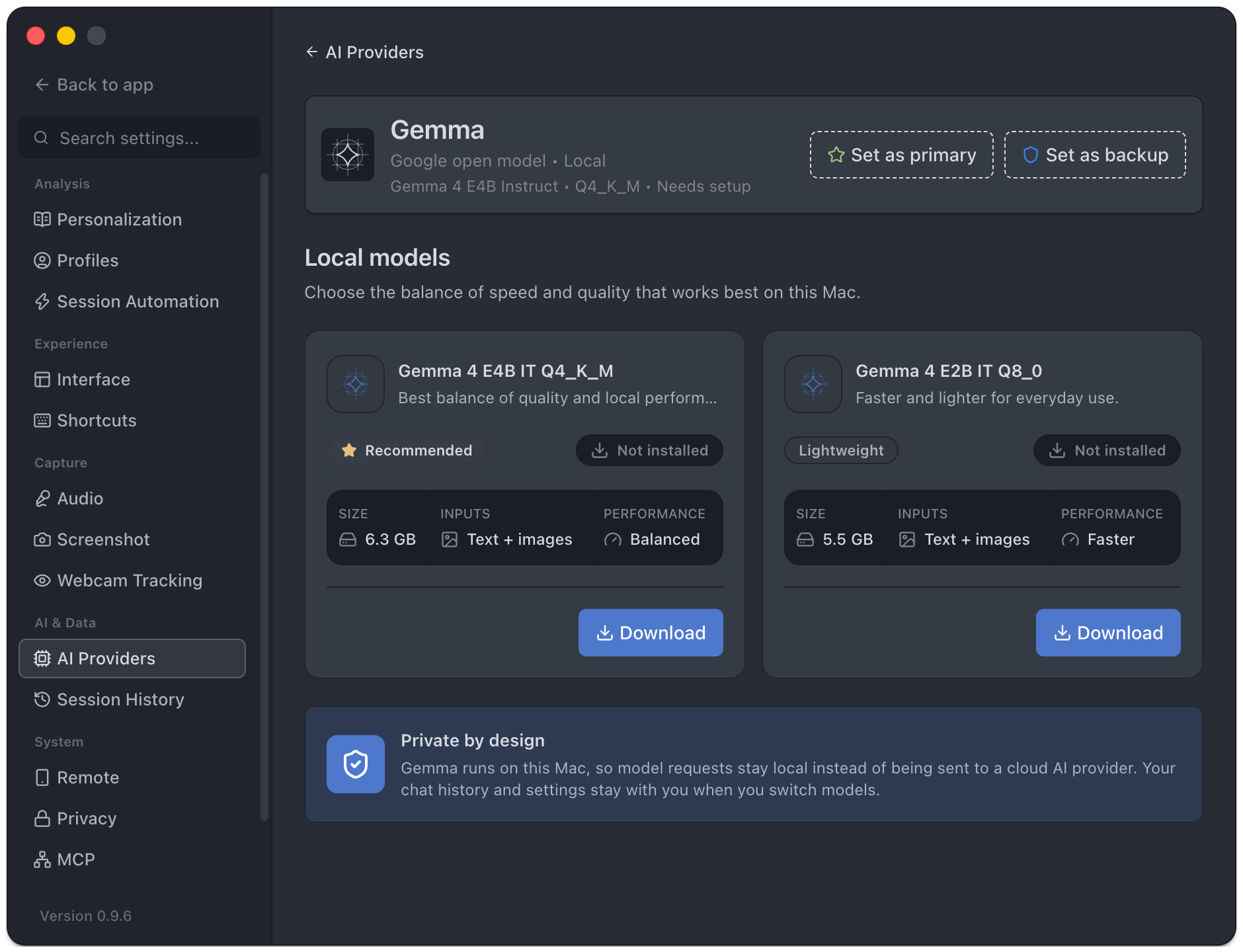
Set Up Gemma
Section titled “Set Up Gemma”- Open Settings → AI Providers and open Gemma.
- Review the local models offered for your Mac and their download sizes.
- Choose Set up Gemma or the model’s download action.
- Wait for download verification and model startup to finish.
- Use Use Gemma or the provider role control to select it for analysis.
- Run a short typed question and screenshot analysis.
The current model manager offers smaller and recommended Gemma 4 variants. Use the compatibility and status shown on your Mac rather than assuming every model fits. Downloads require network access and disk space; local inference uses memory and compute while running.
Understand Status
Section titled “Understand Status”| Status | Next step |
|---|---|
| Downloading / Verifying | Wait for setup to finish. |
| Installed / Stopped | Start the installed model or select it for use. |
| Ready | The local runtime is available. |
| Limited | Read the displayed limitation and test the workflow you need. |
| Error | Use the displayed retry setup, download, or start action. |
| Unsupported | Use another compatible provider or Mac. |
The model manager can download, select, cancel downloads, and delete installed variants when the runtime permits. Your chat history and settings are retained when switching models.
Keep The Workflow Local
Section titled “Keep The Workflow Local”Pair Gemma with local transcription. Review primary/backup roles and automatic failover, and disable analytics content uploads if you want analysis content to remain on the Mac. Local model selection does not itself disable telemetry or other cloud features.
For context-capacity errors, reduce the request or session context, start a fresh session, or choose a provider with sufficient capacity. Retrying the same oversized request may fail again.